Invoice Entry to Tally Is Automated Now
Automate invoice entry in Tally by extracting, reviewing, verifying, and syncing invoice data through Edocsmart.
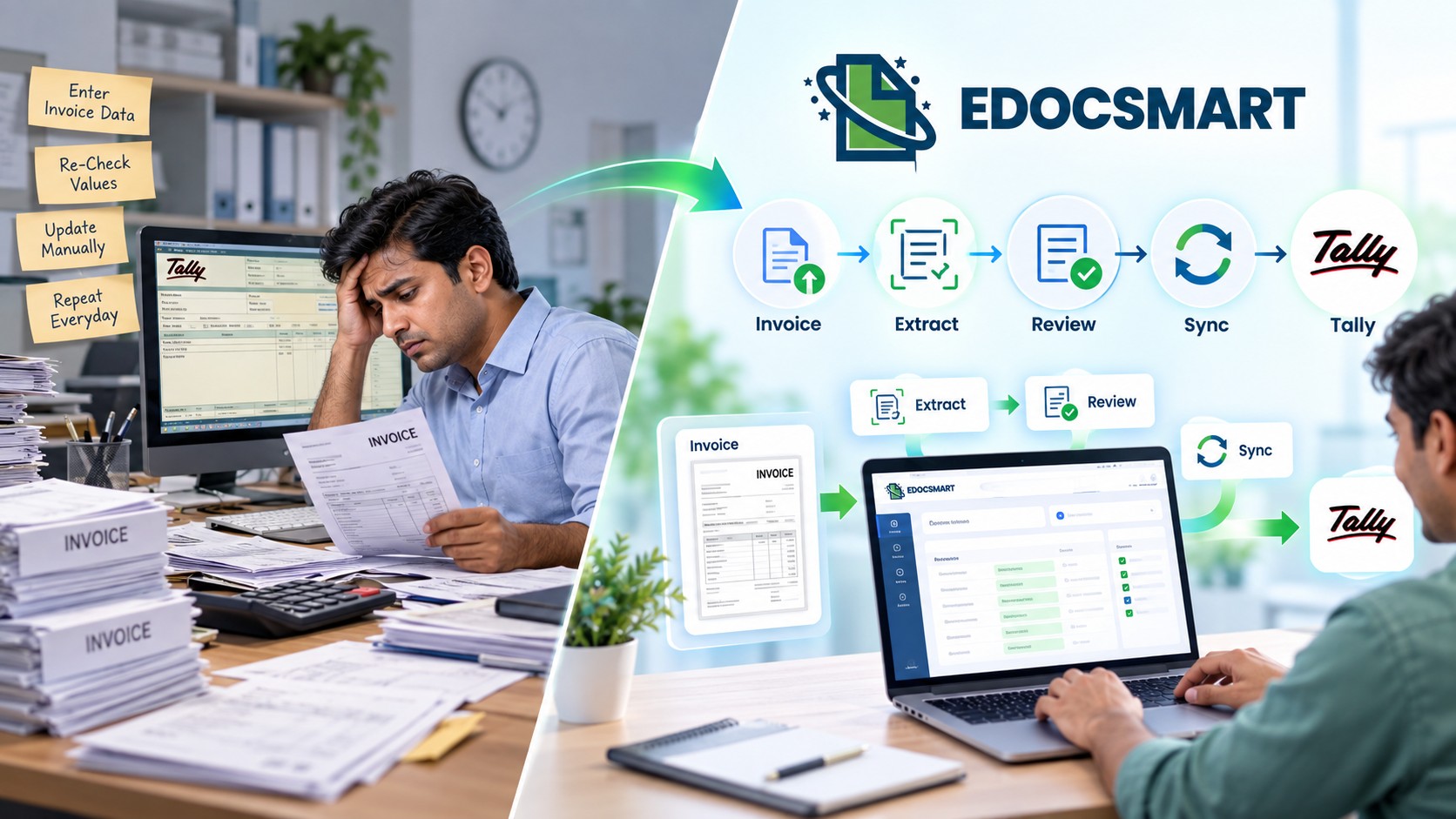
For years, invoice entry in Tally has looked almost the same.
A supplier sends an invoice. Someone opens it, reads the party name, checks the invoice number and date, identifies GST details, enters every item, adds quantities and rates, verifies CGST or SGST, checks the total, and finally creates the voucher in Tally.
Then the next invoice arrives.
And the process starts again.
The accounting software may be digital, but a large part of the work between the invoice and Tally has remained manual.
That is now changing.
With invoice automation for Tally, businesses can use the invoice itself as the starting point. Instead of manually recreating every field inside Tally, invoice information can first be extracted into structured data, reviewed by the user, and then synchronized with Tally.
The new process looks more like this:
Invoice Received → Data Extracted → Review → Verification → Sync to Tally
The important change is simple:
Accountants spend less time typing data and more time reviewing it.
Invoice Entry Is Moving from Typing to Verification
Consider a normal purchase invoice.
It may contain:
- Supplier name
- Invoice number
- Invoice date
- GSTIN
- Address
- HSN/SAC
- Item description
- Quantity
- Unit
- Rate
- Discount
- CGST
- SGST
- IGST
- Taxable value
- Grand total
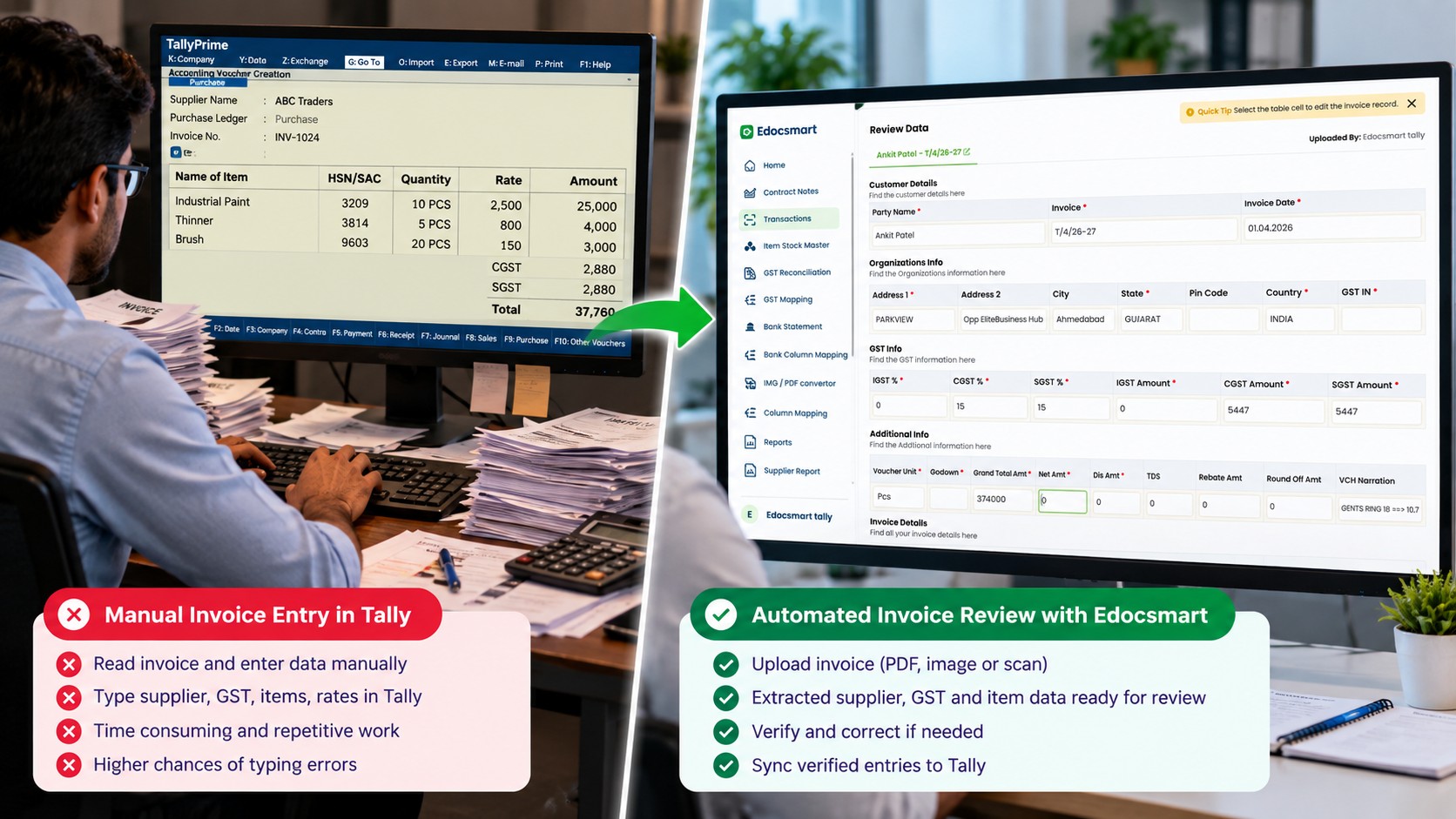
In a traditional workflow, an accountant reads these fields and enters them manually into Tally.
With automatic invoice entry in Tally, the document can first be processed using AI invoice data extraction. Relevant information is identified and placed into structured fields for review.
This changes the accountant's job.
Instead of asking:
“What should I type into Tally?”
the user can focus on:
“Is this extracted information correct?”
That difference becomes especially important when a business processes dozens or hundreds of invoices.
The Invoice Becomes the Beginning of the Accounting Workflow
Earlier, accounting often started inside Tally.
The accountant opened a purchase voucher and referred to the physical or digital invoice while filling every field.
With an AI invoice to Tally workflow, accounting can begin from the source document itself.
Invoices may arrive as:
PDF invoices, scanned bills, JPEG images, mobile photographs, or other supported digital invoice formats.
Instead of treating those documents only as references, an AI invoice scanner for Tally can help turn their contents into structured accounting information.
That is why modern invoice data entry automation
is more useful than simply digitizing a bill.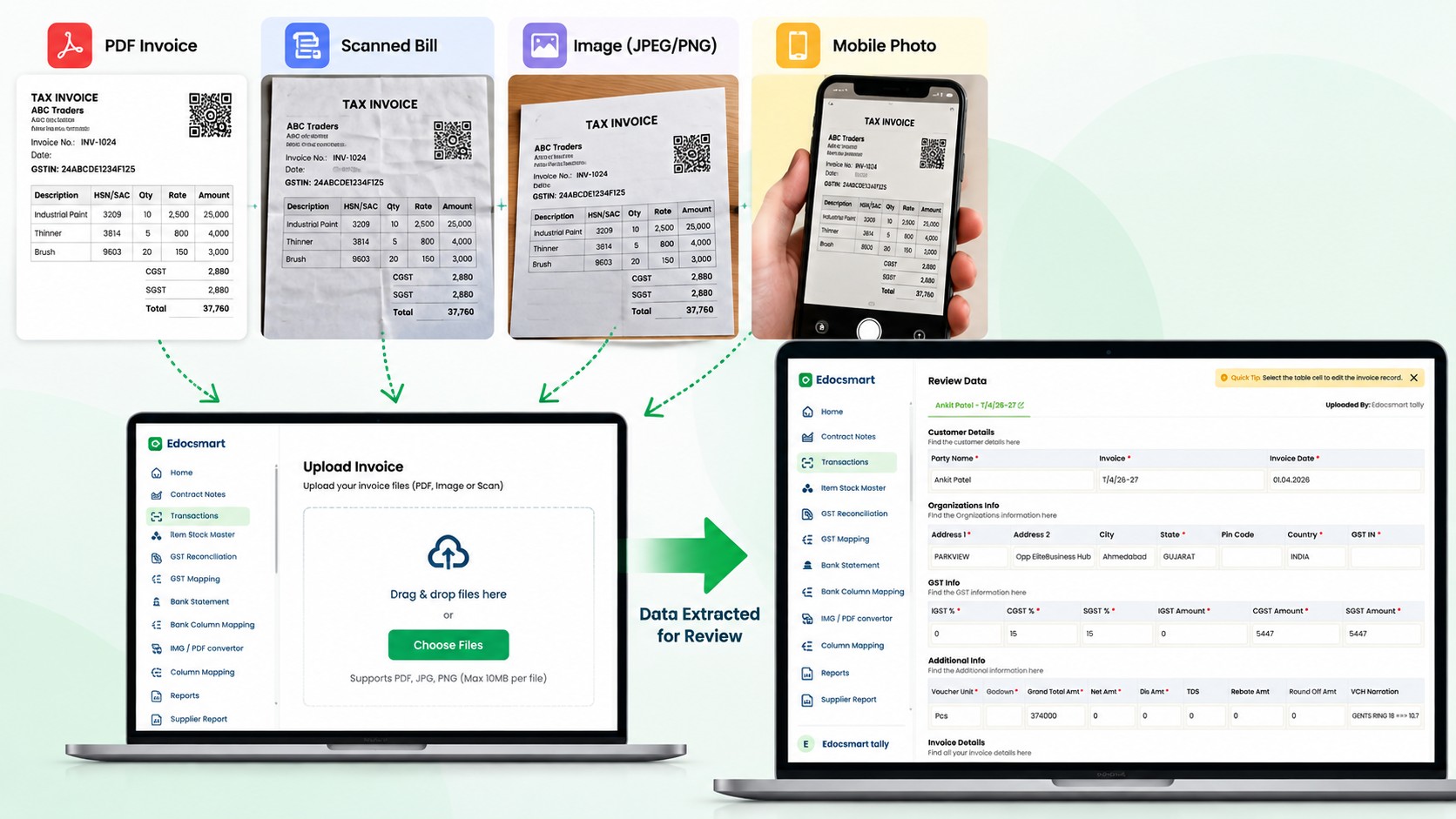
How Automated Invoice Entry to Tally Works with Edocsmart
The workflow still includes human verification. Automation reduces repetitive entry; it does not remove accounting control.
Here is how the process can work with Edocsmart.
Step 1: Login and Open the Purchase Transaction
After logging into Edocsmart, go to:
Transactions → Purchase
This is where purchase invoices can be uploaded and processed.
Depending on the workflow, users may work with PDF invoices, scanned invoices, JPEG/image files, or invoice photographs.
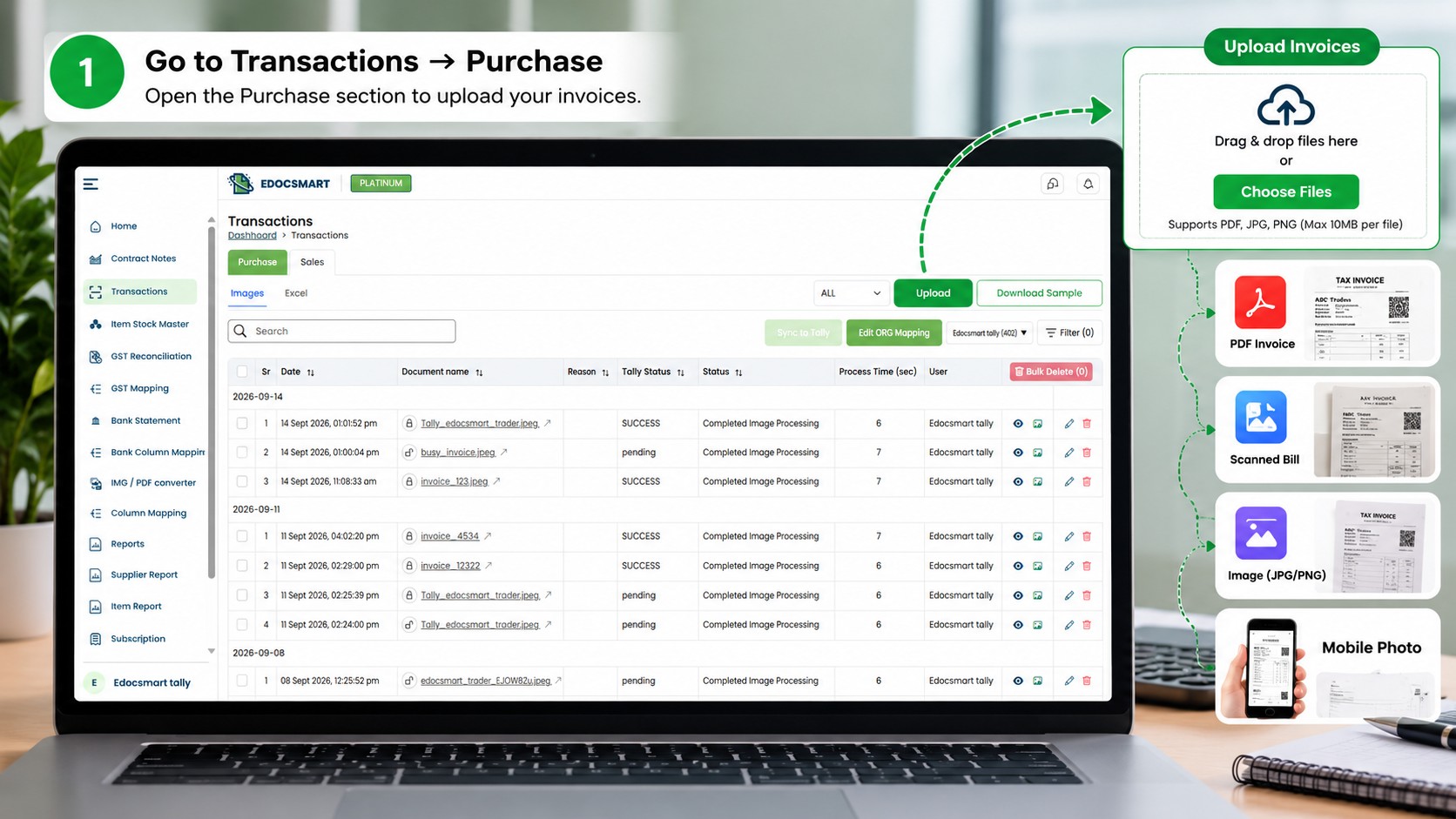
Step 2: Upload the Invoice
Select the invoice you want to process.
For businesses handling many documents, bulk processing can also reduce the need to open and enter each invoice individually.
This makes the workflow useful not only for a single invoice but also for businesses looking for bulk invoice upload to Tally.
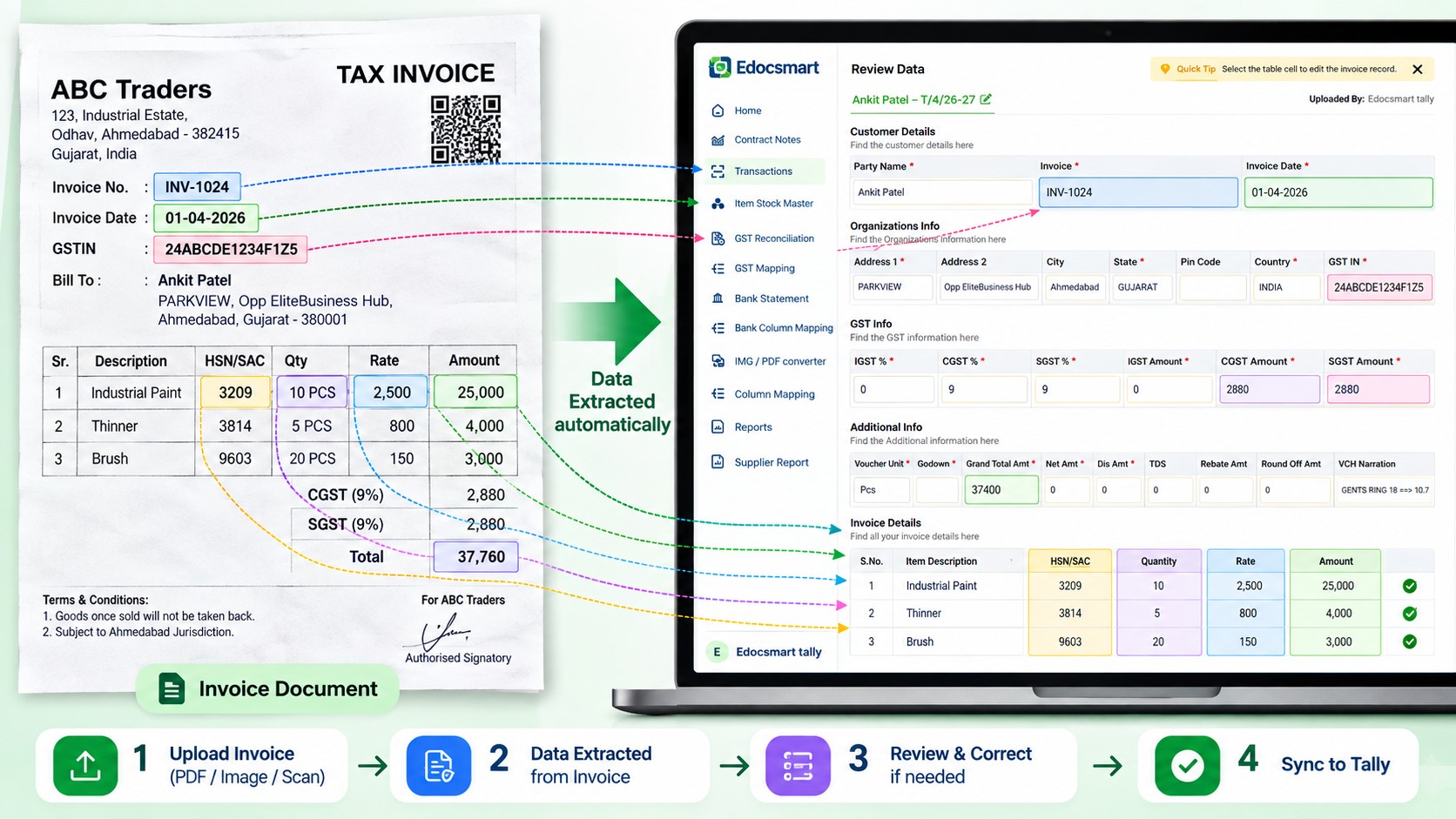
Step 3: Invoice Data Is Extracted
After upload, the invoice is processed and important fields can be identified.
For example:
Supplier: ABC Traders
Invoice No.: INV-1024
GSTIN: 24XXXXXXXXXX
Item: Industrial Paint
HSN: 3209
Qty: 10
Rate: ₹2,500
GST: 18%
Total: ₹29,500
Instead of repeatedly reading these values from the document and manually typing them, the information is presented in a structured form.
This is where AI invoice processing for Tally and OCR-based extraction become useful.
Step 4: Review the Extracted Invoice Data
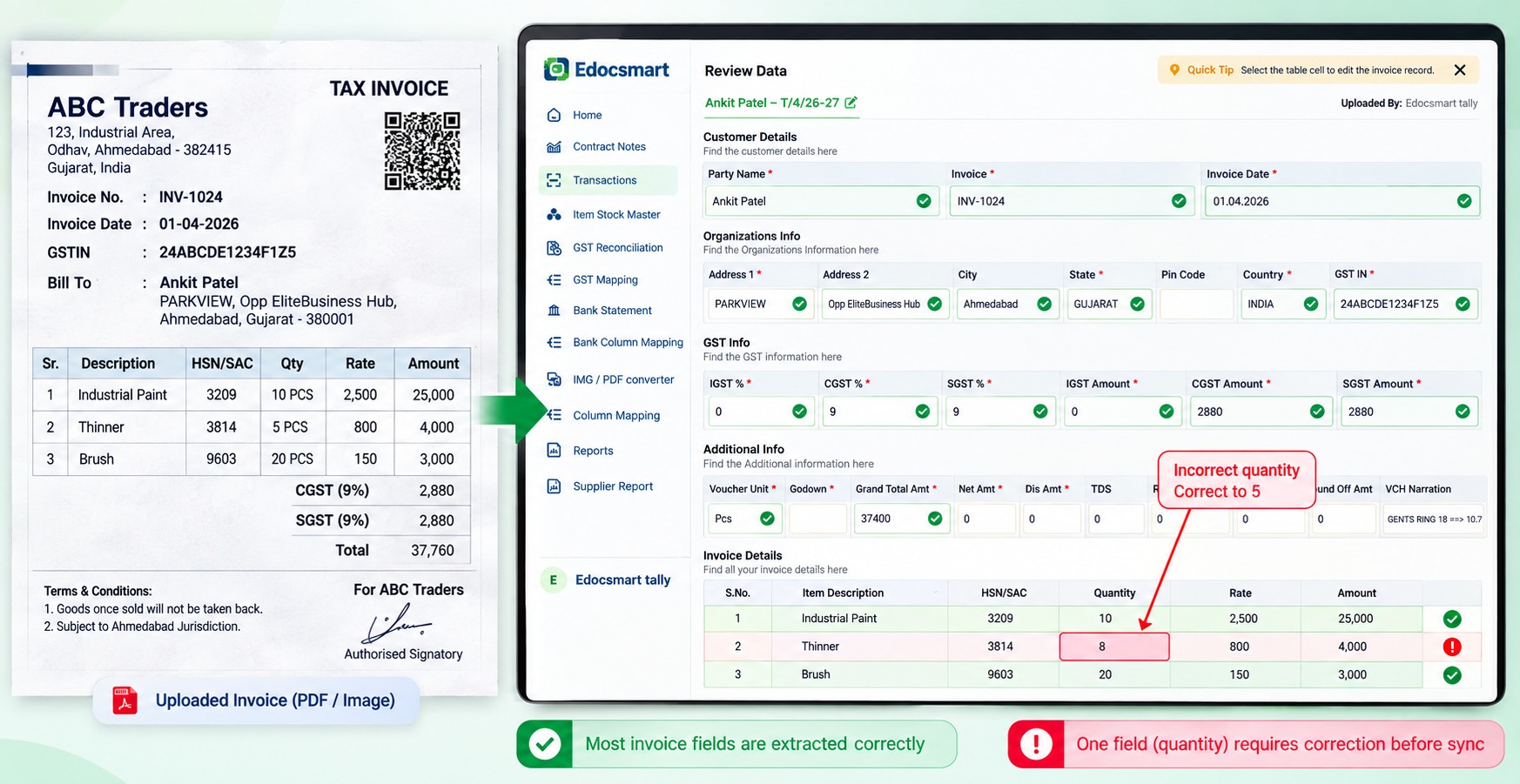
Automation should not mean blindly posting data.
Before the transaction reaches Tally, the user can review important details such as:
- Party or supplier
- Invoice number and date
- GSTIN
- Address
- HSN/SAC
- Items
- Quantities
- Rates
- GST percentages
- Tax values
- Total amount
- Narration
Suppose an invoice contains 20 line items.
If 19 items are extracted correctly and one quantity requires correction, the accountant can focus on that exception instead of re-entering all 20 rows.
That is the practical advantage of automated invoice entry Tally workflows.
Mapping Connects Invoice Data with Tally Accounting Structure
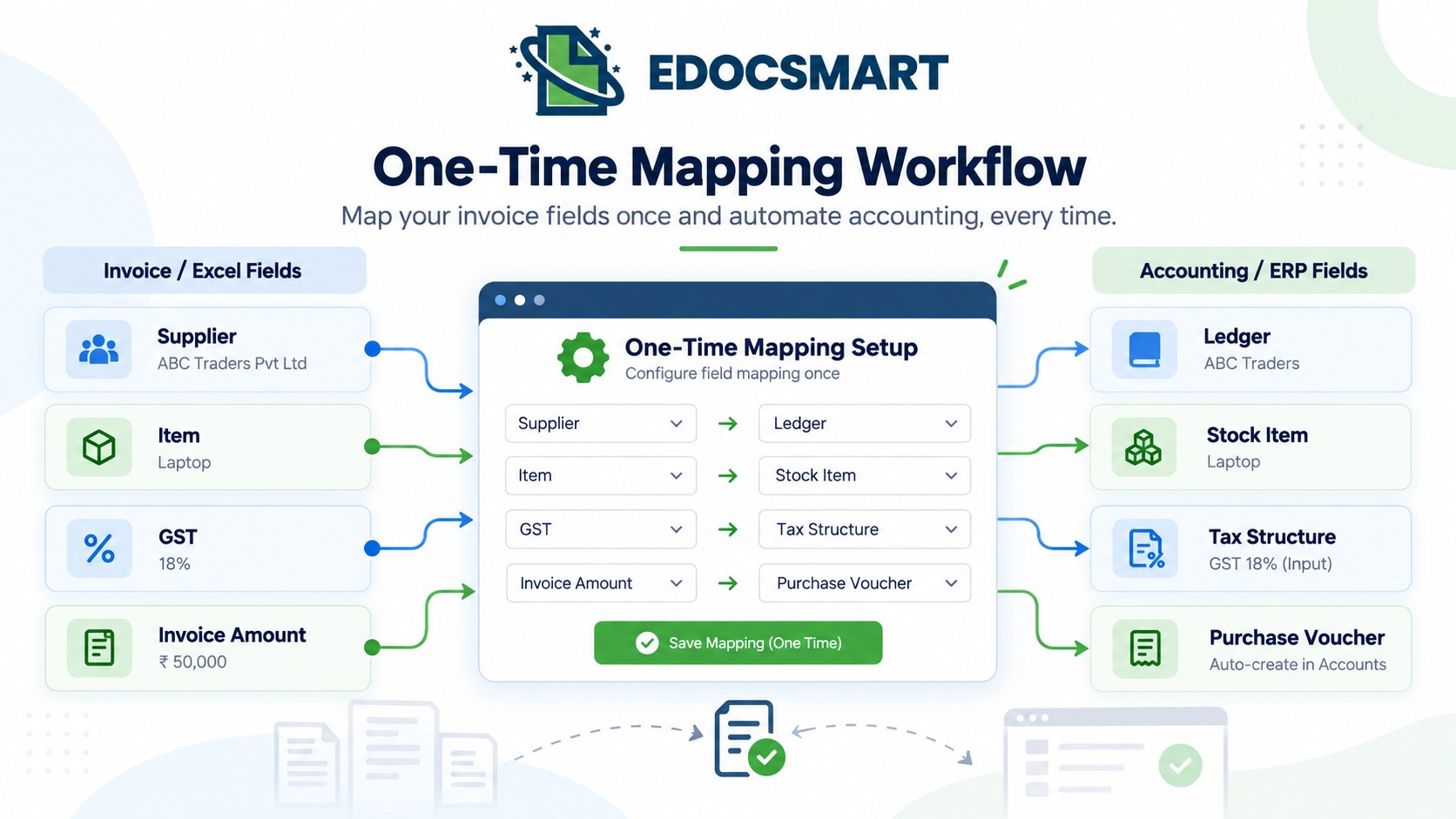
Reading an invoice is only one part of the process.
The extracted information also needs to match the company's accounting structure.
For example:
Supplier → Ledger
Item → Stock Item
GST → Tax Structure / Tax Ledger
Invoice Amount → Purchase Voucher
This mapping is important because two businesses may receive similar invoices but maintain their Tally masters differently.
The required mapping or templates can be configured initially. Where the same rules and format continue to apply, the setup can then be reused rather than configured from scratch for every invoice.
That is one reason an invoice to Tally software workflow can scale better than repetitive manual entry.
Step 5: Save or Continue After Verification
After reviewing the extracted data, the user can correct information where required.
Depending on the workflow, the transaction can be saved for later or prepared for synchronization.
This review step is useful because businesses retain control over what eventually reaches Tally.
The objective of tally invoice automation is not to skip verification.
It is to remove unnecessary typing before verification.
Step 6: Connect Edocsmart with Tally
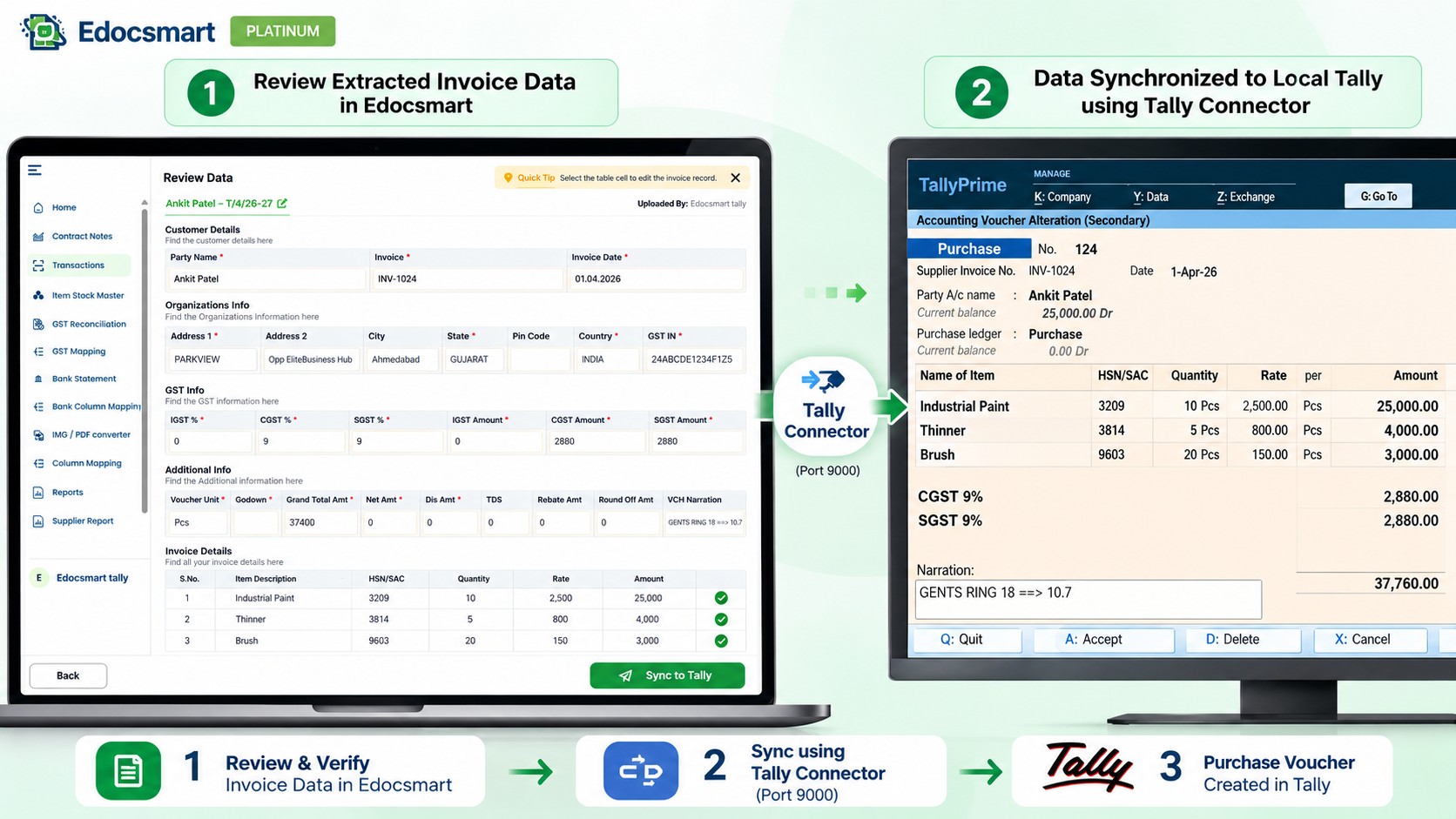
Once the data is ready, Tally needs to be available through the configured connector.
The Invoice to Tally workflow uses the configured Tally Connector as the bridge between verified Edocsmart data and the local Tally environment.
Depending on the company's setup, purchase voucher, ledger, stock, GST, and related configurations may need to be prepared initially.
Step 7: Sync the Verified Invoice to Tally
After review, click Sync to Tally.
The verified structured data can then move into Tally according to the configured accounting setup.
Depending on configuration, the resulting purchase entry can include:
- Supplier ledger
- Invoice number
- Voucher date
- Stock items
- Quantities
- Rates
- HSN/SAC
- GST information
- Narration
- Purchase voucher values
This is the stage where TallyPrime invoice automation
replaces much of the repeated voucher typing.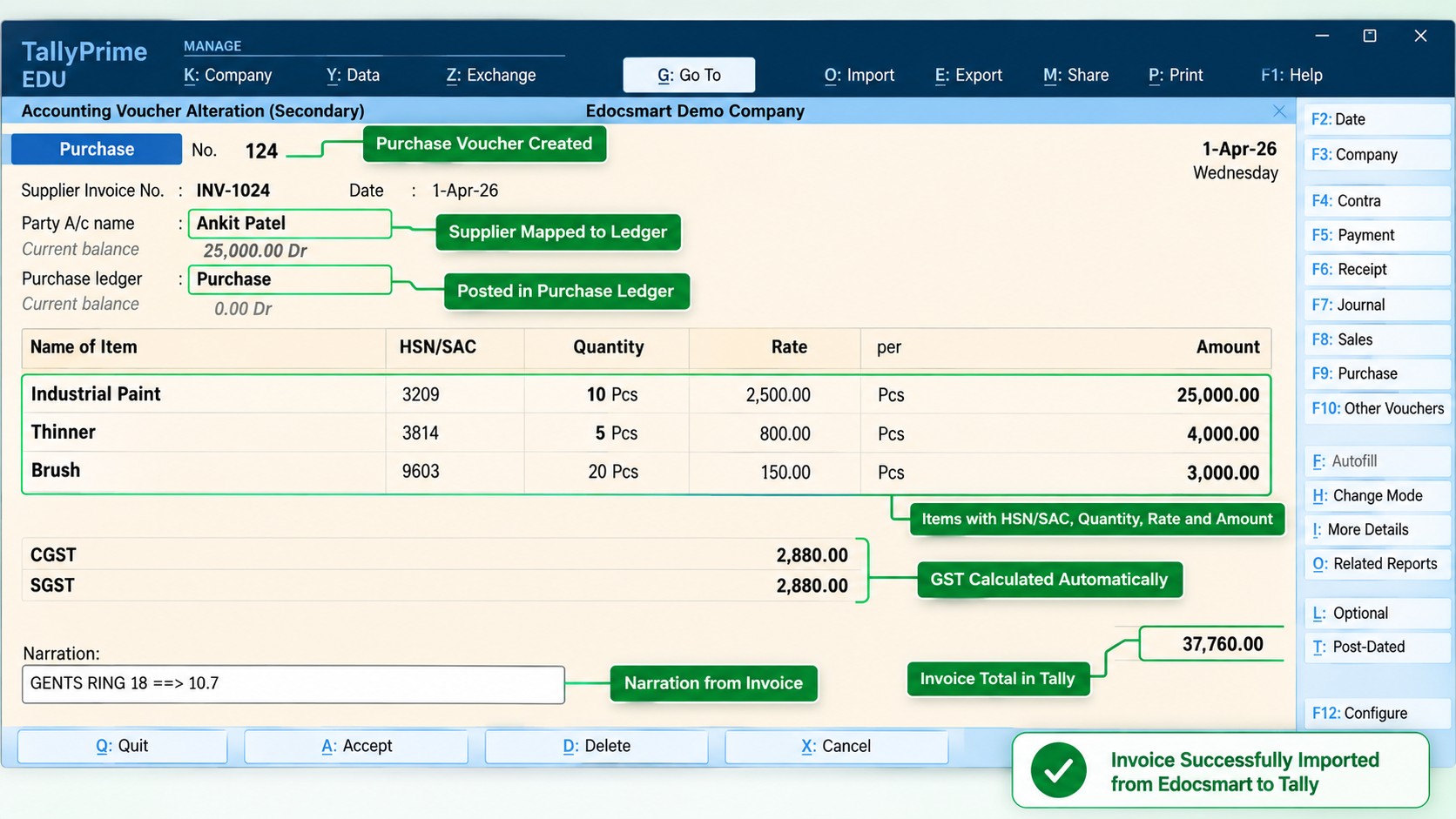
Why Automation Matters More as Invoice Volume Increases
For five invoices, manual entry might feel manageable.
For 50 invoices, it starts consuming noticeable time.
For 500 invoices, repetitive work becomes an operational problem.
Every additional invoice creates another cycle of:
Open → Read → Type → Check → Save
With automation, the same cycle becomes:
Upload → Extract → Review → Sync
This makes accounting data entry automation particularly relevant for:
- Accounting firms
- Manufacturers
- Wholesalers
- Distributors
- Retailers
- GST-registered businesses
- Companies receiving high volumes of purchase invoices
- Accountants managing multiple clients
OCR Alone Is Not the Same as Invoice Automation
OCR is useful, but OCR by itself mainly reads text.
Accounting automation needs to understand what that text represents.
For example:
“INV-2051” needs to be recognized as an invoice number.
“24ABCDE1234F1Z5” needs to be recognized as GSTIN.
“10 PCS” needs to become quantity and unit.
“18%” may represent a GST rate.
Those fields then need to be mapped to the correct accounting destinations.
So a complete OCR to Tally software workflow is better represented as:
OCR / AI Reading → Field Identification → Mapping → Human Review → Tally Sync
That is what separates simple document digitization from actual invoice automation.
Manual Invoice Entry vs Automated Invoice Entry
|
Manual Invoice Entry |
Automated Invoice Workflow |
|
Read every invoice manually |
Upload the invoice |
|
Enter party information |
Supplier data is extracted |
|
Type item rows |
Item rows are structured |
|
Enter GST values |
GST fields are identified |
|
Recreate vouchers manually |
Prepared data is reviewed |
|
Correct errors after entry |
Correct exceptions before sync |
|
Repeat for every invoice |
Reuse applicable configurations |
|
Save manually in Tally |
Sync verified data to Tally |
The goal is not simply speed.
The larger advantage is moving repetitive work away from manual creation and toward controlled verification.
What Happens When an Invoice Has Many Items?
This is where the difference becomes easy to understand.
Imagine a supplier invoice containing 35 items.
With traditional manual entry in TallyPrime, an accountant may need to manually create all 35 rows.
With Edocsmart, those item rows can first be extracted and shown for review.
If 34 are correct and one rate is wrong, the user can correct that one field.
The accountant is no longer recreating the invoice.
They are validating it.
That is a much more scalable approach to invoice automation for accountants.
What Businesses Actually Gain
Automated invoice entry can help businesses reduce:
- Repetitive typing
- Manual voucher creation
- Missed invoice fields
- Incorrect quantities or rates caused by typing
- Time spent moving data between documents and accounting software
- Dependence on large volumes of routine entry work
At the same time, accountants remain responsible for reviewing unusual transactions, validating GST information, checking supplier details, and confirming whether entries are correct.
Automation changes the type of work—not the need for accounting judgment.
FAQs
Can invoice entry in Tally
really be automated?
Yes. Invoice documents can first be processed to extract supplier, invoice, GST, item, quantity, rate, and amount information. After the user reviews the structured data, verified information can be synchronized with Tally through the configured workflow.
What invoice formats can
Edocsmart process?
Depending on the configured workflow, Edocsmart can process invoice documents such as PDFs, scanned documents, JPEG/images, and invoice photographs. Users should verify the supported formats for their specific setup.
Does Edocsmart automatically
create entries in Tally without review?
The workflow is designed to include review before synchronization. Extracted invoice data can be checked and corrected before it is sent to Tally, allowing the accountant to retain control over the final entry.
Do I need to configure mapping
for every invoice?
Not necessarily. Mapping and required templates are primarily an initial configuration step. When the same invoice format and accounting rules continue to apply, the configured setup can typically be reused.
How does Edocsmart send
invoice data to Tally?
After invoice data has been extracted and verified, the configured Tally Connector acts as the bridge between Edocsmart and the local Tally environment. The verified data can then be synchronized according to the company's accounting configuration.
Can multiple invoices be
processed instead of entering them one by one?
Yes. Businesses dealing with larger invoice volumes can use bulk processing workflows where supported. Multiple invoices can be processed, reviewed, and prepared for synchronization rather than manually recreating every voucher separately.
Conclusion
Invoice entry to Tally is becoming an automated workflow rather than a repetitive data-entry task.
Instead of opening every invoice and typing each supplier, GST, item, quantity, rate, and amount field manually, businesses can start with the invoice itself.
The modern workflow becomes:
Invoice → AI/OCR Extraction → Mapping → Review → Verification → Tally Connector → Tally
With Edocsmart, the focus shifts from manually recreating transactions to reviewing structured invoice data before synchronization.
For businesses processing invoices regularly, that change can make accounting operations easier to manage, especially as transaction volumes increase.
The accountant still controls the final result.
But instead of spending most of the time typing what is already written on the invoice, the accountant can spend more time making sure the accounting data is correct.