Managing Multiple ERP Systems with the Same Data
Learn how to manage multiple ERP systems with shared data through clear ownership, field mapping, controlled transfers, and regular reconciliation

Jewellery businesses using ORNATE may also need to maintain their accounts in Tally. When the exported records do not present GST details in the format needed for accounting, the team has to review and prepare the information before entering it.
This creates extra work when there are several invoices to process. Copying the details manually also means checking the same references, amounts, and tax values again.
An Excel-based workflow can help connect the two systems. The business exports its records from ORNATE, uploads the excel to Edocsmart, and prepares the approved data for transfer to Tally.
Why the Exported Data Needs Preparation
The information used for jewellery operations may be arranged differently from the information required for accounting.
The exported workbook needs to be checked for invoice references, parties, item details, quantities or weights, amounts, and applicable GST information.
Mapping can organise available information, but missing or incorrect GST values need to be resolved against the source records. Uploading a file should not be treated as automatically correcting its tax treatment.
Step 1: Export the Required Records from ORNATE
Export the Excel report containing the transactions that need to be recorded in Tally.
Confirm the reporting period and keep the original workbook unchanged. Prepare a working copy if corrections are required.
Also identify transactions already entered in Tally so they are not included again in a new-entry batch.
Step 2: Review the Excel Data
Check that the workbook contains the information needed to prepare the accounting entries.
| Information | What to check |
|---|---|
| Invoice reference | The reference belongs to the intended transaction |
| Party details | The customer or supplier is correctly identified |
| Item details | Descriptions and relevant quantities or weights are available |
| Amounts | Item values and invoice totals are clearly distinguished |
| GST details | Applicable rates and amounts agree with the source documents |
| Adjustments | Discounts, charges, and round-off are included where relevant |
If GST information is missing or unclear, resolve it before approving the records.
Step 3: Upload the excel to Edocsmart
Open Transactions, choose the relevant Sales or Purchase workspace, and select the Excel tab.
Upload the intended ORNATE export and enter the actual Header Row Number when requested.
For an ORNATE report using a different supported layout from the Edocsmart sample, use Customized Excel and configure the relevant source columns.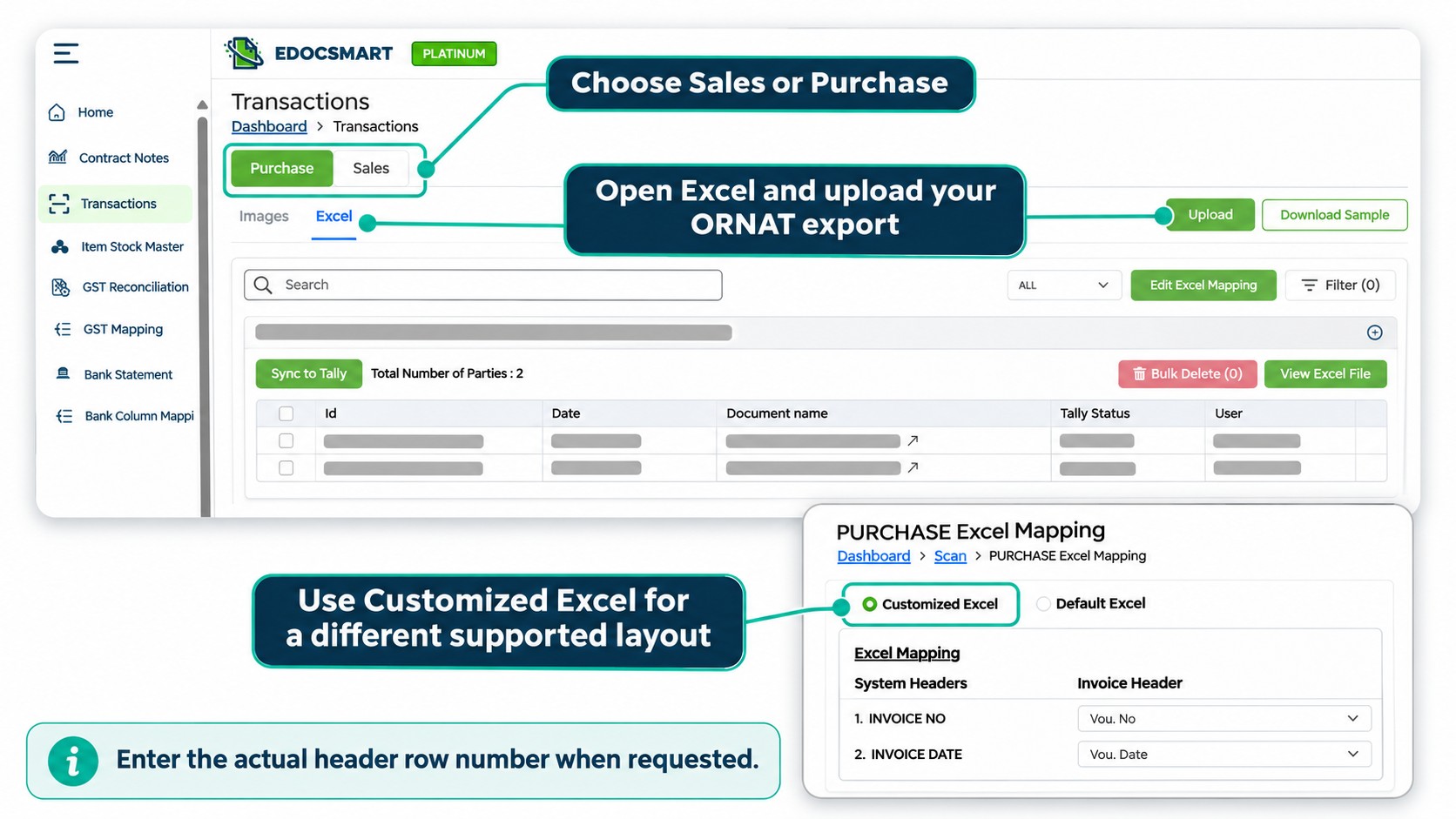
Step 4: Configure Mapping and Accounting Settings
Connect the Excel columns with the appropriate system fields.
Review invoice references, dates, parties, items, quantities, units, amounts, and GST fields where applicable. Confirm how any jewellery-specific source information should be handled in the configured workflow.
Check the relevant sales or purchase ledger, tax ledgers, voucher settings, and stock treatment separately.
If the export needs a particular accounting rule, discuss the ORNATE Excel format with Edocsmart, sharing a sample workbook and the expected Tally entry.
Step 5: Review the Prepared Entries
Compare the processed records with the ORNATE export and supporting invoices.
Check that item details remain associated with the correct invoice. Review taxable values, applicable tax amounts, adjustments, and the final total.
If the same difference appears across several records, inspect the shared mapping or source information first. Correct the cause, review the affected entries again, and save the approved data.
Step 6: Sync a Sample and Verify in Tally
Keep a current company backup, open the intended Tally company, and start the Edocsmart Tally Connector.
Sync a small approved sample and inspect the resulting vouchers. Confirm the party, invoice reference, ledger allocations, item details, GST information, and total before continuing with the remaining records.
Keep a record of completed transfers so that a retry does not unintentionally recreate existing transactions.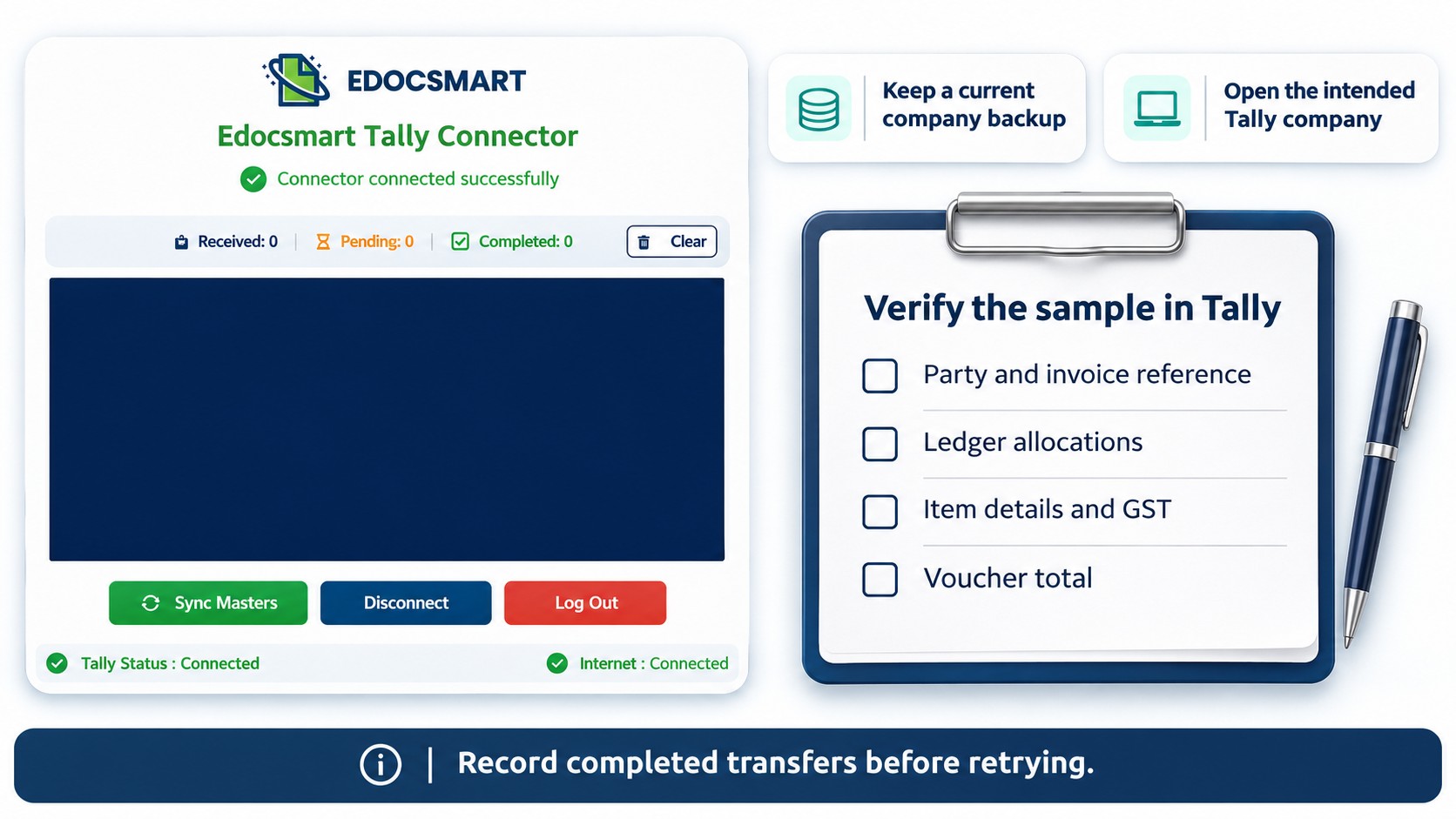
Frequently Asked Questions
Can an ORNATE Excel export be used to prepare Tally entries?
It can be used through a supported, configured workflow after checking the report structure and required fields.
Will uploading the file correct missing GST information?
Missing or incorrect values need to be checked against the source documents and resolved before approval.
Does the Excel report need mapping?
A report with a different supported structure from the standard sample needs its relevant columns mapped.
Can jewellery item details be included?
Confirm that the required fields are available in the export and supported by the configured accounting workflow.
Should the full report be transferred immediately?
Test a small approved sample and verify the resulting entries in Tally first.
Conclusion
An ORNATE Excel export can provide the starting point for preparing jewellery accounting records in Tally. Reviewing GST information, configuring the source mapping, and checking sample vouchers helps the team manage the transfer with clearer control.
Explore Edocsmart Excel to Tally Software for the Excel upload, review, and transfer workflow.