PDF Invoice Converter to Tally XML
Convert PDF invoices into structured, verified Tally-ready data with AI extraction, review, and seamless synchronization through EdocSmart.
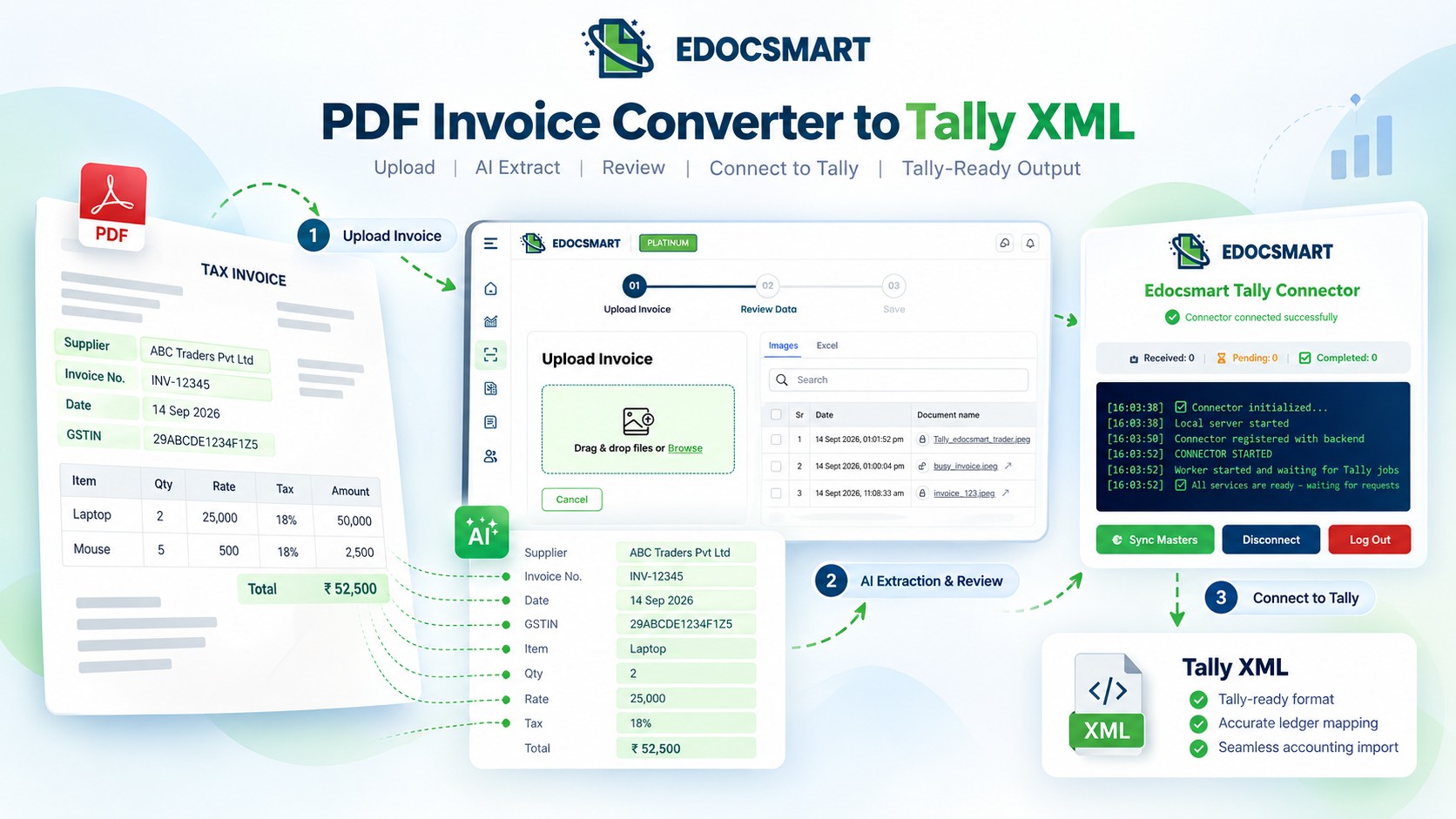
PDF invoices are one of the most common document formats used for purchase bills, sales invoices, GST invoices, and supplier transactions. They are easy to share and store, but the problem starts when the same invoice data has to be entered again into Tally.
A typical PDF invoice may already contain the supplier or customer name, invoice number, date, GSTIN, address, item details, HSN/SAC, quantity, rate, tax values, and invoice total. However, Tally cannot work with the visual PDF document in the same way a person reads it. The information first needs to be extracted, structured, reviewed, and then transferred into the correct Tally transaction.
This is where a PDF invoice converter to Tally XML workflow becomes useful.
Instead of treating the PDF as just a file to convert, EdocSmart processes the information inside the invoice and prepares it for accounting use.
The complete flow can look like this:
PDF Invoice → Purchase or Sales Selection → Upload → AI Data Extraction → Review → Mapping → Tally Connector → Sync to Tally
Once the data has been verified, the transaction can be sent into Tally through the configured connector. After synchronization, structured accounting data can also be viewed or exported in formats such as XML or Excel, depending on the available setup.
This makes the process useful not only for reducing manual invoice entry, but also for businesses that want a more structured way to move invoice data from PDFs into Tally.
Why Is a PDF Invoice Converter to Tally XML Needed?
A PDF is mainly designed for reading.
Tally, on the other hand, needs structured accounting data.
- For example, a PDF may visually show:
- Supplier Name: ABC Traders
- Invoice No: PUR-105
- GSTIN: 24ABCDE1234F1Z5
- Item: Office Chair
- Quantity: 4
- Rate: ₹2,500
- GST: 18%
- Total: ₹11,800
But before this can become a valid accounting transaction, the system needs to understand what each value represents.
- Supplier Name → Party Ledge
- Invoice No → Voucher Number
- Item → Stock Item
- Quantity → Quantity
- Rate → Rate
- GST → Tax Structure
- Total → Voucher Amount
So a useful PDF to Tally XML process is not simply PDF → XML.
It is more accurately:
PDF → Extracted Data → Accounting Structure → Verification → Tally
What Makes This Different from a Simple PDF Converter?
A normal PDF converter may only change the document format.
For example:
PDF → Excel
PDF → Word
PDF → Text
But an accounting workflow needs to do more than that.
It needs to identify the business meaning of the extracted data.
A number such as 18% should be recognized as GST.
A supplier name should be connected with the correct ledger.
An item code should be connected with the correct stock item.
Multiple item rows may need to remain part of the same voucher.
That is why a PDF invoice converter to Tally XML needs extraction, mapping, review, and Tally integration—not just file conversion.
How PDF Invoice to Tally XML Works with EdocSmart
After the initial understanding of the invoice, the actual process starts by selecting the correct transaction type.
If the PDF is a purchase invoice, it should be processed under Purchase.
If it is a sales invoice, it should be processed under Sales.
From there, the invoice can be uploaded, extracted, reviewed, and synchronized into Tally.
PDF Purchase Invoice → Purchase
PDF Sales Invoice → Sales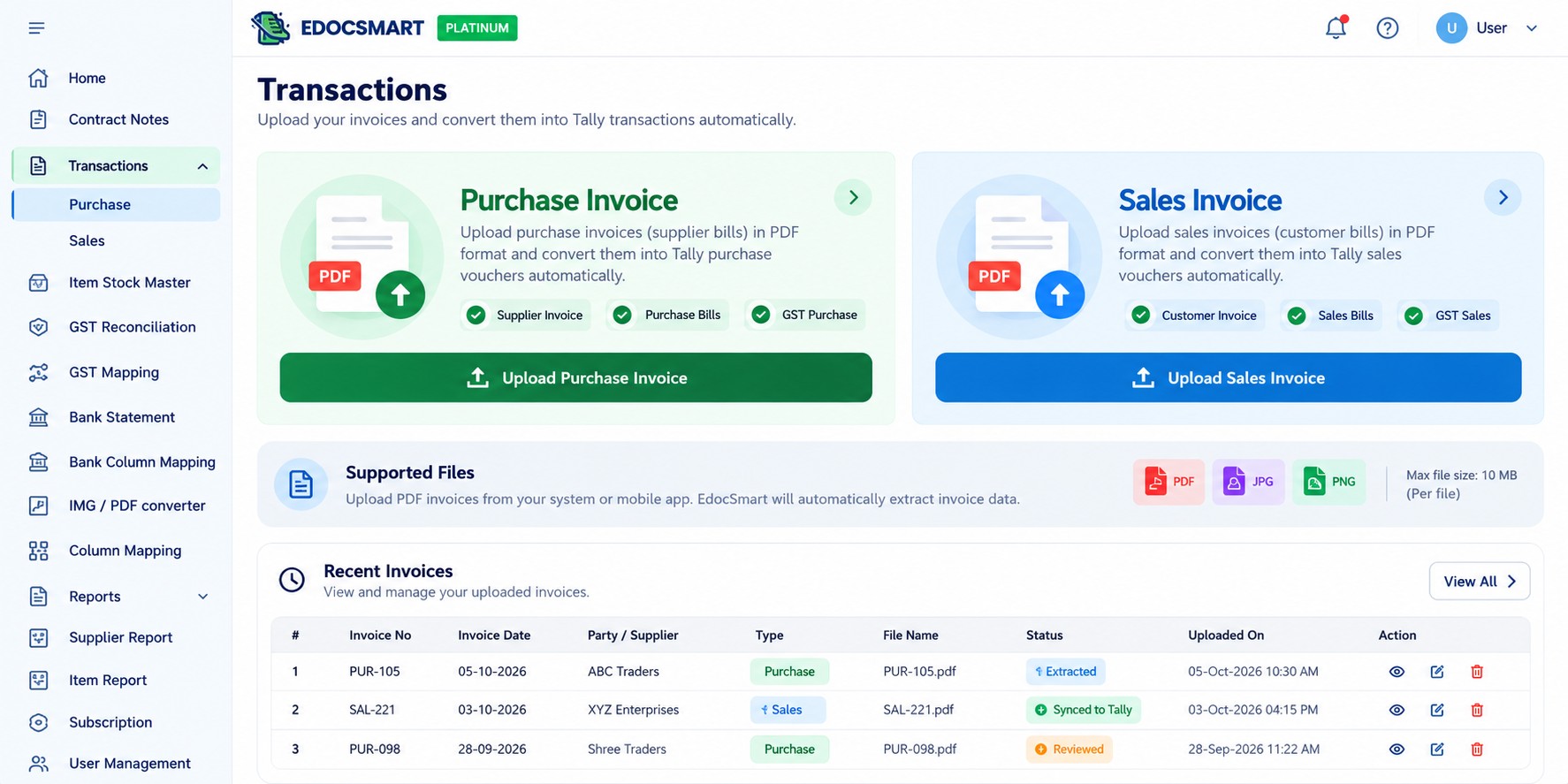 This helps keep the accounting treatment aligned with the
original transaction.
This helps keep the accounting treatment aligned with the
original transaction.
Step 1: Upload the PDF Invoice
Upload the PDF invoice into the correct Purchase or Sales section.
The invoice may contain:
Supplier or customer details
- Invoice number
- Invoice date
- GSTIN
- Address
- Item details
- HSN/SAC
- Quantity
- Rate
- GST values
- Tax amounts
-
Final invoice total
Once uploaded, EdocSmart begins processing the document.
Step 2: AI Extracts the Invoice Data
After upload, the system extracts the information available in the PDF and converts it into structured fields.
For example:
PDF Value → EdocSmart Field
ABC Traders → Party Name
PUR-105 → Invoice Number
05-10-2026 → Invoice Date
24ABCDE1234F1Z5 → GSTIN
Office Chair → Item Description
4 → Quantity
₹2,500 → Rate
18% → GST Rate
₹11,800 → Total Amount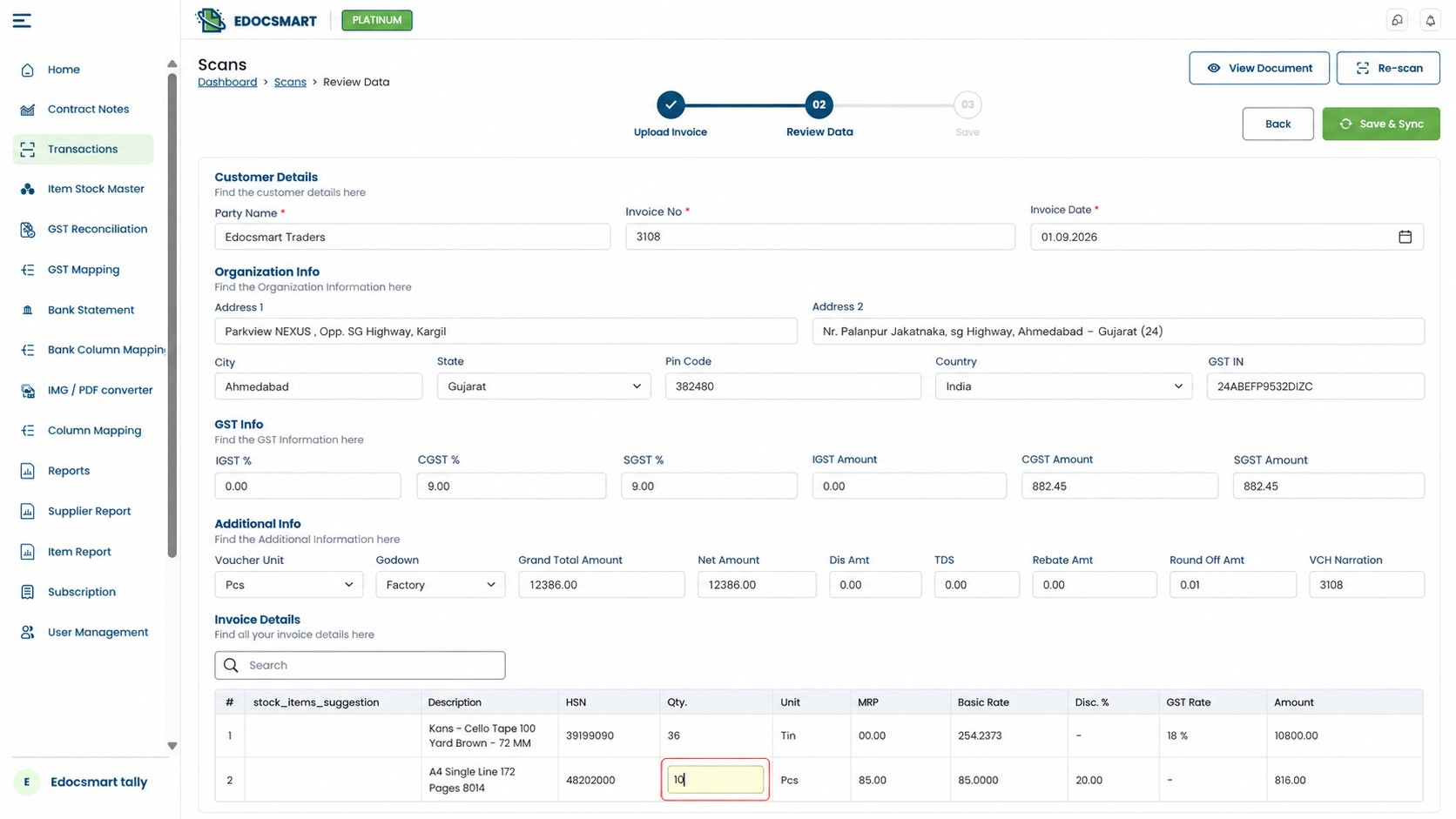 This is the stage where the visual invoice starts
becoming accounting-ready data.
This is the stage where the visual invoice starts
becoming accounting-ready data.
Step 3: Review the Extracted Data
The extracted data should be reviewed before it is sent to Tally.
Most fields may already be correct, but this review step is useful for safety.
The accountant can check:
- Party Name
- Invoice Number
- Invoice Date
- GSTIN
- GST Rate
- Item Details
- Quantity
- Rate
- Tax Amount
- Final Total
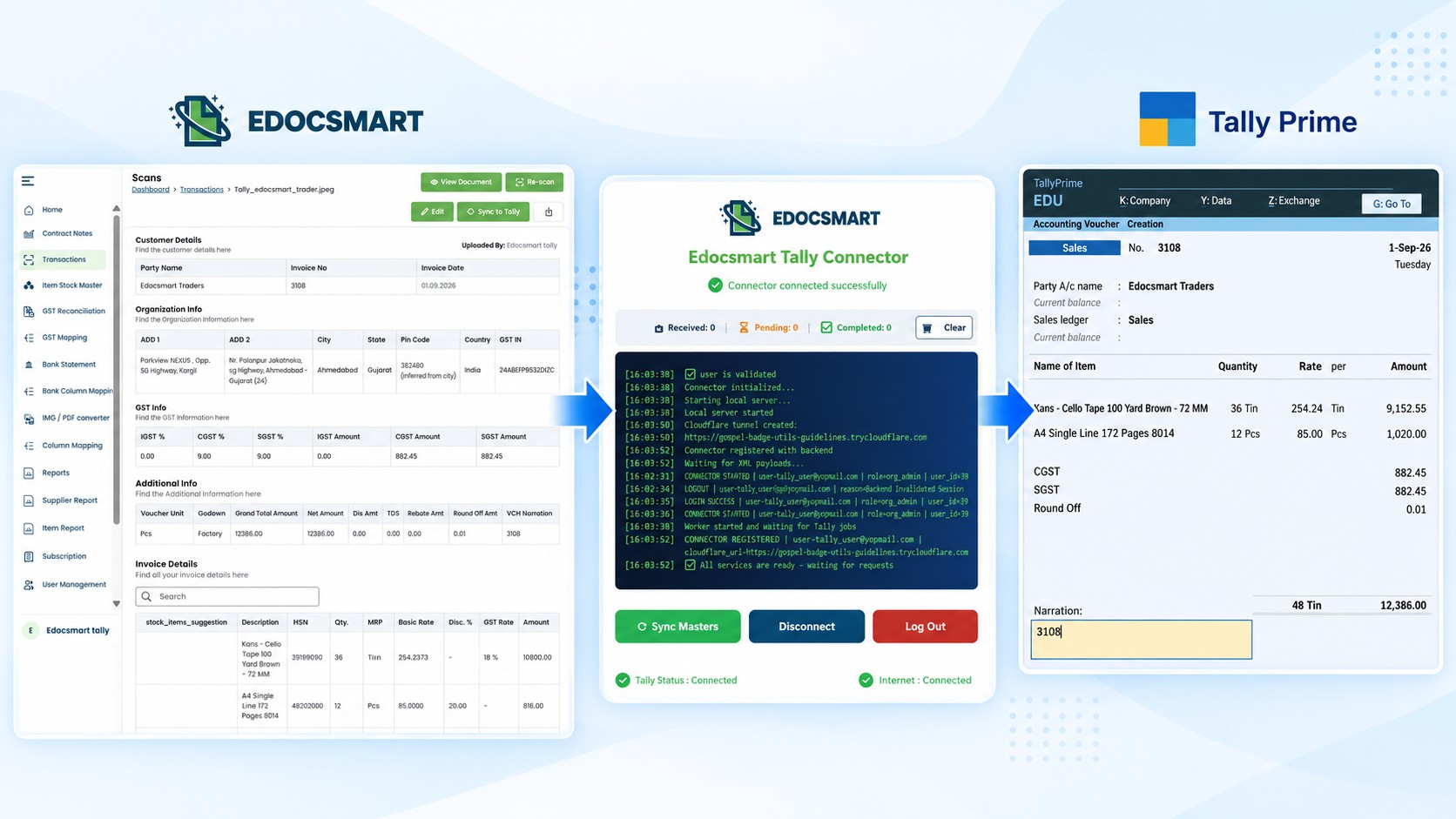 If anything needs correction, it can be updated before
synchronization.
If anything needs correction, it can be updated before
synchronization.
Step 4: Use the Existing Mapping
If the same invoice structure or configuration is used repeatedly, the mapping does not need to be recreated every time.
For example:
Party Name → Tally Ledger
Item → Stock Item
GST → Tax Structure
Invoice Number → Voucher Number
Invoice Amount → Voucher Amount
Once configured, the same mapping can be reused for multiple invoices.
This makes the workflow faster for regular invoice processing.
Step 5: Turn On the Tally Connector
Before synchronization, the Tally Connector needs to be active.
EdocSmart provides its own Tally Connector, and another compatible connector can also be used depending on the setup.
The connector acts as the bridge between EdocSmart and the local Tally installation.
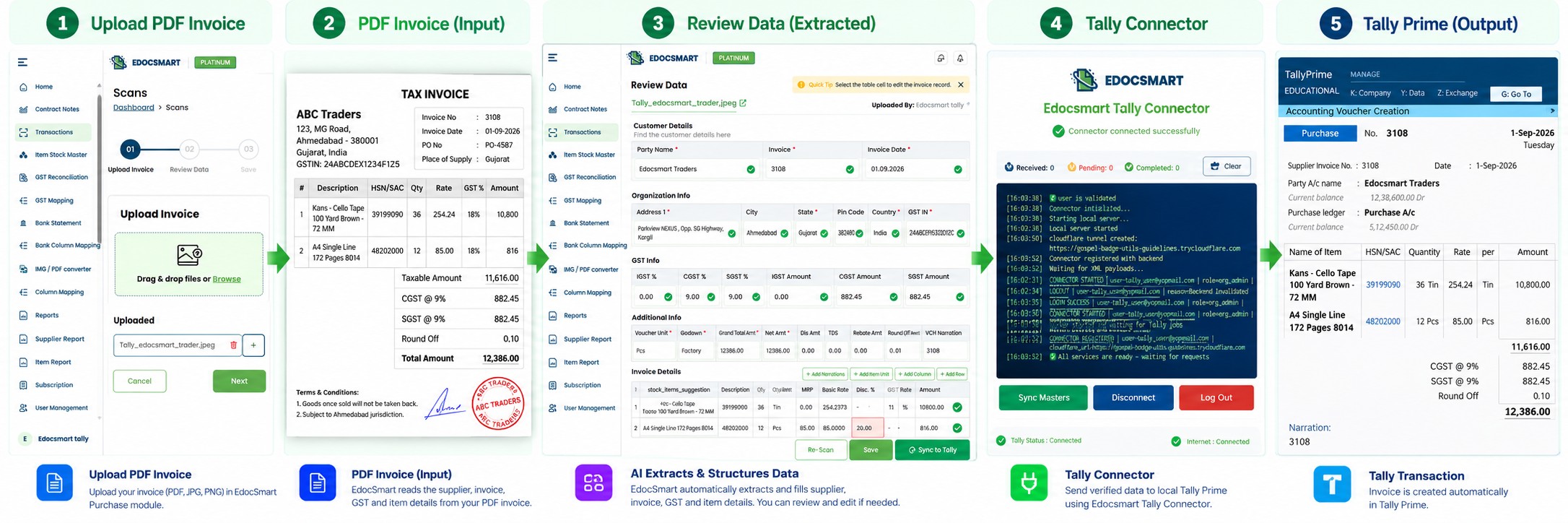 EdocSmart Review Data → Tally Connector → Tally Prime
Step 6: Sync the Verified Data to Tally
After review and validation, click Sync to Tally.
The approved accounting data is transferred into Tally according to the configured setup.
Depending on the workflow, this can help create or update:
- Purchase Voucher
- Sales Voucher
- Party Ledger
- Stock Items
- GST Details
- Party Address
- Item-Level Tax Information
After synchronization, the invoice is no longer just a PDF document.
It has been converted into structured accounting data inside Tally.
At this stage, the user can verify the voucher and related accounting information.
Depending on the available functionality, the processed data can also be exported in XML or Excel format.
This can make it easier to review information such as:
- Opening Balance
- Closing Balance
- Ledger Details
- Voucher Details
-
Transaction Data
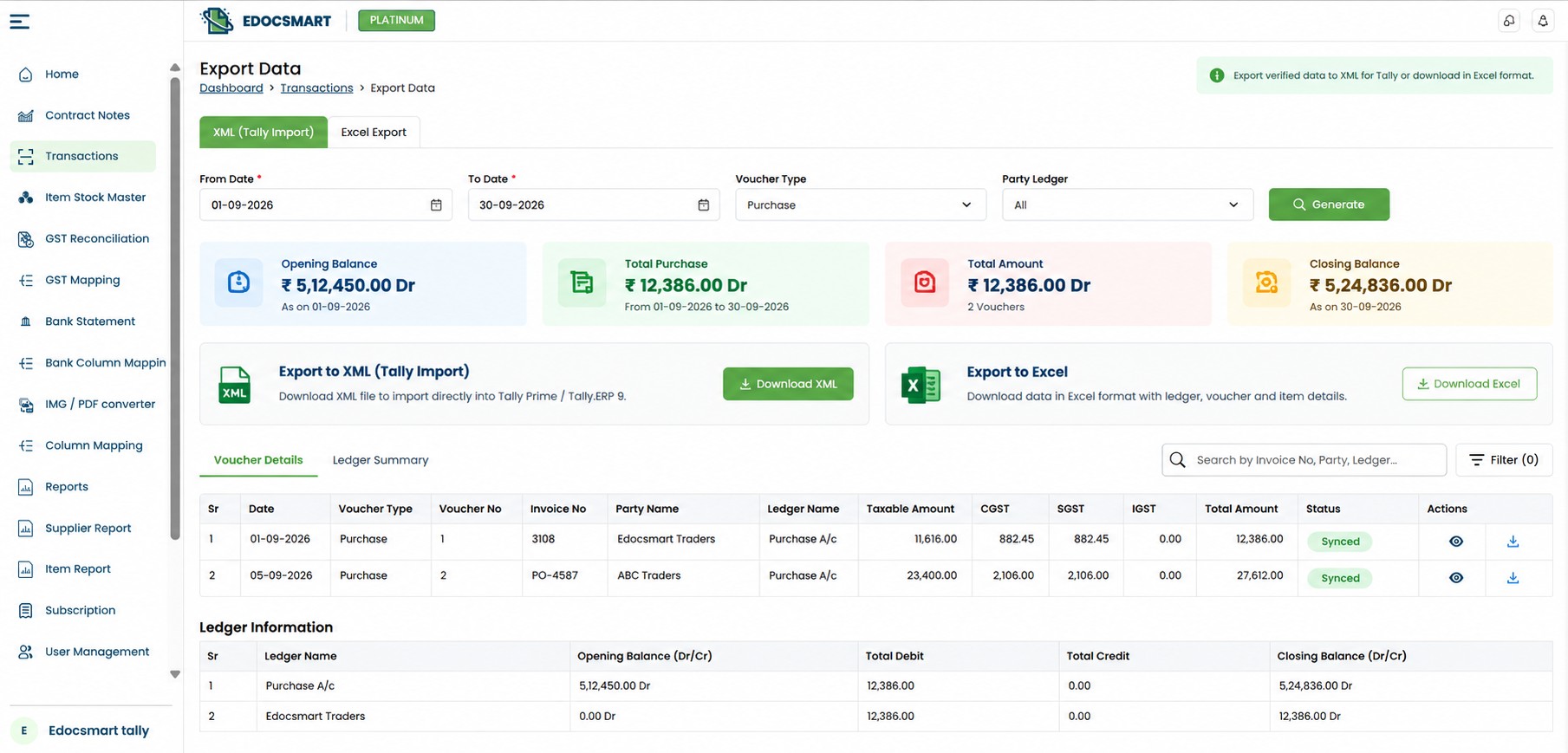 This is useful when users want to inspect the accounting
output outside the normal Tally voucher screen.
This is useful when users want to inspect the accounting
output outside the normal Tally voucher screen.
Why XML Matters in Tally
XML is useful because it stores information in a structured format.
A PDF shows the invoice visually.
XML represents the data logically.
For example:
PDF:
Party: ABC Traders
Invoice No: PUR-105
Amount: ₹16,402
XML:
Party Ledger → ABC Traders
Voucher Number → PUR-105
Voucher Amount → ₹16,402
This structured format is easier for Tally-compatible integrations to process.
So the value of PDF invoice converter to Tally XML is not the file extension itself.
The real value comes from converting unstructured invoice information into verified accounting fields that can be used by Tally.
Mobile Upload Is Also Possible
The workflow does not always need to begin on a desktop.
EdocSmart also provides a mobile app, so invoices can be uploaded directly from mobile.
This can be useful when invoices are received through:
WhatsApp
Email
Mobile storage
On-site business activity
The document can be uploaded from the phone and then
reviewed and processed through the same accounting workflow.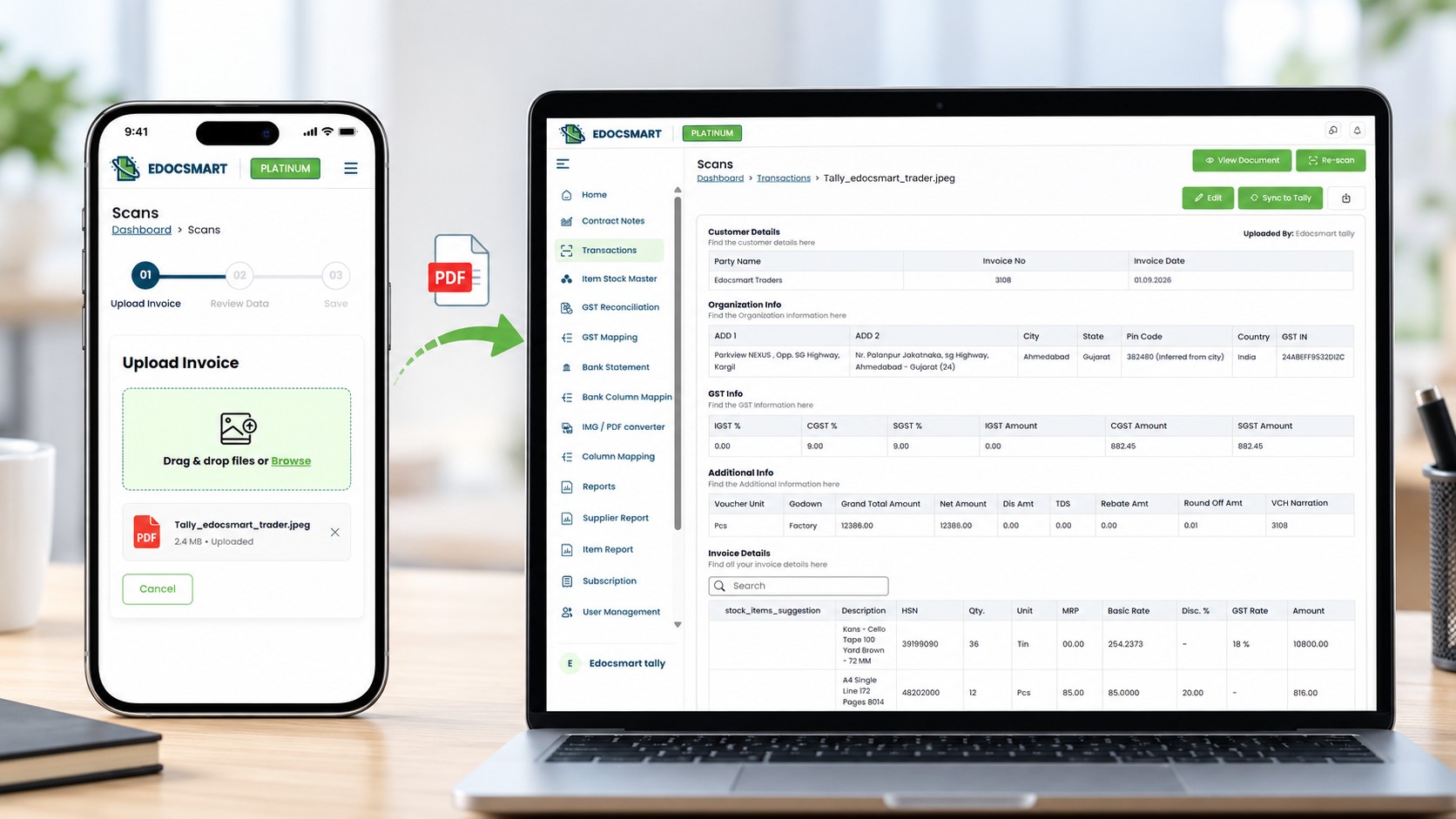 Where PDF Invoice to Tally XML Is Most Useful
This workflow is especially useful for businesses and accounting teams that regularly receive invoices in PDF format.
Common use cases include:
- Purchase invoices from suppliers
- Sales invoices shared digitally
- GST invoices
- Multi-item invoices
- Invoices received through email or WhatsApp
- Invoices uploaded from mobile
- High-volume monthly invoice processing
When the invoice data is already available inside the PDF, the objective is to use that existing information instead of entering the same details manually into Tally again.
Why Reusable Mapping Makes the Process Faster
One of the biggest advantages of the workflow is that the same mapping can be reused when the invoice structure and accounting setup remain consistent.
For example:
Party Name → Ledger
Item → Stock Item
Invoice Number → Voucher Number
GST → Tax Structure
Amount → Voucher Amount
Once this relationship is configured correctly, future invoices following the same setup can move through the process more quickly.
This makes the workflow useful for businesses that process invoices from the same suppliers or use standardized document formats regularly.
What Should Be Checked After Syncing to Tally?
After the transaction is synchronized, it is useful to verify that the final accounting entry matches the reviewed invoice.
Check important details such as:
- Voucher Type
- Party Ledger
- Voucher Number
- Stock Items
- Quantity
- Rate
- GST
- Invoice Total
If XML or Excel export is available in the configured workflow, the exported data can also be used to review transaction details, ledger information, and opening or closing balances where applicable.
Frequently Asked Questions
What is a PDF invoice
converter to Tally XML?
A PDF invoice converter to Tally XML processes the information available inside a PDF invoice, converts it into structured accounting data, and prepares it for transfer into Tally through a compatible workflow.
Can I import a PDF invoice
directly into Tally?
The PDF itself is not treated as a finished Tally voucher. The invoice data first needs to be extracted, structured, reviewed, and then synchronized into Tally.
Can EdocSmart process both
purchase and sales PDF invoices?
Yes. The invoice should first be processed under the appropriate Purchase or Sales section depending on the transaction type.
Can I upload invoices from the
EdocSmart mobile app?
Yes. PDF invoices can also be uploaded through the EdocSmart mobile app, which is useful when invoices are received on mobile, WhatsApp, email, or local storage.
Do I need to map every PDF
invoice separately?
Not necessarily. If the same invoice structure and accounting configuration continue to apply, the existing mapping can be reused.
Why is the Tally Connector
required?
The Tally Connector acts as the bridge between the reviewed invoice data in EdocSmart and the local Tally installation.
Can I review the invoice
before syncing it?
Yes. The extracted fields can be reviewed and corrected before the transaction is synchronized to Tally.
What data can be synchronized
to Tally?
Depending on the configuration, the workflow can help handle purchase or sales vouchers, party ledgers, stock items, GST details, party addresses, and item-level tax information.
Can I download the processed
data in XML or Excel?
Depending on the available workflow and configuration, structured accounting data can be exported in XML or Excel format.
Can XML or Excel output help
with balance checking?
If the relevant ledger or report data is included in the export, it can help review details such as opening balance, closing balance, vouchers, and transactions.
Conclusion
A PDF invoice converter to Tally XML is more useful when it is treated as an accounting automation workflow rather than a simple file-conversion tool.
The complete process is:
PDF Invoice → Purchase or Sales → AI Extraction → Review → Reusable Mapping → Tally Connector → Sync to Tally → XML / Excel Output
EdocSmart helps extract the accounting information already present inside the PDF, structure it into usable fields, allow the user to verify the data, and then transfer the approved transaction into Tally.
Once the mapping and connector setup are configured, the same process can be reused for multiple invoices, helping reduce repetitive data entry while still keeping a review step before the final Tally entry.