PDF Invoice to Tally Prime
Convert PDF invoices into Tally Prime accounting entries using AI-powered invoice extraction, data verification, GST processing and automated synchronization.
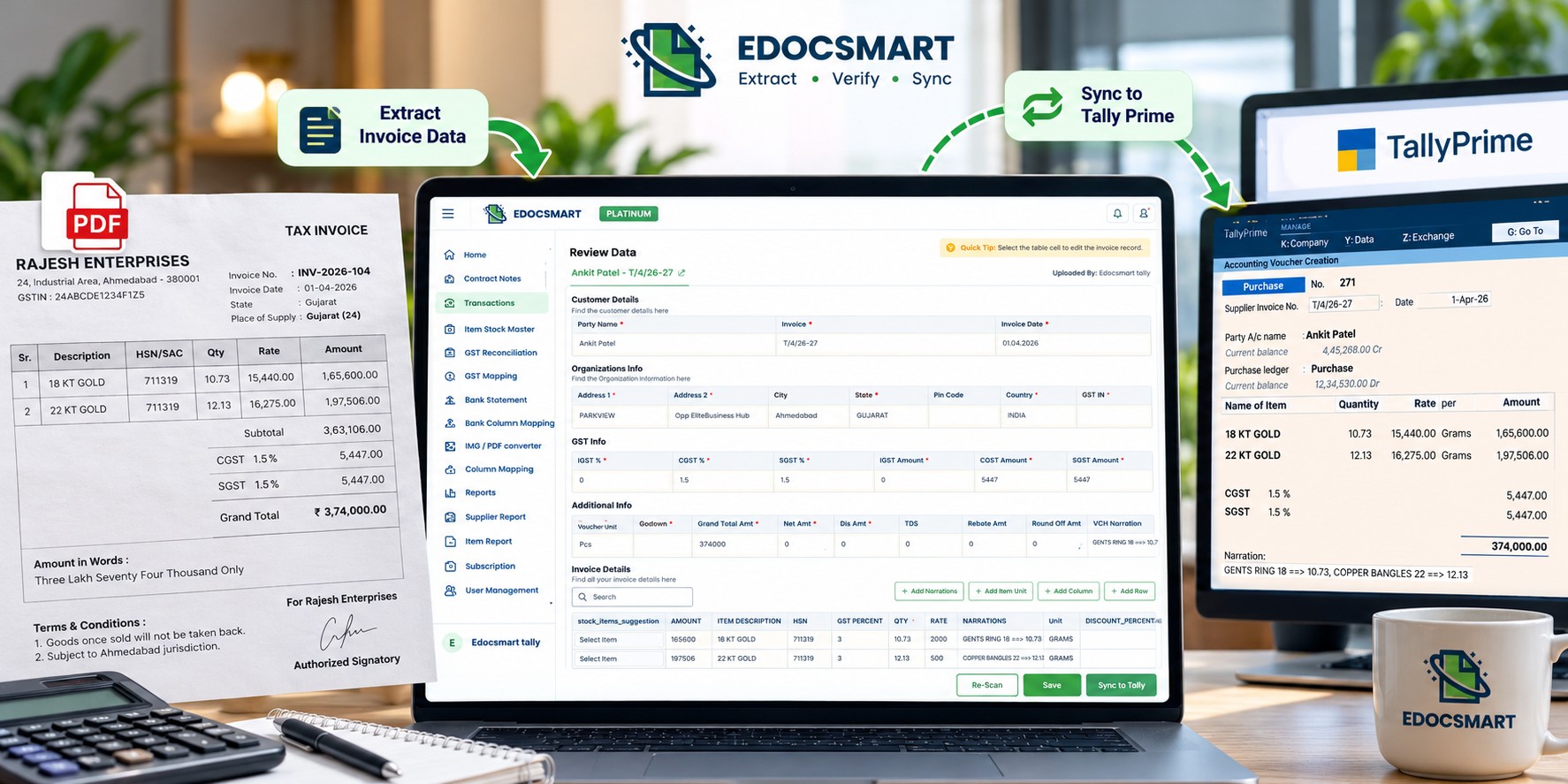
How to Transfer PDF Invoice Data into Tally Prime
Imagine receiving 50 purchase invoices from different suppliers in a single day. Some arrive through email, while others are downloaded as PDF files.
Each invoice contains supplier information, invoice number, GST details, item descriptions, quantities, rates and total amounts. However, accountants still need to enter these details into Tally Prime.
Manually entering every PDF invoice is repetitive, especially for businesses processing hundreds of purchase bills every month.
A PDF invoice to Tally Prime solution helps automate this work by extracting invoice information and preparing it for accounting entries.
With Edocsmart, businesses can upload supplier PDF invoices, review the extracted details, configure the required accounting mapping and synchronize verified information with Tally Prime.
What Is PDF Invoice to Tally Prime Automation?
PDF invoice to Tally Prime automation is the process of extracting information from PDF invoices and transferring it into the appropriate accounting voucher.
Unlike a simple PDF converter, this process focuses on preparing invoice information for Tally Prime.
For example:
| PDF Invoice Field | Tally Prime Field |
|---|---|
| Supplier Name | Party Ledger |
| Invoice Number | Supplier Invoice Number |
| Invoice Date | Voucher Date |
| Item Description | Stock Item |
| HSN/SAC | Item Tax Information |
| Quantity and Rate | Voucher Item Details |
| CGST, SGST or IGST | GST Fields |
| Grand Total | Voucher Amount |
The objective is to reduce manual data entry while maintaining control over the accounting information.
How to Import PDF Invoice Data into Tally Prime Using Edocsmart
Step 1: Log In and Upload the PDF Invoice
Open the Edocsmart platform and sign in to your account.
From the dashboard, navigate to Transactions → Purchase → Images.
Click Upload and select the supplier PDF invoice you want to process.
This allows the invoice to enter the extraction workflow without manually typing its contents into Tally Prime.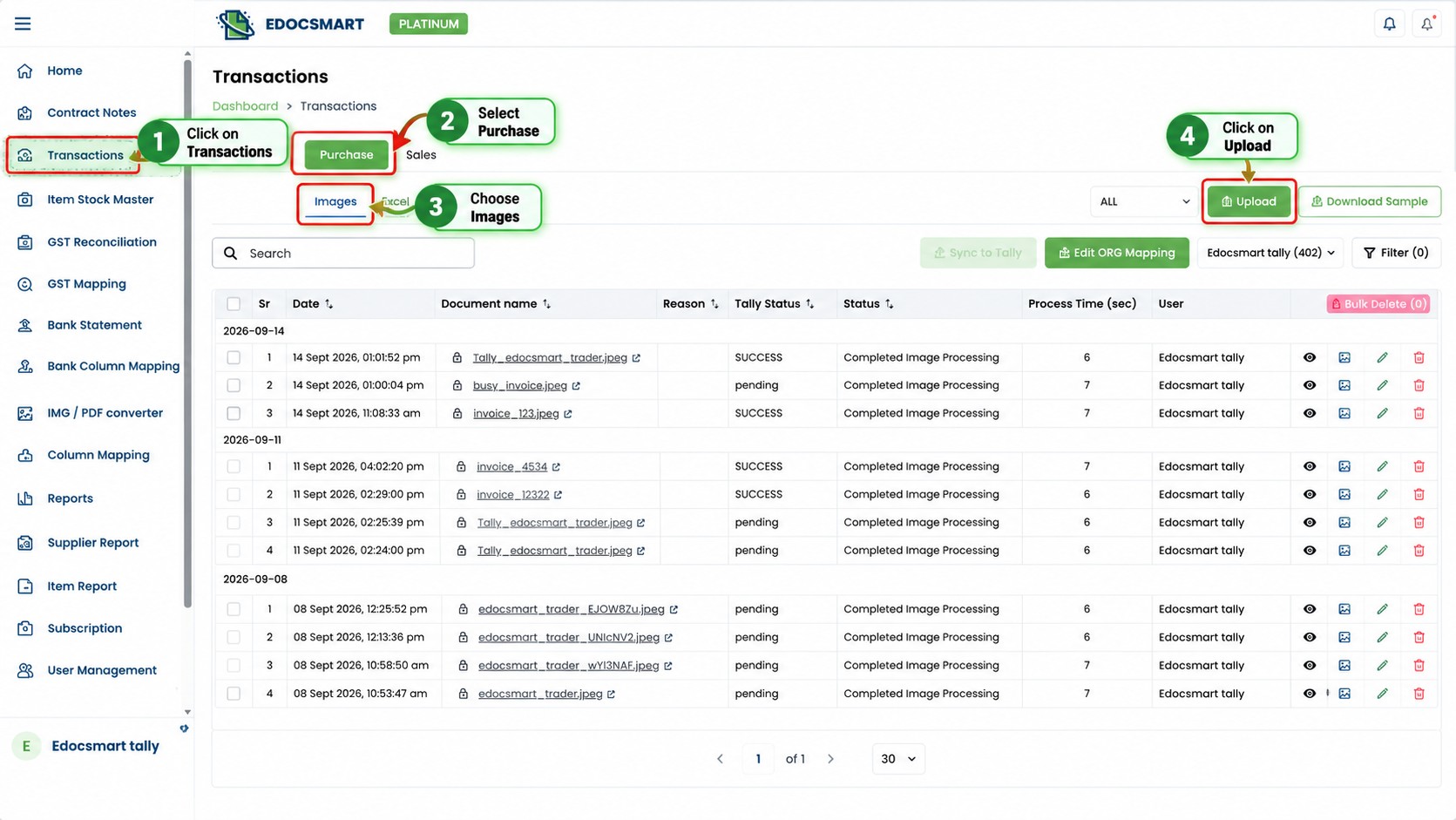
Step 2: Extract Invoice Information Automatically
After uploading the PDF, Edocsmart processes the document and extracts the relevant information.
This may include supplier details, invoice number, invoice date, GSTIN, item description, HSN/SAC, quantity, unit, rate, tax percentages and total amount.
For example, a supplier PDF may contain:
Invoice Number: INV-2026-104
Item: Office Equipment
Quantity: 5
Rate: ₹2,000
GST: 18%
Instead of entering these fields individually, the extracted information is organized for review.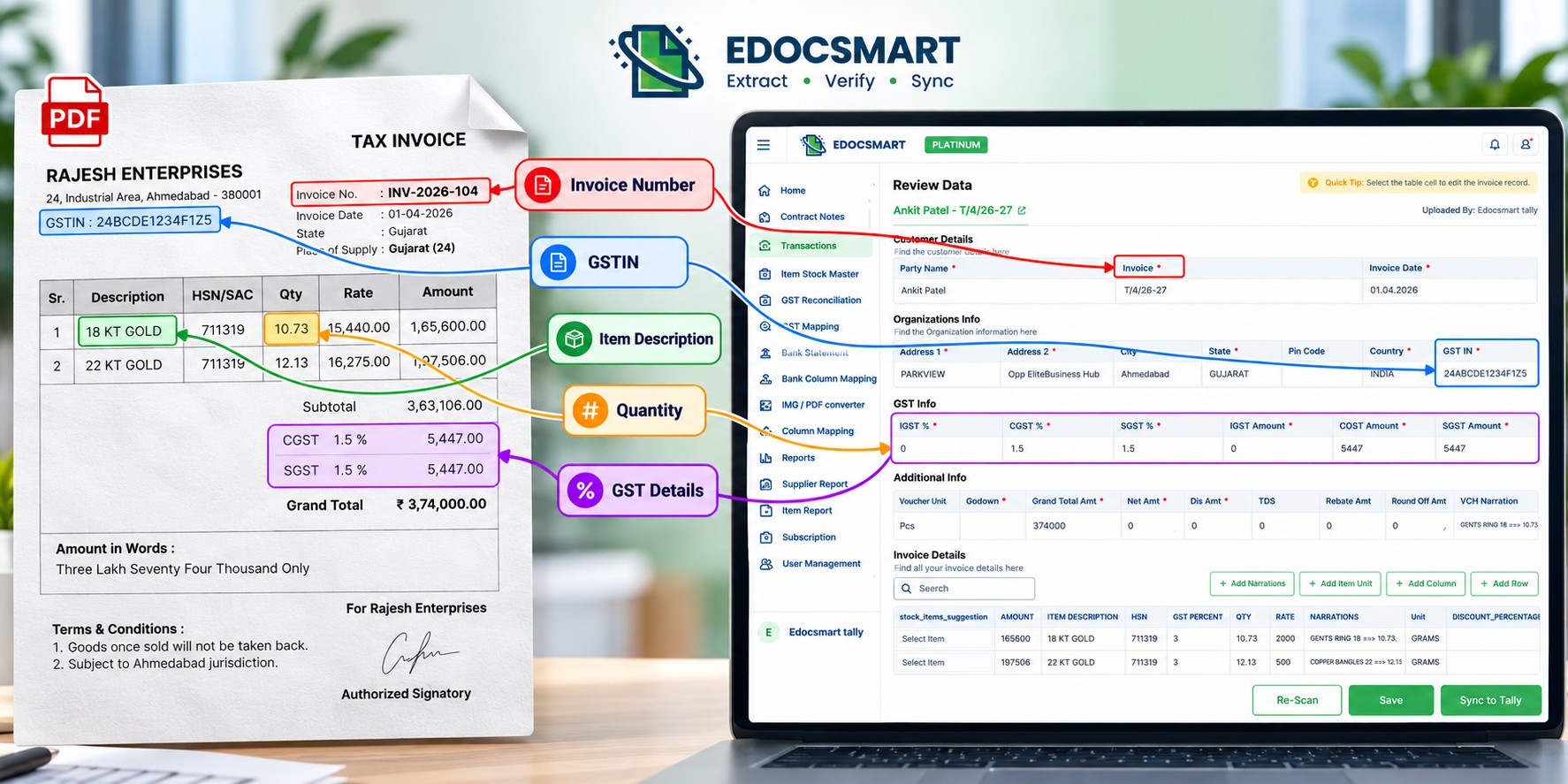
Step 3: Review and Correct Invoice Details
Once extraction is complete, open the invoice in Edocsmart's Review Data interface.
Check the following details carefully:
Supplier name, invoice number, date, GSTIN, item descriptions, quantities, rates, GST amounts and grand total.
For example, if a scanned invoice contains a quantity of 10.73 but the extracted field displays 10.78, the accountant should correct the value before synchronization.
This step is important because automated invoice entry should still include accounting verification.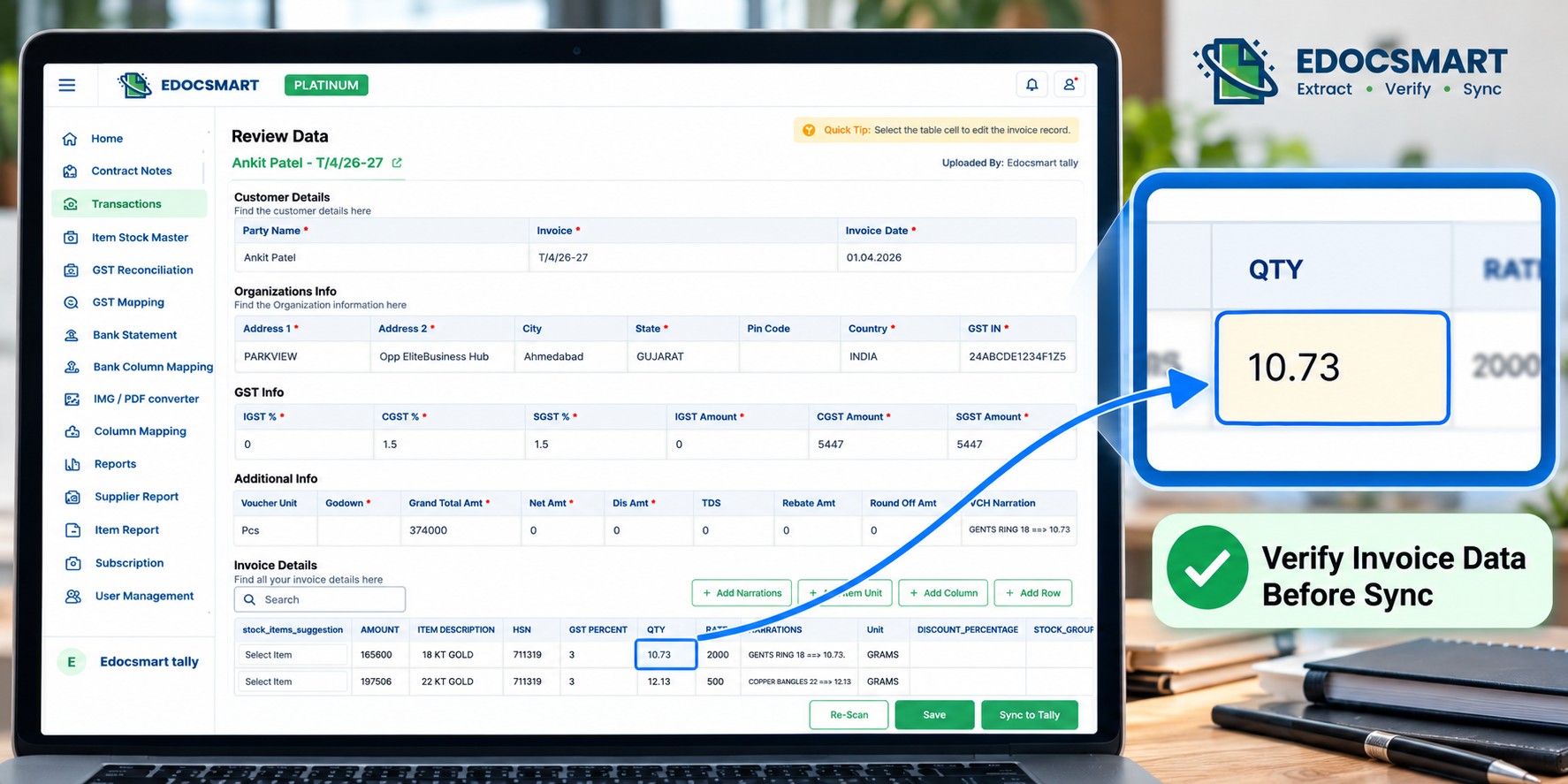
Step 4: Map Invoice Information with Tally Prime
After reviewing the extracted information, ensure it matches the appropriate accounting fields in Tally Prime.
The supplier should correspond with the correct Party Ledger, item descriptions with the relevant Stock Items, and GST values with the configured tax information.
Initial mapping or configuration may be required depending on the business's accounting setup.
Where an existing configuration remains applicable, it can be reused for subsequent invoices.
Step 5: Connect Edocsmart with Tally Prime
To synchronize invoice information, the Edocsmart Tally Connector must be running and connected to the configured Tally environment.
Before proceeding, verify that the connector displays:
Connector connected successfully
Tally Status: Connected
Internet: Connected
The connector provides the communication link required to transfer verified accounting information.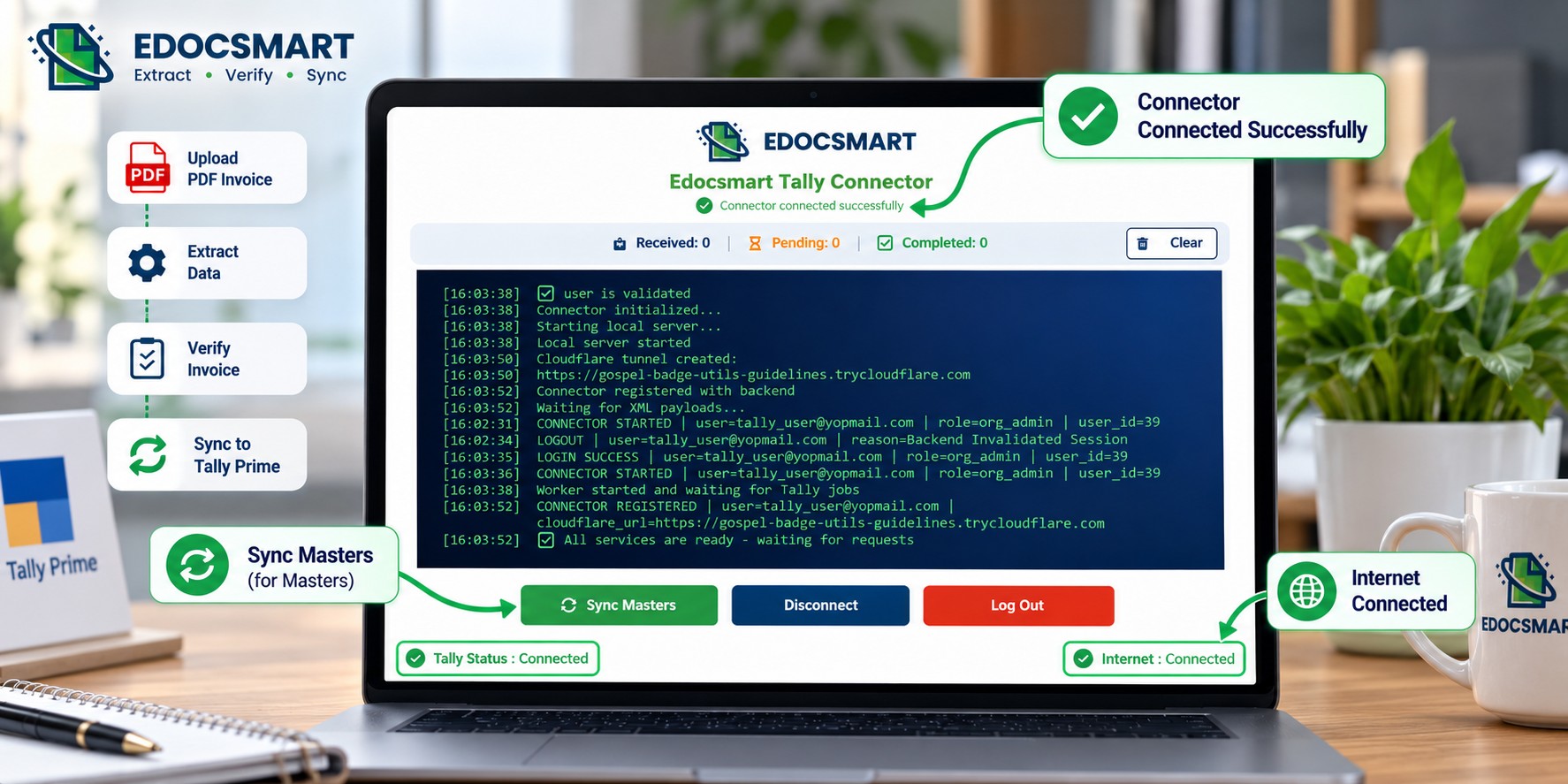
Step 6: Sync the Invoice and Verify the Voucher
Once the invoice details have been reviewed and the connector is ready, click Sync to Tally.
The verified accounting information is transferred to the configured Tally Prime environment.
Open the resulting voucher in Tally Prime and check the Party Ledger, supplier invoice number, date, stock items, quantity, rate, GST and final amount.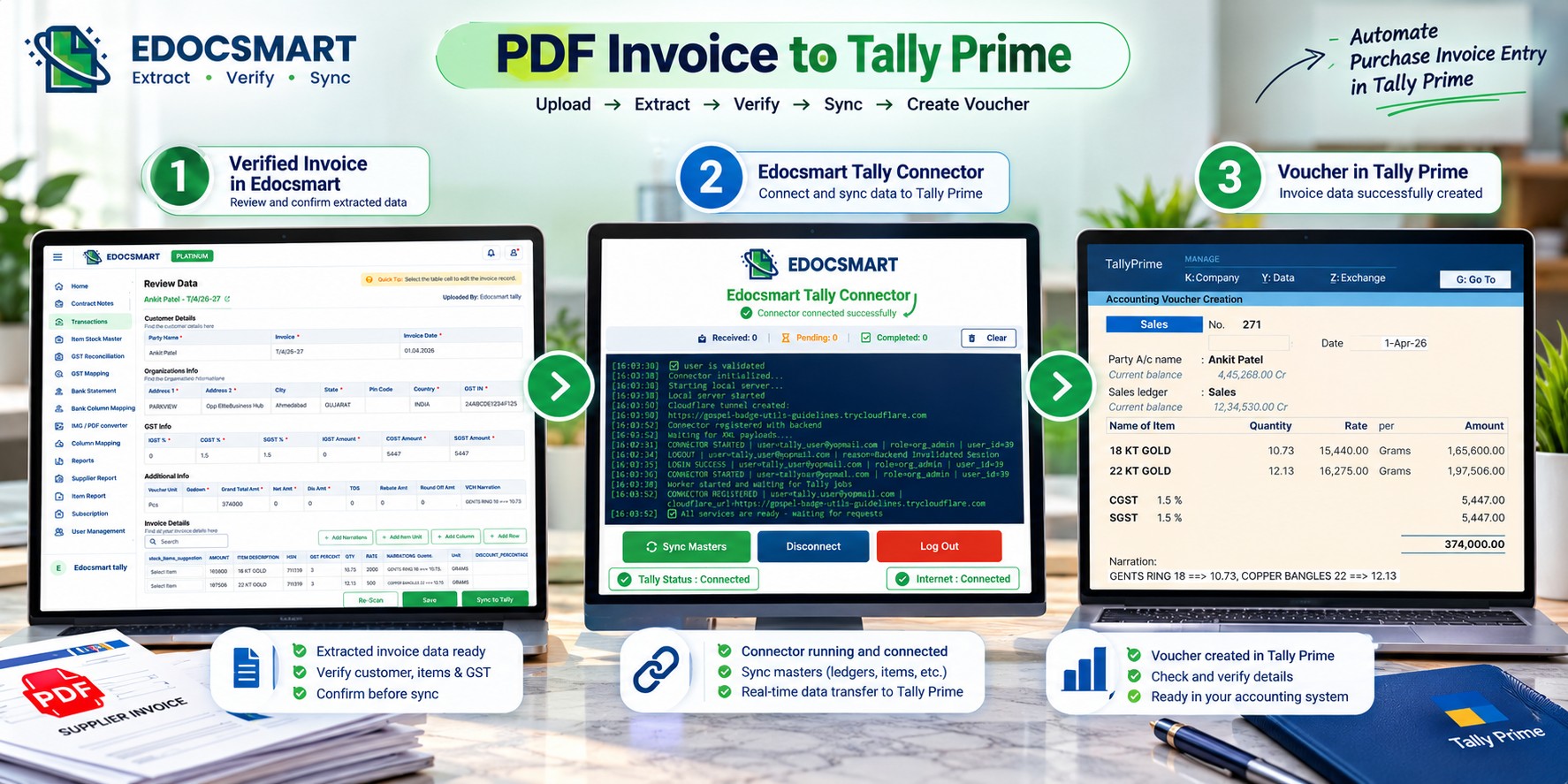
Benefits of Converting PDF Invoices to Tally Prime
Using a PDF invoice to Tally Prime converter can improve everyday accounting workflows.
- Less repetitive data entry: Accountants spend less time typing information already available in PDF invoices.
- Structured invoice processing: Supplier, item and GST information can be organized into accounting fields.
- Improved review process: Extracted information can be checked and corrected before synchronization.
- Useful for regular invoice volumes: Businesses processing frequent supplier bills can streamline their purchase entry workflow.
- Better accounting control: The final voucher can still be reviewed inside Tally Prime.
Manual PDF Invoice Entry vs Automated Invoice Entry
| Manual Entry | Automated PDF Invoice Processing |
|---|---|
| Read every invoice manually | Extract invoice information |
| Type supplier and item details | Review structured fields |
| Enter GST information | Verify extracted GST values |
| Repeat entry for every document | Reuse applicable configuration |
| Create vouchers manually | Sync verified data through connector |
Automation does not eliminate the need for verification. Instead, it helps accountants focus on checking the accuracy of transactions rather than repeatedly typing invoice details.
Can Scanned PDF Invoices Be Imported into Tally Prime?
Scanned PDF invoices can be processed using OCR-based extraction, provided the document format is supported.
However, the quality of the scanned invoice affects the results.
Blurred text, missing invoice sections, handwritten corrections and unclear numbers may require manual review.
Before syncing a scanned invoice, verify its GSTIN, invoice number, item information, quantity, rate and final amount.
Frequently Asked Questions
1. Can I import PDF invoices directly into Tally Prime?
PDF invoices need to be processed into structured accounting data before synchronization. Edocsmart helps extract, review and prepare invoice information for Tally Prime.
2. How do I convert a PDF purchase invoice to Tally Prime?
Upload the supplier PDF invoice to Edocsmart, review the extracted details, confirm the required mapping, check the Tally Connector and sync the verified information to Tally Prime.
3. Can GST information be extracted from PDF invoices?
Yes. Supported invoices can be processed to extract GST-related fields, including GSTIN, CGST, SGST, IGST and tax amounts. These values should be verified before synchronization.
4. Can I process scanned PDF invoices?
Yes, OCR-based extraction can process supported scanned documents. Accuracy depends on document quality and the extracted information should be reviewed.
5. Do I need to enter stock items manually?
Edocsmart can extract item descriptions and other item-level details. Their association with Tally Stock Items depends on the configured mapping and available masters.
6. Can I correct an invoice before syncing it?
Yes. The review process allows users to check and correct extracted information before sending the verified data to Tally.
7. Is PDF invoice to Tally Prime the same as PDF to Excel?
No. PDF-to-Excel primarily converts document information into spreadsheet data, while PDF-to-Tally Prime automation involves accounting structure, verification, mapping and synchronization.
Conclusion
Managing supplier PDF invoices manually can become time-consuming as transaction volumes increase.
A PDF invoice to Tally Prime workflow helps reduce repetitive entry by extracting invoice information, organizing accounting fields and allowing verification before synchronization.
With Edocsmart, businesses can follow a structured process:
Upload PDF Invoice → Extract Data → Review → Map → Connect → Sync to Tally Prime
Explore PDF to Tally and Invoice to Tally to learn more about automating invoice processing.