PDF to Tally XML Online
Convert PDF invoices into validated Tally-ready data with AI extraction, review, and direct synchronization through EdocSmart.
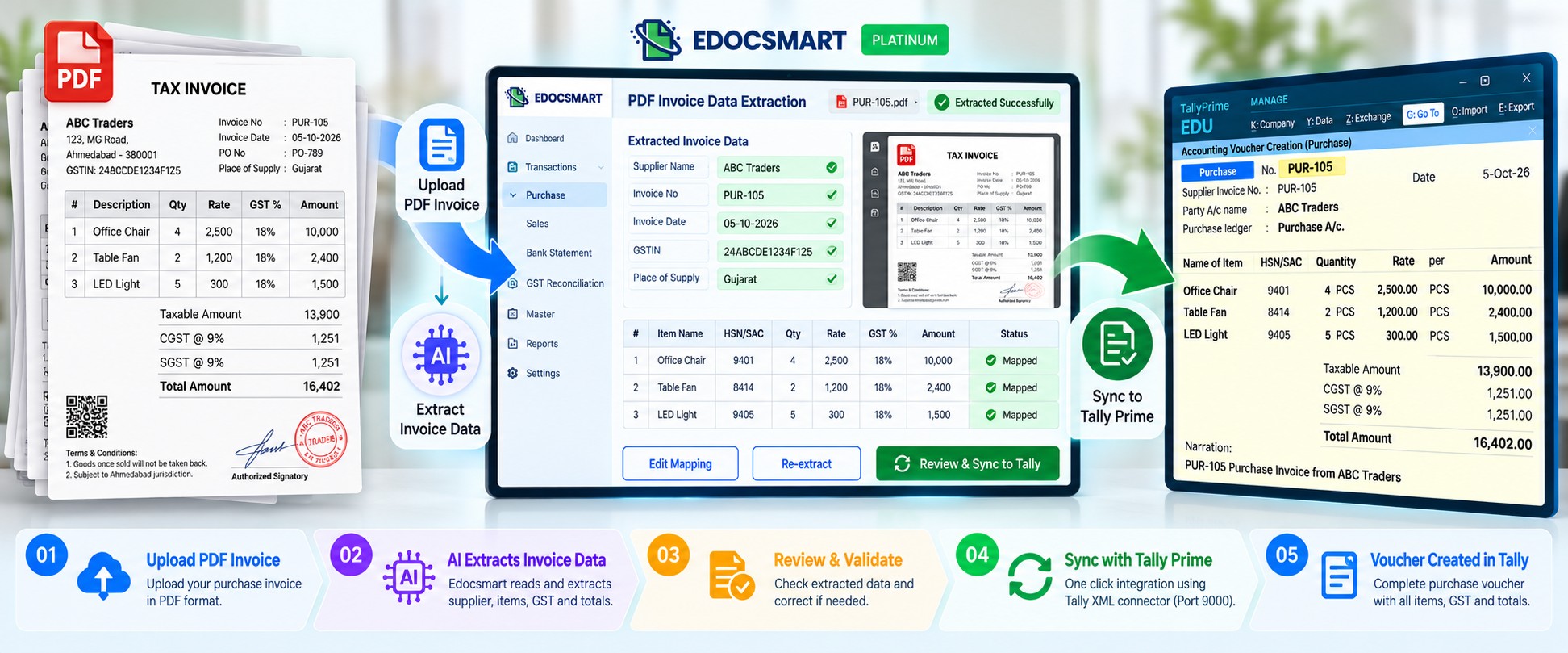
Accounting teams often receive purchase invoices as PDF files. The invoice already contains the supplier name, invoice number, date, GST information, item details, quantities, rates, taxes, and final amount, but this information still needs to reach Tally Prime in a structured form.
This is where a PDF to Tally workflow becomes useful.
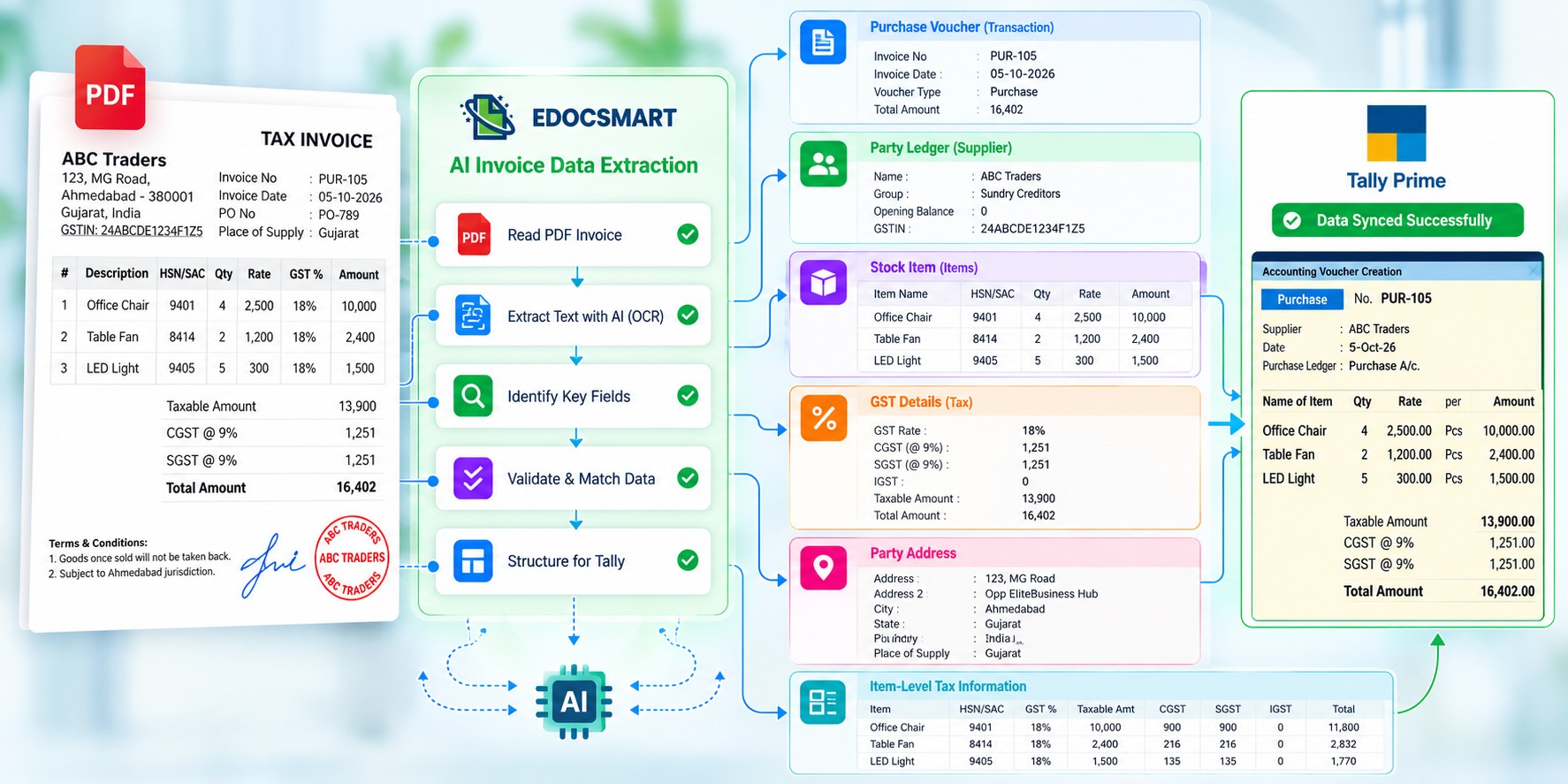
Instead of reading every invoice and manually entering each field into Tally, EdocSmart can process the PDF, extract the required invoice information, allow the user to validate it, and then synchronize the approved data with Tally.
The complete process is:
PDF Invoice → AI Extraction → Review & Validation → Tally Sync
For businesses searching for a PDF to Tally XML online workflow, the important point is that the PDF itself is not directly treated as a Tally voucher. EdocSmart first converts the information inside the PDF into structured, validated accounting data that can then be transferred to Tally according to the configured workflow.
What Does PDF to Tally Mean?
A PDF invoice is designed for viewing and sharing.
Tally, however, needs structured accounting information.
For example, a purchase invoice PDF may contain:
- Supplier Name
- Invoice Number
- Invoice Date
- GSTIN
- Item Description
- Quantity
- Price
- GST Rate
- Tax Amount
- Invoice Total
To use that invoice in Tally, the information first needs to be identified correctly and prepared in a structure that Tally can understand.
A PDF to Tally converter therefore does more than move a file from one system to another.
The useful workflow is:
PDF Document → Read Invoice Data → Structure the Fields → Validate → Send Approved Data to Tally
This is the approach used by EdocSmart for PDF invoice to Tally Prime processing.
Why PDF Invoice Entry Becomes Repetitive
Consider a business receiving dozens of supplier invoices every day.
For every invoice, someone may need to:
- Open the PDF
- Read the supplier details
- Check the invoice number
- Enter the date
- Identify GST information
- Enter each item
- Add quantity and price
- Check tax values
- Verify the total
- Create the transaction in Tally
The invoice already contains all of this information.
The repetitive part is reading it and entering the same information again into the accounting system.
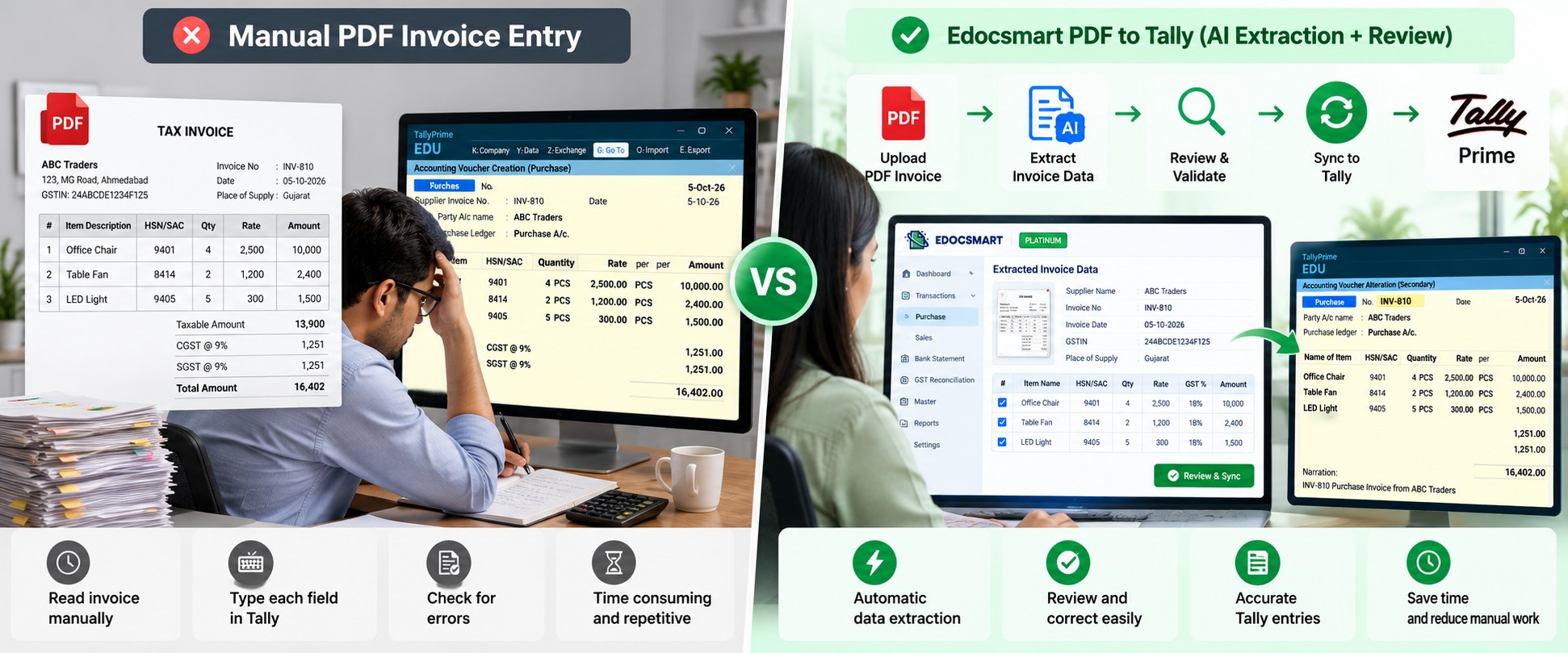
Using a PDF to Tally Prime converter changes this process from manual typing into invoice verification.
Instead of rebuilding the invoice field by field, the accountant can review information that has already been extracted.
How to Convert PDF Invoice to Tally Prime with EdocSmart
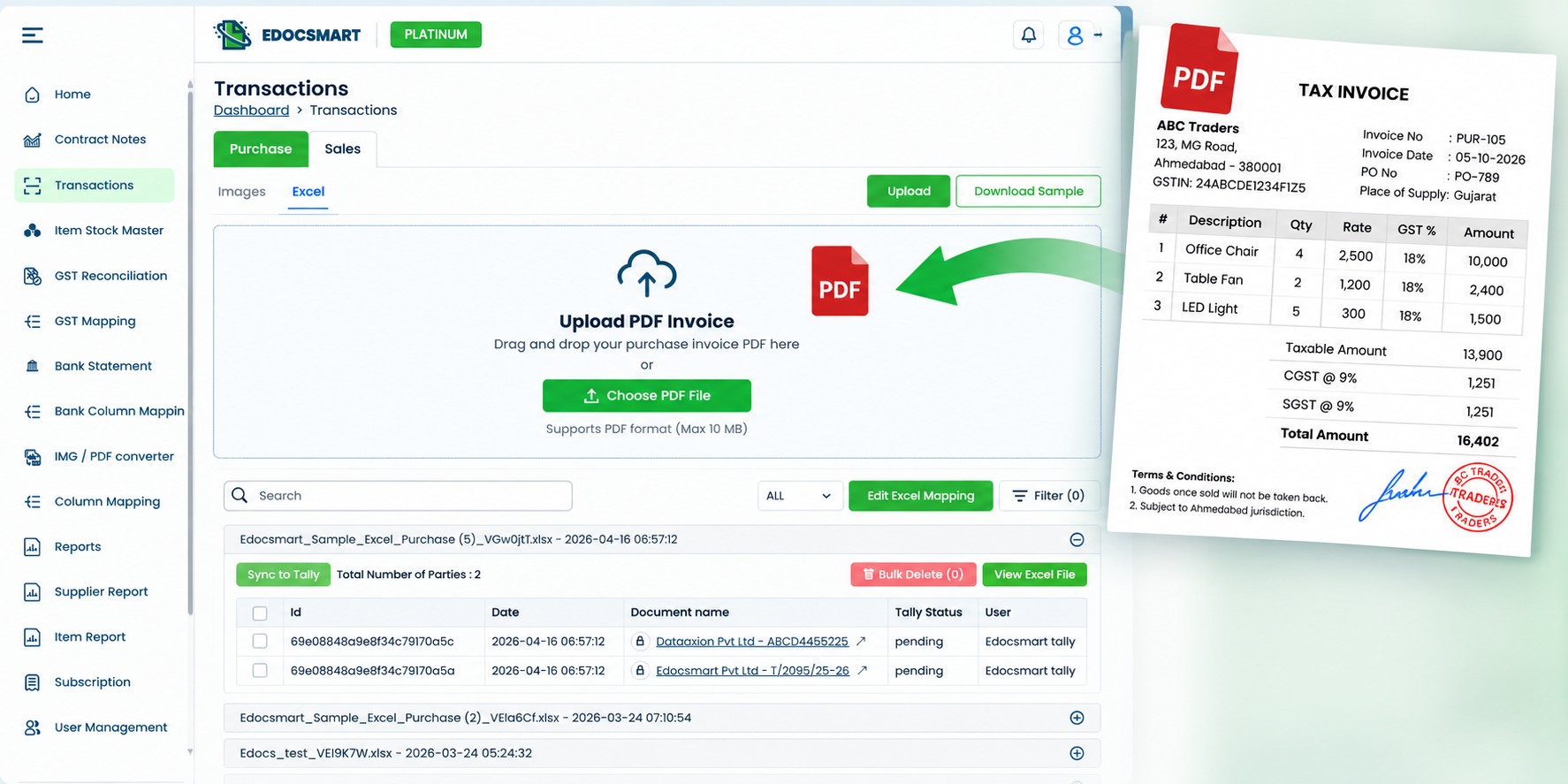
Step 1: Upload Your PDF Invoice
The process begins with the original invoice PDF.
What You Do
Upload your purchase invoice in PDF format to EdocSmart.
What EdocSmart Does
EdocSmart accepts the document and prepares it for automated AI scanning.
What You Get
You do not need to manually type all the invoice information into Tally before the processing begins.
This makes import PDF into Tally workflows easier when accounting teams already receive invoices digitally.
Instead of recreating the transaction manually, the PDF becomes the source document for the next stage.
Step 2: AI Extracts Invoice Data
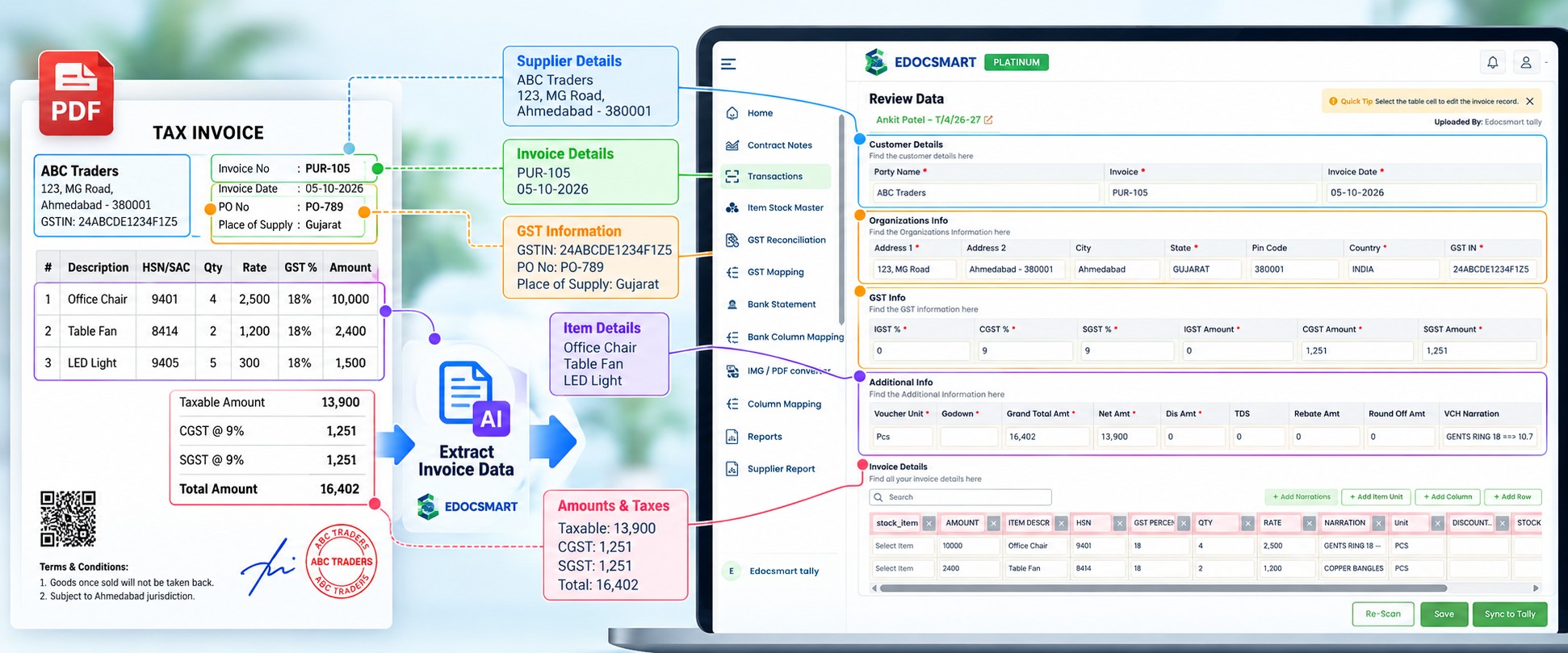
Once the PDF has been uploaded, the next task is understanding the information inside it.
What You Do
Initiate automated data extraction for the uploaded PDF invoice.
What EdocSmart Does
EdocSmart uses AI-powered document processing to identify relevant invoice information from the PDF.
What You Get
The system can identify information such as:
- Supplier details
- Invoice number
- Invoice date
- GST information
- Item details
- Quantities
- Prices
- Taxes
- Invoice total
For a PDF purchase invoice to Tally workflow, this step is important because the software is no longer dealing with the PDF only as a document.
It is turning the information inside that document into structured fields.
For example:
- Supplier Name → Party Information
- Invoice Number → Invoice Reference
- GST Details → Tax Information
- Item Description → Item-Level Data
- Quantity → Item Quantity
- Price → Item Rate
- Total → Invoice Total
This structured information is what can later be reviewed and synchronized with Tally.
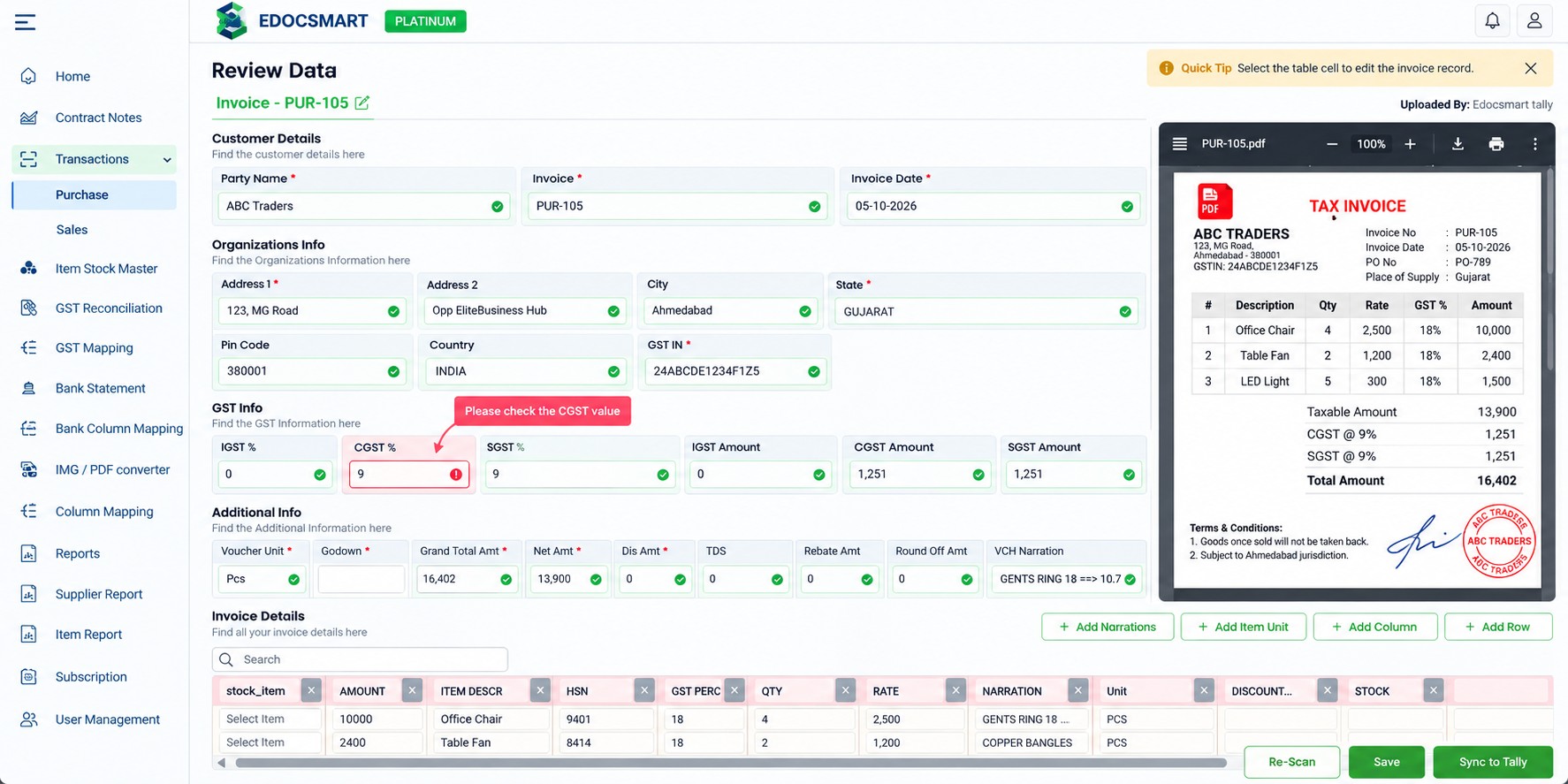
Step 3: Review and Validate the Extracted Data
Automated extraction should not mean that accounting data is sent into Tally without checking it.
Review is an important part of the workflow.
What You Do
Check the extracted information before synchronization.
What EdocSmart Does
EdocSmart displays the extracted fields and allows information requiring correction to be reviewed.
What You Get
If a value needs to be changed, it can be corrected before the invoice is synchronized.
For example, the user can verify:
- Supplier Name
- Invoice Number
- Invoice Date
- GST Information
- Item Details
- Quantity
- Rate
- Tax Values
- Final Total
This makes the workflow different from blind PDF to Tally import.
The objective is not simply to extract data.
The objective is to prepare verified accounting data.
Step 4: Sync Invoice Data with Tally
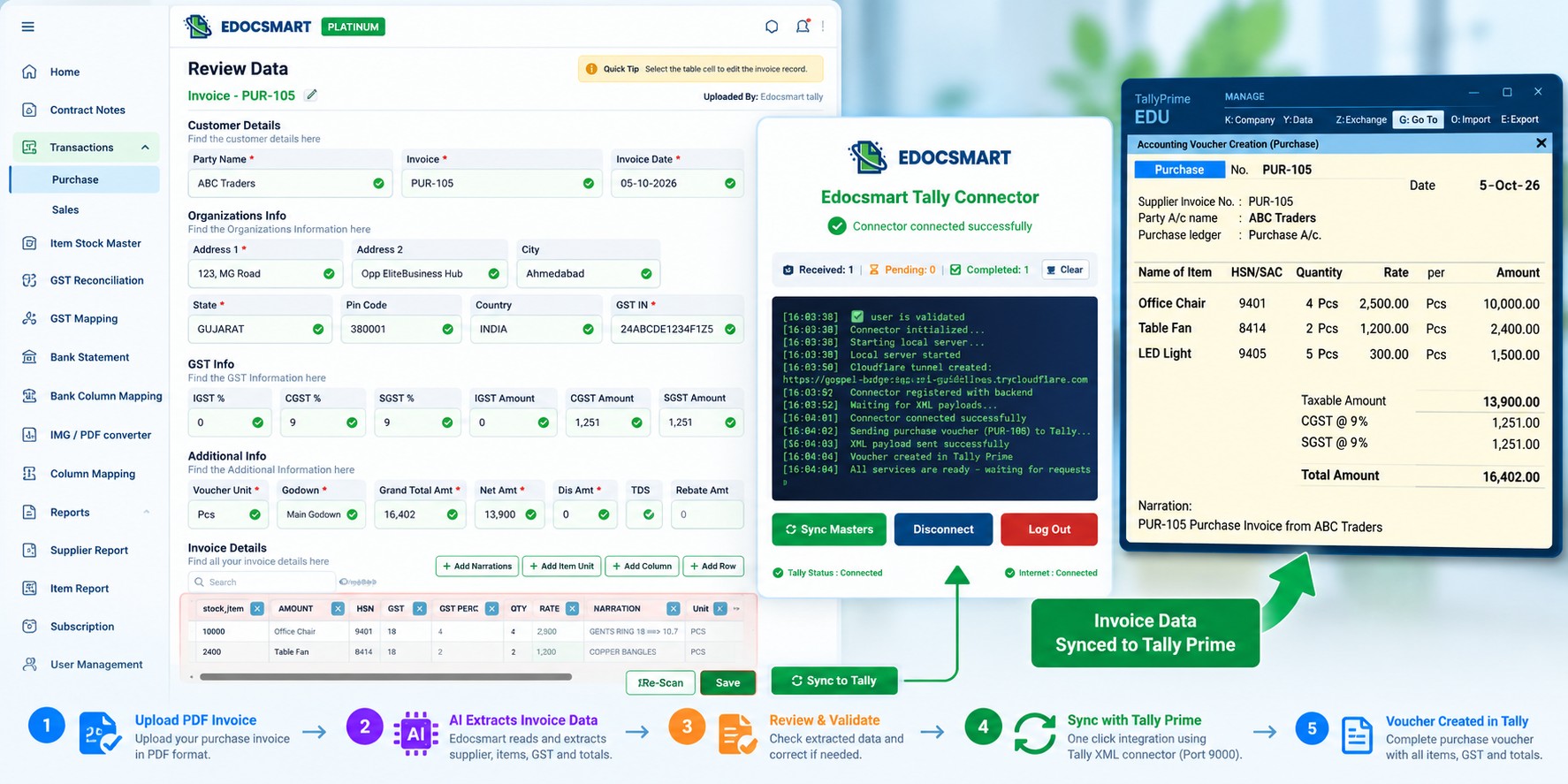
Once the extracted invoice information has been checked, the transaction can move to Tally.
What You Do
Approve the invoice data and synchronize it with Tally.
What EdocSmart Does
EdocSmart securely transfers the approved entries into the connected Tally instance.
What You Get
Depending on your configuration, the workflow can help create or update:
Purchase vouchers
Party ledgers
Stock items
GST details
Party addresses
Item-level tax information
This is the stage where invoice PDF to Tally processing becomes an accounting transaction rather than simply a document-extraction task.
What Happens to the PDF Before It Reaches Tally?
A PDF should not be thought of as a Tally voucher.
The document contains the source information.
EdocSmart first reads that information and converts it into structured data.
For example:
PDF Invoice
↓
Supplier Details Identified
↓
Invoice Information Identified
↓
GST Information Identified
↓
Items, Quantity and Prices Identified
↓
Data Reviewed
↓
Approved Data Synchronized
↓
Tally
So when someone searches for convert PDF to Tally automatically, the actual automation happens in several stages.
The system is not copying a visual PDF page into Tally.
It is extracting and organizing the accounting information contained inside that PDF.
PDF Purchase Bill to Tally
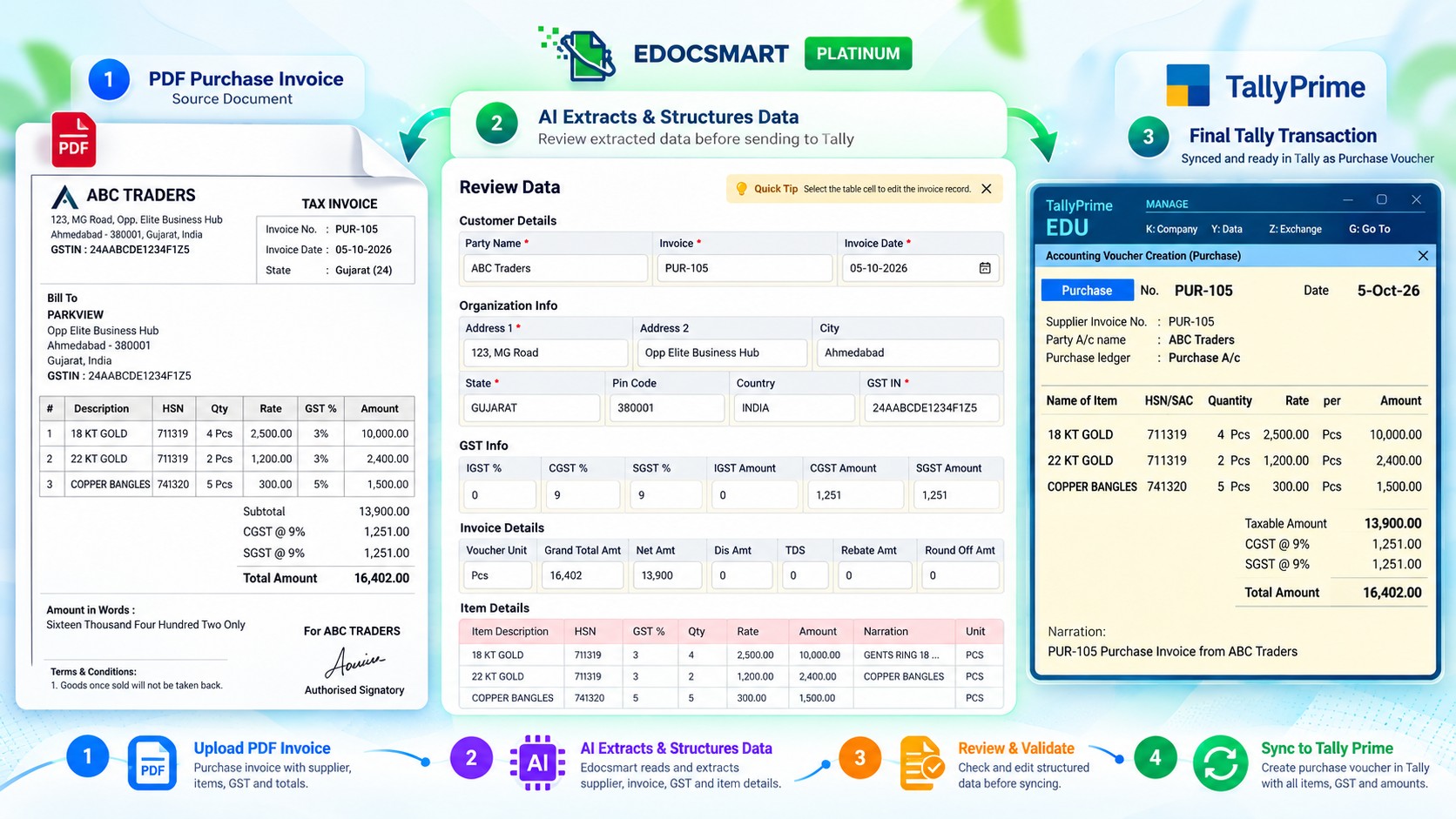
Purchase invoices are a common use case for this workflow.
A supplier sends a PDF bill containing all the transaction details.
Instead of manually creating the purchase entry, EdocSmart can extract the relevant information and prepare it for validation.
For example:
- Supplier: ABC Traders
- Invoice: PUR-105
- Date: 05-10-2026
- Item: Industrial Paint
- Quantity: 10
- GST: 18%
- Total: ₹29,500
After extraction and validation, the approved information can be synchronized according to the configured Tally setup.
This is useful for businesses looking for a PDF bill to Tally or purchase invoice PDF to Tally workflow.
How GST Information Is Handled
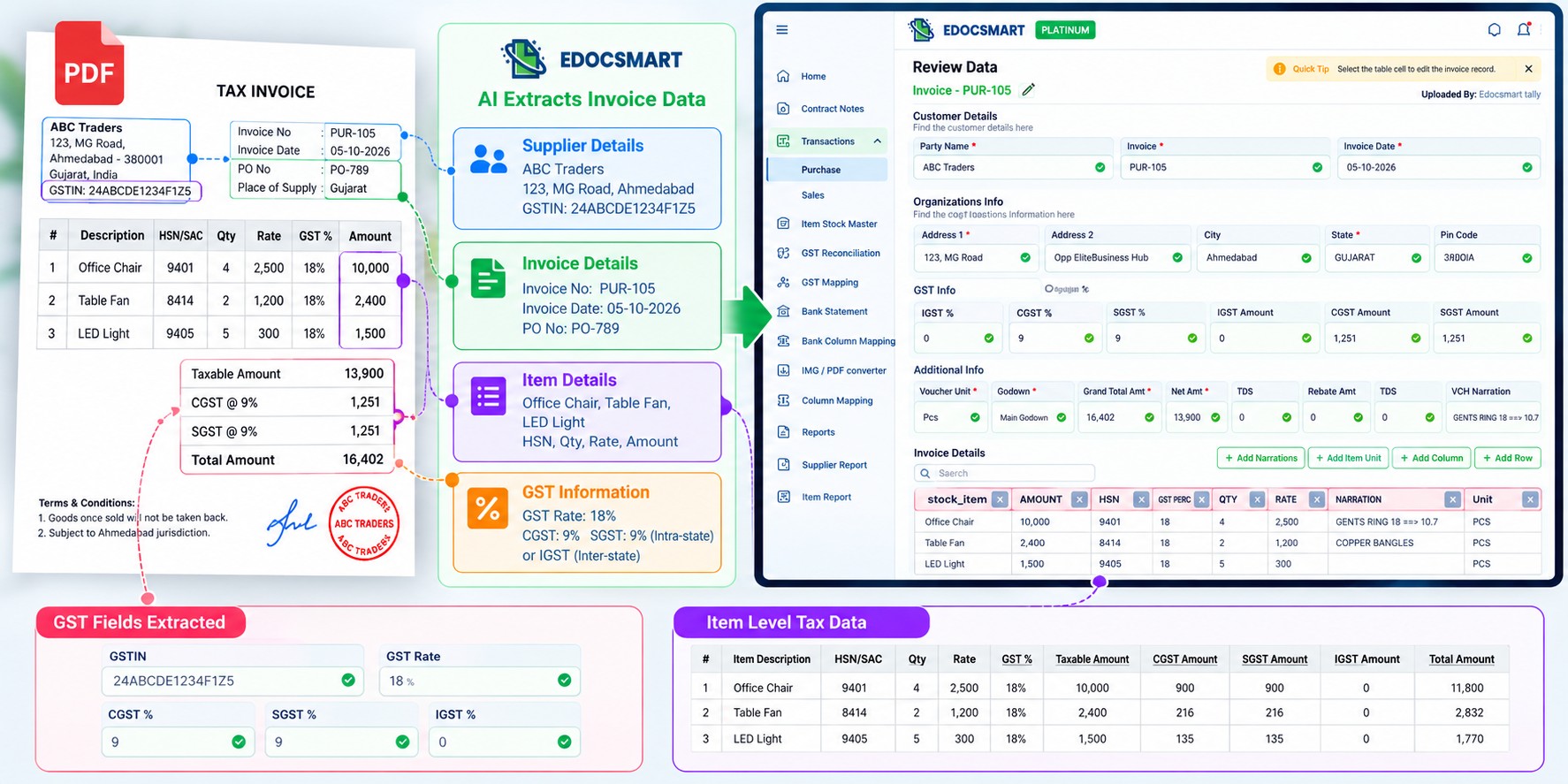
GST is an important part of invoice processing because the information is not limited to a final total.
A PDF invoice may contain:
- Supplier GST information
- GST rate
- Taxable amount
- CGST
- SGST
- IGST
- Item-level tax details
EdocSmart can extract relevant GST information from the uploaded invoice and include it in the review process.
The user can then verify the information before it is synchronized with Tally.
Depending on the configuration, GST details and item-level tax information can also be handled during synchronization.
Why Validation Matters Before Tally Sync
The objective of convert PDF invoice to Tally automation is not simply speed.
The accounting data also needs to be correct.
For example, suppose AI correctly extracts most of the invoice but one quantity requires correction.
Without review, that incorrect quantity could affect:
Item value
Taxable amount
GST calculation
Invoice total
Stock information
The review stage gives the accountant the opportunity to correct the information before it becomes part of the Tally transaction.
This changes the accountant's role from repetitive typing to verification.
Manual workflow:
Read PDF → Type Data → Recheck → Save
Automated workflow:
Upload PDF → Extract → Review → Sync
What Can Be Created or Updated in Tally?
After validation, the exact result depends on the configured workflow.
EdocSmart can help create or update information such as:
Purchase Voucher
The validated purchase invoice information can be synchronized into the corresponding purchase transaction.
Party Ledger
Supplier information can be handled according to the configured ledger setup.
Stock Items
Invoice item information can be connected with the required stock-item structure.
GST Details
Relevant GST information can be included in the transaction.
Party Address
Supplier address information extracted from the invoice can be handled according to configuration.
Item-Level Tax Information
Tax information available against individual invoice items can also be included in the processing workflow.
PDF to Tally Online vs Simple PDF Conversion
A PDF to Tally online workflow should not be confused with ordinary PDF conversion.
For example, a standard converter may change:
PDF → Excel
or
PDF → another document format.
But accounting automation needs to understand what the extracted values actually mean.
A number such as 18% needs to be recognized as tax information.
A name needs to be identified as a supplier.
A table row may contain an item, quantity, rate and amount.
That is why PDF invoice to Tally converter workflows require more than file-format conversion.
The data needs to be interpreted in an accounting context.
PDF to Tally XML Online: Where XML Fits into the Workflow
When users search for PDF to Tally XML online, they are usually trying to move information from a PDF invoice into a format that Tally can process.
With EdocSmart, the important workflow is not manually creating an XML file from the PDF.
Instead, the invoice is processed first:
PDF Invoice → AI Extraction → Structured Data → Review → Tally Synchronization
The approved accounting information is then transferred according to the configured Tally integration.
This avoids treating the PDF and the Tally entry as if they were the same type of file.
Is This the Same as a Tally to PDF Converter?
No.
A Tally to PDF converter or Tally to PDF converter online generally describes the opposite direction—taking information from Tally and producing a PDF output.
The workflow discussed here is:
PDF Invoice → Tally
not:
Tally → PDF
Similarly, a Tally to Excel converter online serves a different purpose from a PDF to Tally software workflow.
Keeping the direction clear is important when choosing the right accounting tool.
Where PDF to Tally Automation Is Useful
A PDF-based workflow can be useful when businesses regularly receive supplier bills digitally.
Instead of repeatedly entering each invoice into Tally, the invoice itself becomes the source for extraction and verification.
It can be particularly useful when accounting teams need to process:
- Purchase invoices
- Supplier bills
- GST invoices
- Item-based invoices
- Invoices containing multiple tax fields
- Invoices containing several product lines
The key advantage is that data already present in the document does not have to be manually entered again from the beginning.
Frequently Asked Questions
Can I convert a PDF invoice to
Tally Prime?
Yes. With EdocSmart, a PDF invoice can be uploaded, processed using AI extraction, reviewed, validated and then synchronized with Tally according to the configured workflow.
What information can EdocSmart
extract from a PDF invoice?
EdocSmart can identify supplier details, invoice numbers, dates, GST information, item details, quantities, prices, taxes and totals.
Can I review the extracted
information before sending it to Tally?
Yes. The extracted data can be reviewed and corrected before synchronization.
Can EdocSmart create a
purchase voucher from a PDF invoice?
Depending on the configuration, validated invoice information can be used to create or update purchase voucher information in Tally.
Can party ledgers and stock
items also be handled?
Yes. Depending on the configured workflow, party ledgers and stock items can be created or updated as part of the synchronization process.
Is PDF to Tally the same as
PDF to Excel?
No. PDF-to-Excel mainly changes the document into spreadsheet data. A PDF to Tally workflow prepares extracted information for accounting use and synchronization with Tally.
Can GST information be
extracted from a PDF invoice?
Yes. Relevant GST information can be identified during invoice extraction and reviewed before synchronization.
Does EdocSmart send data to
Tally without review?
The workflow includes a review and validation stage so extracted information can be checked and corrected before synchronization.
Can I import PDF into Tally
Prime without manually typing every invoice field?
EdocSmart is designed to reduce repetitive invoice typing by extracting information from the PDF and allowing the user to review it before synchronization.
What is a PDF to Tally Prime
converter?
It is a workflow or software that takes invoice information contained in a PDF and prepares it for entry into Tally Prime. EdocSmart combines extraction, validation and synchronization in this process.
Conclusion
A PDF invoice already contains most of the information required for accounting.
The problem is that the information is trapped inside a document format, while Tally requires structured accounting data.
EdocSmart bridges that gap by extracting invoice information from the PDF, presenting it for review, and synchronizing approved data with Tally.
The complete workflow is:
PDF Invoice → AI Extraction → Review & Validation → Tally Sync
Depending on the configuration, the synchronized data can support purchase vouchers, party ledgers, stock items, GST details, party addresses and item-level tax information.
For businesses searching for PDF to Tally, PDF to Tally Prime, PDF invoice to Tally, convert PDF invoices to Tally, or PDF to Tally XML online, the goal is therefore not simply document conversion.
It is to turn existing invoice information into verified, Tally-ready accounting data without repeatedly typing the same details manually.