Scanned Invoice to Tally
Convert scanned supplier invoices into Tally-ready purchase entries with AI-powered invoice data extraction, GST verification, stock-item matching and Edocsmart automation.
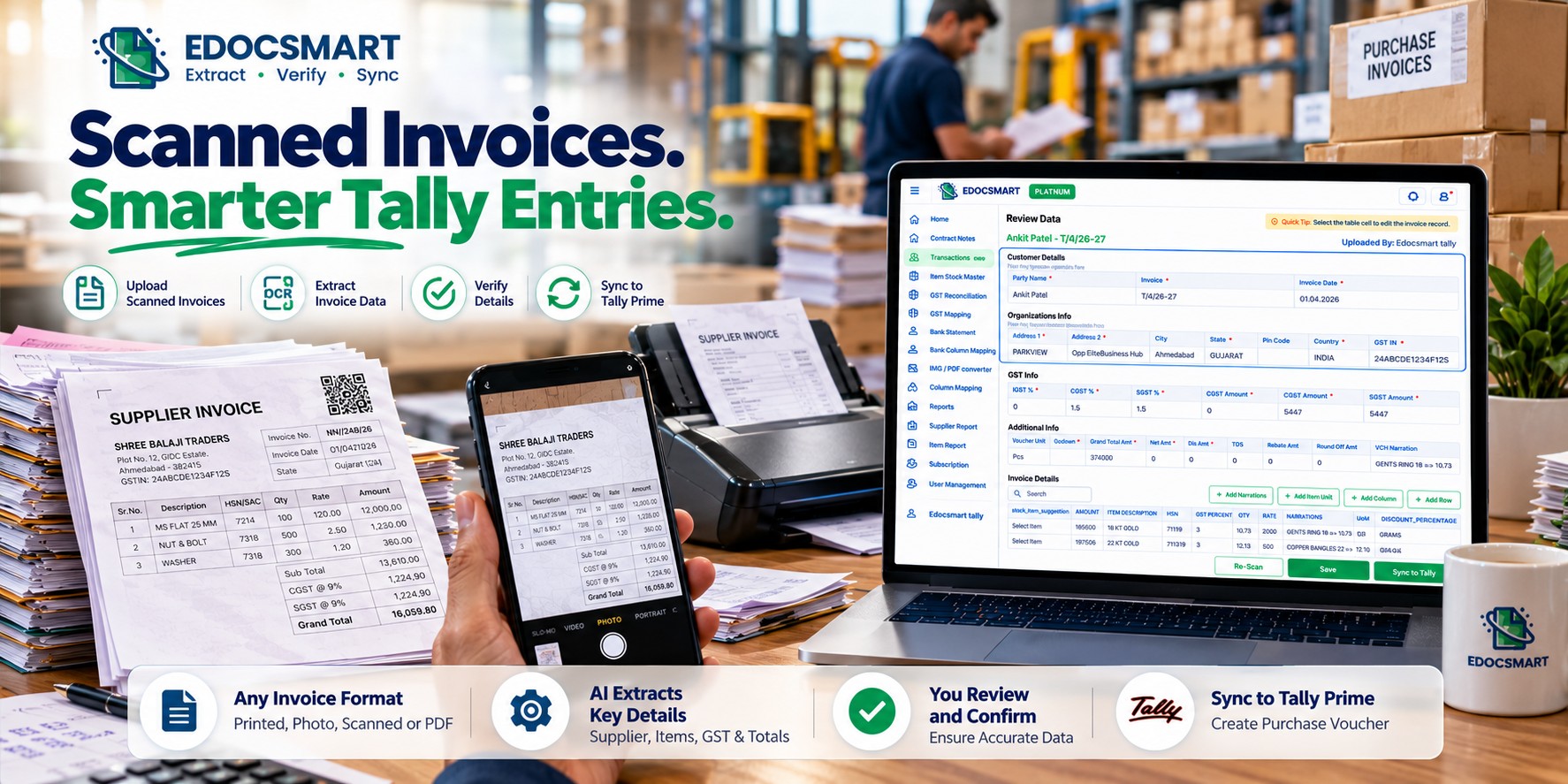
Imagine running a manufacturing business where dozens of supplier invoices arrive every day. Some are printed bills delivered with raw materials, some are photographed by employees, and others arrive as scanned PDF documents.
By the end of the week, the accounting team has a large collection of invoices waiting to be entered into Tally Prime.
Every invoice contains supplier details, invoice numbers, GST information, item descriptions, quantities and amounts. However, manually entering this information takes time, especially when a single purchase bill contains several stock items.
Scanned invoice to Tally automation helps businesses reduce repetitive data entry by extracting information from scanned bills and preparing it for accounting.
With Edocsmart, businesses can upload supported invoice documents, review extracted information, correct accounting fields and synchronize verified entries with Tally through the configured connector.
Quick Answer: To import a scanned invoice into Tally Prime, upload the invoice to an invoice automation platform, extract supplier and item details, verify the GST and accounting information, match the relevant Tally masters and synchronize the verified data. Edocsmart provides a workflow for these steps.
Why Do Businesses Need Scanned Invoice to Tally Software?
Purchase invoice entry involves more than copying an invoice number and amount into accounting software.
For every supplier bill, accountants may need to identify the correct ledger, verify the invoice date, enter inventory details, apply GST treatment and confirm the final voucher amount.
Consider a wholesale business receiving 60 supplier invoices in one day.
If each invoice contains 10 products, the accountant may need to handle approximately 600 item rows in addition to the invoice-level information.
The workload becomes more complicated when different suppliers use different bill formats.
A scanned invoice to Tally solution helps organize this information before it is recorded in the accounting system.
Common Challenges with Manual Invoice Entry
Repeatedly typing supplier names, invoice numbers and dates.
Entering multiple stock items, quantities, units and rates.
Matching supplier descriptions with existing Tally stock items.
Checking CGST, SGST and IGST information.
Identifying duplicate invoices before posting.
Correcting data-entry mistakes during reconciliation.
Businesses using invoice scanning software for Tally can reduce repetitive transcription while retaining the ability to verify accounting information before synchronization.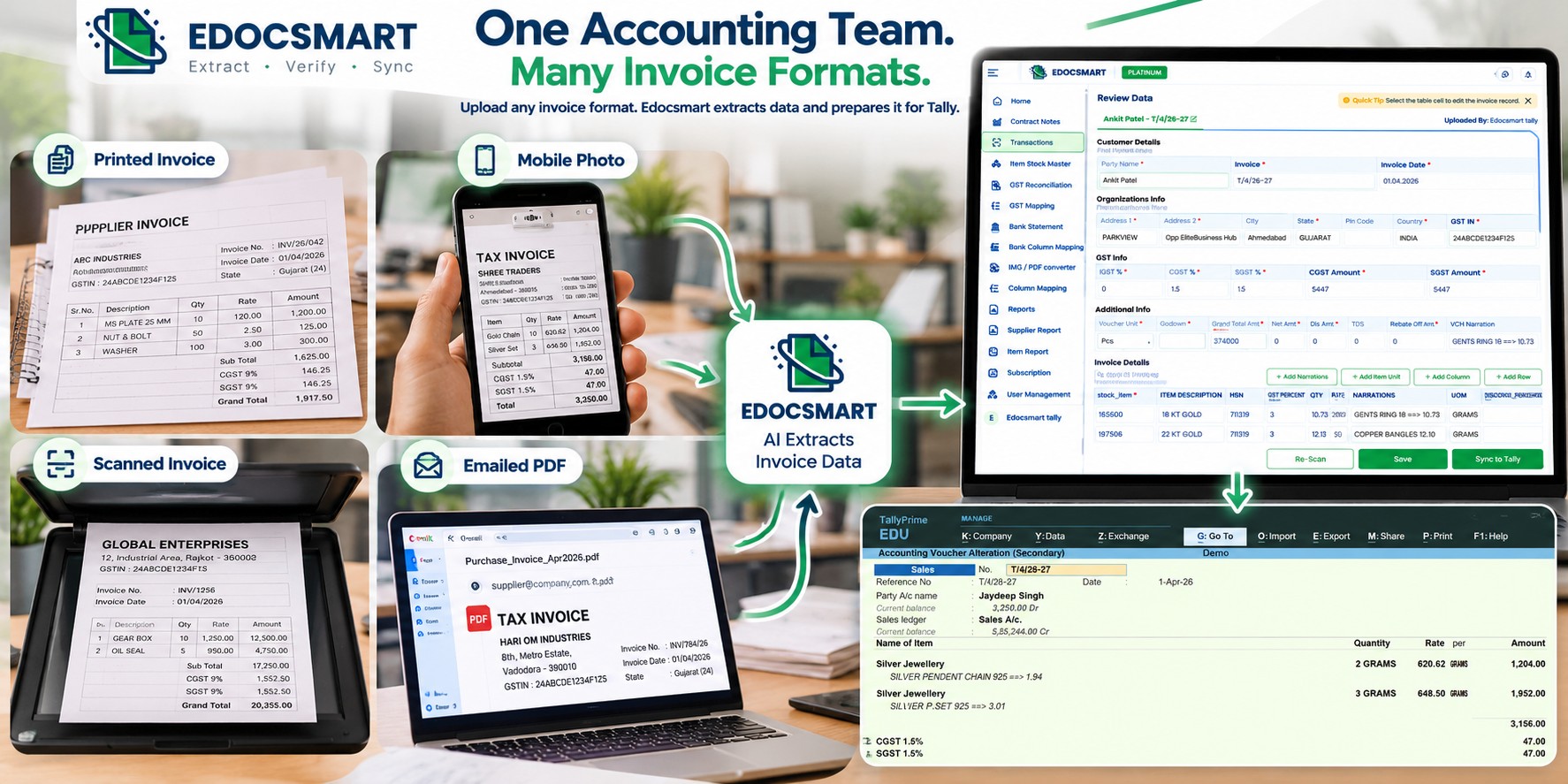
How to Import Scanned Invoices into Tally Prime Using Edocsmart
Importing a scanned purchase invoice into Tally involves document upload, information extraction, accounting verification and synchronization.
Here is the practical workflow.
Step 1: Log In to Edocsmart
Open Edocsmart and sign in to your account.
After logging in, access the Transactions section from the sidebar.
This is where you can manage supported purchase and sales invoice processing activities.
Step 2: Open Transactions → Purchase → Images
From the Transactions page, select Purchase, then open the Images tab.
Click Upload to begin adding your scanned supplier invoice.
Depending on the supported upload workflow, invoice documents may include scanned bills, PDF files or invoice photographs.
For purchase bill automation, make sure the document belongs to the correct purchase transaction workflow.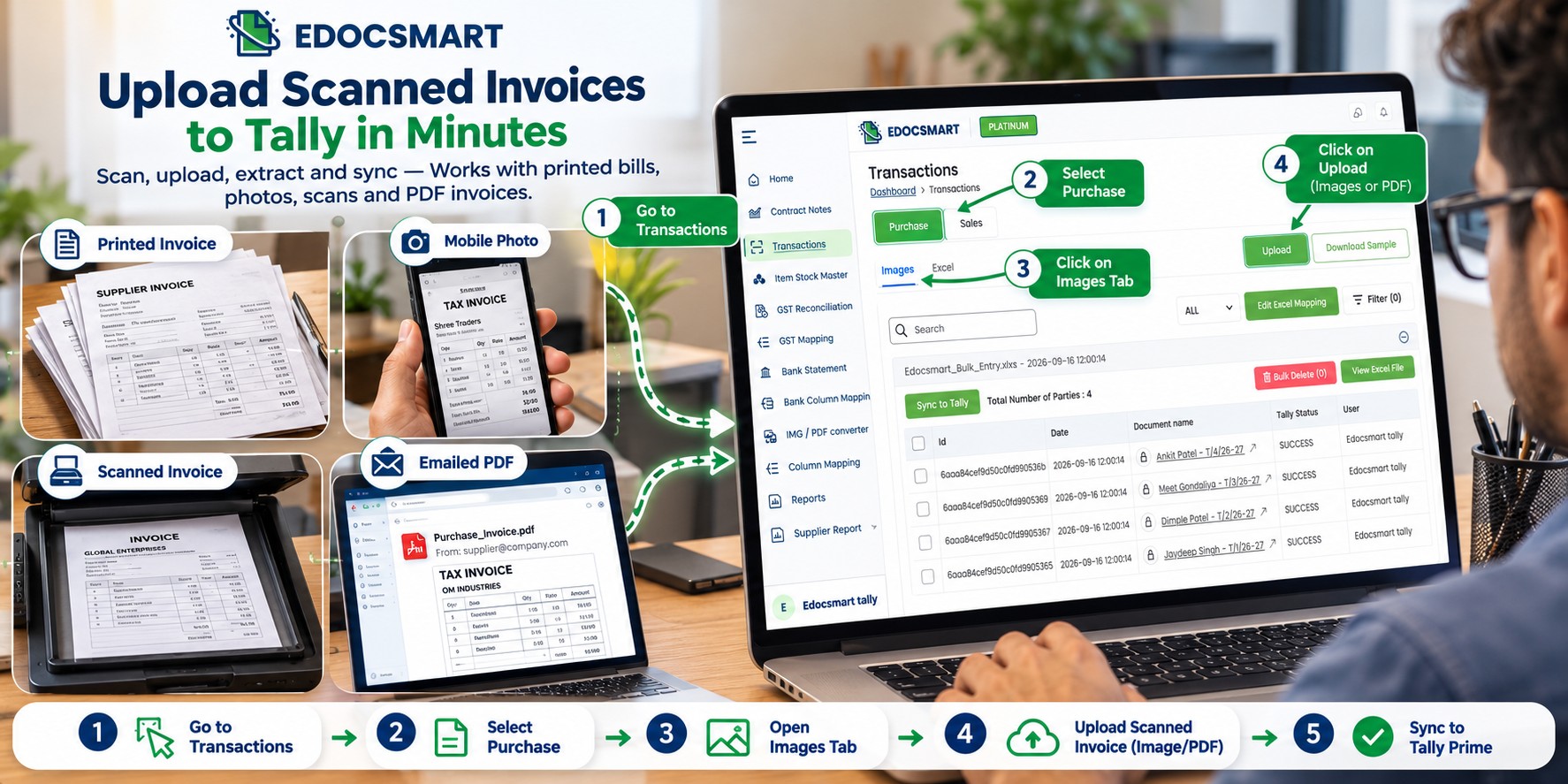
Step 3: Upload the Scanned Supplier Invoice
Select the invoice file from your computer.
For example, a manufacturing company may receive a scanned invoice containing:
Supplier name and GSTIN
Supplier invoice number and date
Raw material descriptions
HSN/SAC information
Quantity and measurement units
Item rates and taxable amounts
GST amounts and final invoice total
Instead of typing each field manually, the invoice is submitted for automated data extraction.
Step 4: Extract Invoice Information Automatically
Edocsmart uses invoice data extraction to identify available information from the uploaded document and organize it into structured fields.
The extracted information may include invoice-level details such as party name, invoice number, invoice date, GST and total amount.
For item-based invoices, the system can also prepare item descriptions, HSN information, quantities, units, rates and other available line-item details.
This process helps transform an unstructured scanned bill into information that can be reviewed for Tally accounting.
Step 5: Review and Correct the Extracted Data
After extraction, open the invoice's Review Data screen.
Check the supplier details, invoice reference, GST values and item-level information against the original document.
For example, if the supplier invoice contains a quantity of 25 but the extracted field shows 28, correct the value before proceeding.
Similarly, verify that item descriptions, rates and the final invoice total match the source document.
This review stage is especially important for businesses managing inventory.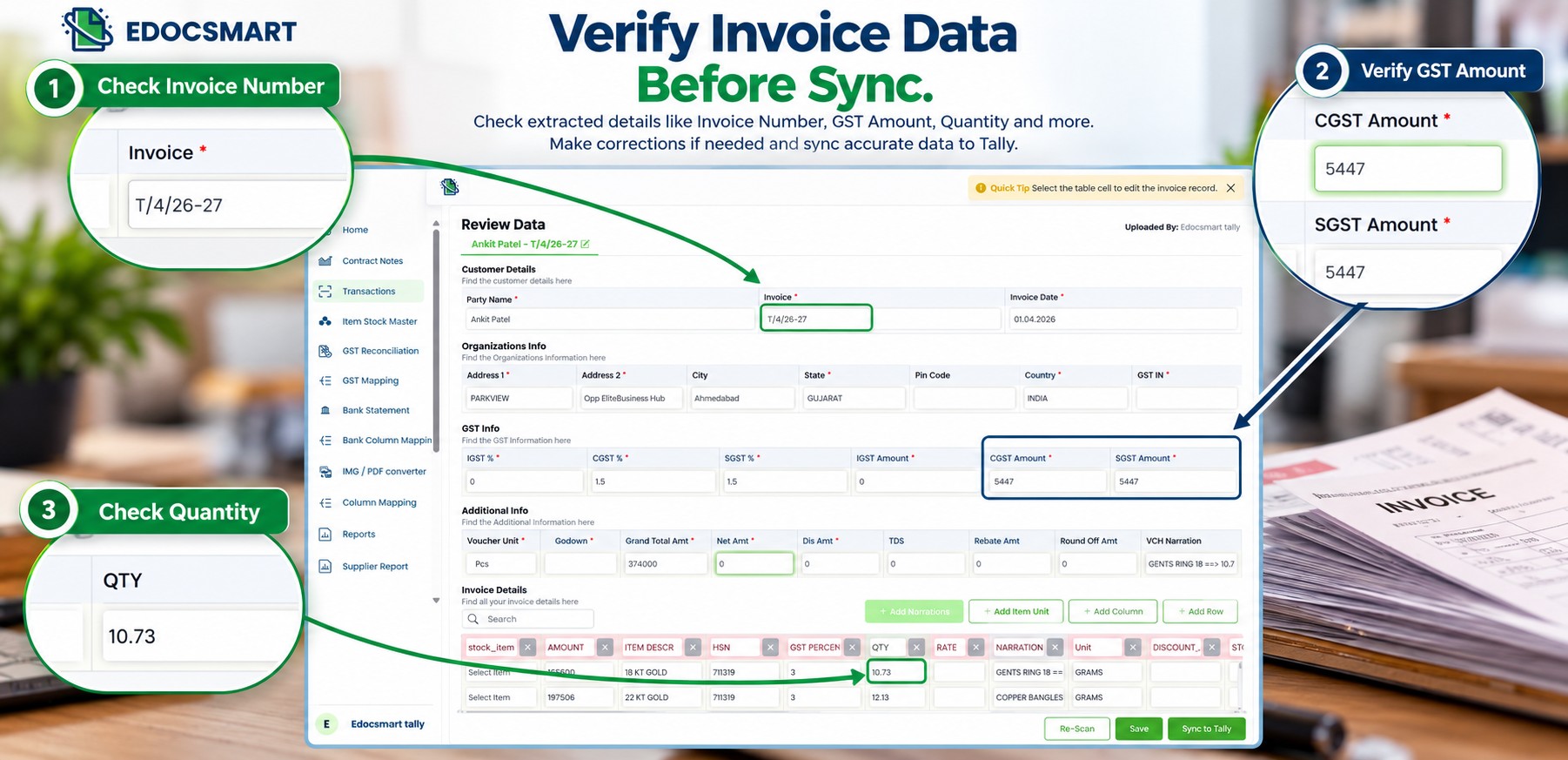
Step 6: Check Tally Mapping and Connector Status
Before synchronization, the extracted invoice information must align with the company's Tally accounting setup.
Check the relevant party ledger, stock items, units and GST configuration.
Configured mappings can reduce repeated setup, but unmatched or incorrect values should be resolved before posting.
Next, confirm that the Edocsmart Tally Connector is running and that the Tally connection status is correct.
The connector is the integration component used to transfer verified accounting data into Tally.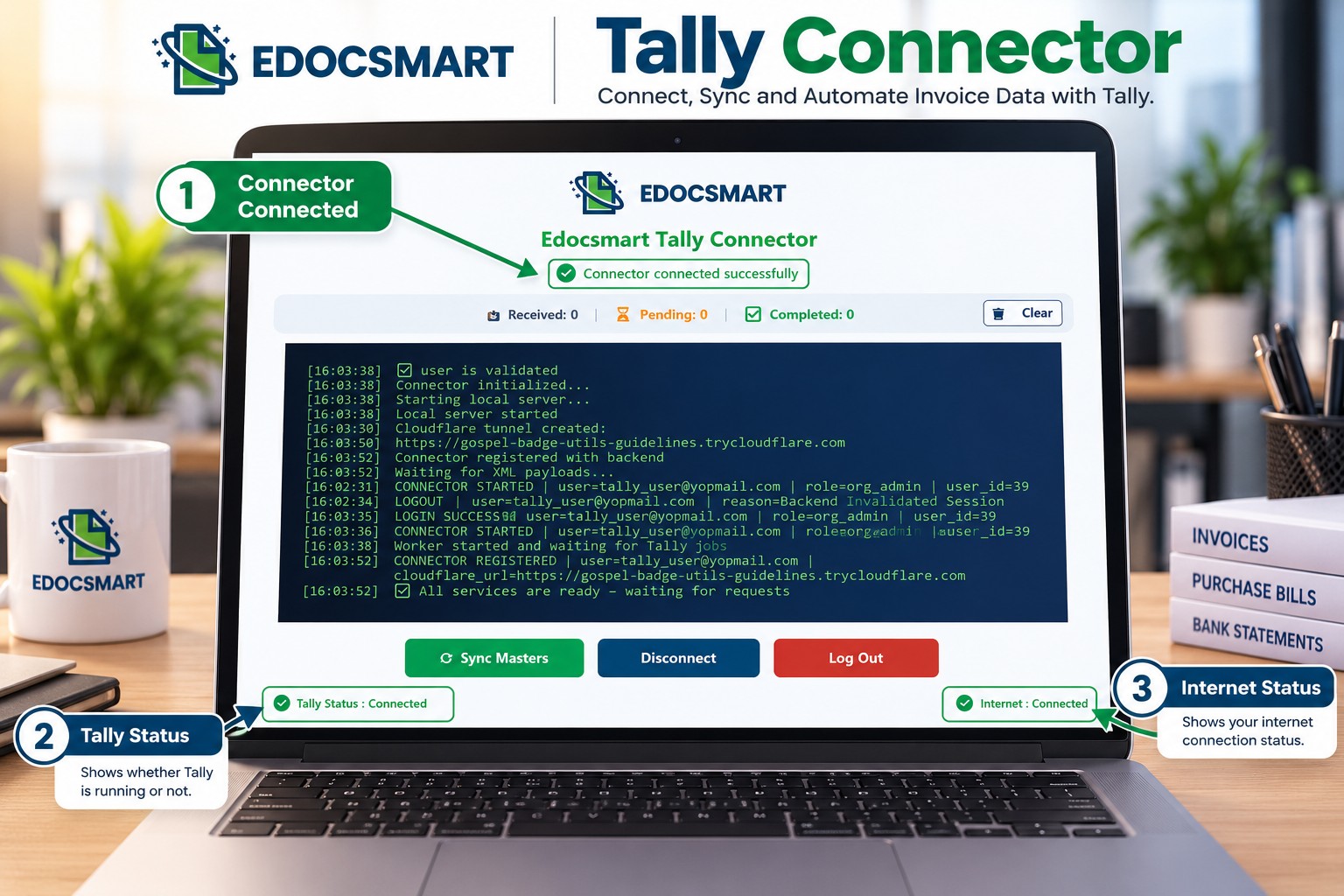
Step 7: Sync the Verified Invoice to Tally
Once the invoice has been reviewed and the accounting setup is ready, use Sync to Tally.
After synchronization, open the corresponding voucher in Tally Prime and verify the party ledger, invoice reference, date, inventory details, GST and final amount.
The final verification confirms that the recorded accounting information matches the supplier document.
Practical Example: Scanned Purchase Invoice to Tally Entry
Suppose a manufacturing company purchases electrical components from a supplier.
The supplier sends a scanned invoice containing the following information.
| Invoice Field | Example Value |
|---|---|
| Supplier Name | Metro Electrical Supplies |
| Invoice Number | MES/2026/184 |
| Invoice Date | 08 October 2026 |
| Item Description | Industrial Cable |
| HSN Code | As specified on the supplier invoice |
| Quantity | 50 Metres |
| Rate | ₹120 |
| Taxable Amount | ₹6,000 |
| GST Rate | 18% |
| GST Amount | ₹1,080 |
| Grand Total | ₹7,080 |
This is an illustrative invoice without additional discounts or charges.
In a traditional workflow, the accountant manually enters the supplier, invoice reference, item description, quantity, rate and tax information into Tally.
With automatic invoice entry in Tally, the scanned document is processed first, and the extracted information becomes available for review.
The accountant then confirms that Industrial Cable is matched with the appropriate stock item, the unit is Metres and the tax values are correct.
For a qualifying intra-state transaction, the ₹1,080 GST may be divided into ₹540 CGST and ₹540 SGST. For an inter-state transaction, IGST treatment may apply.
Once the details are verified and synchronized, the resulting Tally voucher should be checked for accuracy.
This illustrates how automation can reduce repetitive typing without removing the need for accounting verification.
What Should You Verify Before Syncing Scanned Invoices to Tally?
A scanned invoice may be readable, but accounting accuracy depends on more than document recognition.
Supplier Ledger and Invoice Identity
Confirm the correct supplier ledger, GSTIN, invoice number and date.
A duplicate supplier invoice number should be investigated before creating another entry.
Stock Items and Measurement Units
Check whether each extracted description matches the intended Tally stock item.
For example, 20 kilograms and 20 pieces represent different quantities even though the numeric value is the same.
GST and Invoice Amount
Verify the taxable value, GST rate, applicable tax treatment and final amount.
If the supplier invoice contains discounts, freight or additional charges, ensure these are handled according to the accounting configuration.
Voucher Accuracy
After synchronization, check the final voucher in Tally Prime.
A successful transfer does not replace the need to confirm that the entry has been recorded under the correct accounts and inventory masters.
Common Scanned Invoice Entry Mistakes and How to Avoid Them
| Common Issue | Why It Matters | Recommended Check |
|---|---|---|
| Duplicate supplier invoice | May create repeated purchase records | Verify invoice reference and supplier |
| Wrong party ledger | Can affect supplier balances | Match the correct ledger |
| Incorrect quantity | May affect inventory | Compare against original invoice |
| Wrong stock item | Can misclassify inventory | Review item mapping |
| GST mismatch | Can affect tax records | Check GST fields and transaction type |
| Incorrect invoice total | Can affect voucher accuracy | Reconcile line items, taxes and charges |
| Connector disconnected | May prevent synchronization | Check Tally Connector status |
These checks are useful whether a business processes five scanned invoices or hundreds of purchase bills.
Manual Invoice Entry vs Scanned Invoice Automation
| Task | Manual Invoice Entry | Edocsmart-Assisted Processing |
|---|---|---|
| Supplier information | Typed manually | Extracted for review |
| Invoice number and date | Entered individually | Structured fields prepared |
| Item descriptions | Typed row by row | Extracted item information reviewed |
| GST details | Entered and checked manually | Extracted tax fields verified |
| Ledger and stock matching | Manual selection | Configured mapping can assist |
| Tally voucher creation | Manual accounting entry | Verified data synchronized |
| Error handling | Corrections after or during entry | Review and correction before sync |
The actual time saved depends on invoice volume, document readability, item complexity and the organization's accounting configuration.
Which Businesses Can Benefit from Scanned Invoice to Tally Automation?
Manufacturing Companies: Raw material invoices often contain multiple items, quantities, units and GST details. Automated extraction can help prepare this information for purchase accounting.
Wholesale Distributors: Frequent supplier purchases and large item tables can create repetitive entry work. A structured review workflow can make invoice handling more manageable.
Jewellery Businesses: Accurate item descriptions, quantities, units and stock classifications are important when transferring purchase information into Tally.
Retail Businesses: Supplier invoices may arrive as printed bills, scanned PDFs or mobile photographs. Centralized invoice processing can help organize these different document formats.
Accounting Firms: Teams handling purchase bills for multiple businesses can use consistent extraction and verification processes while keeping each client's accounting configuration separate.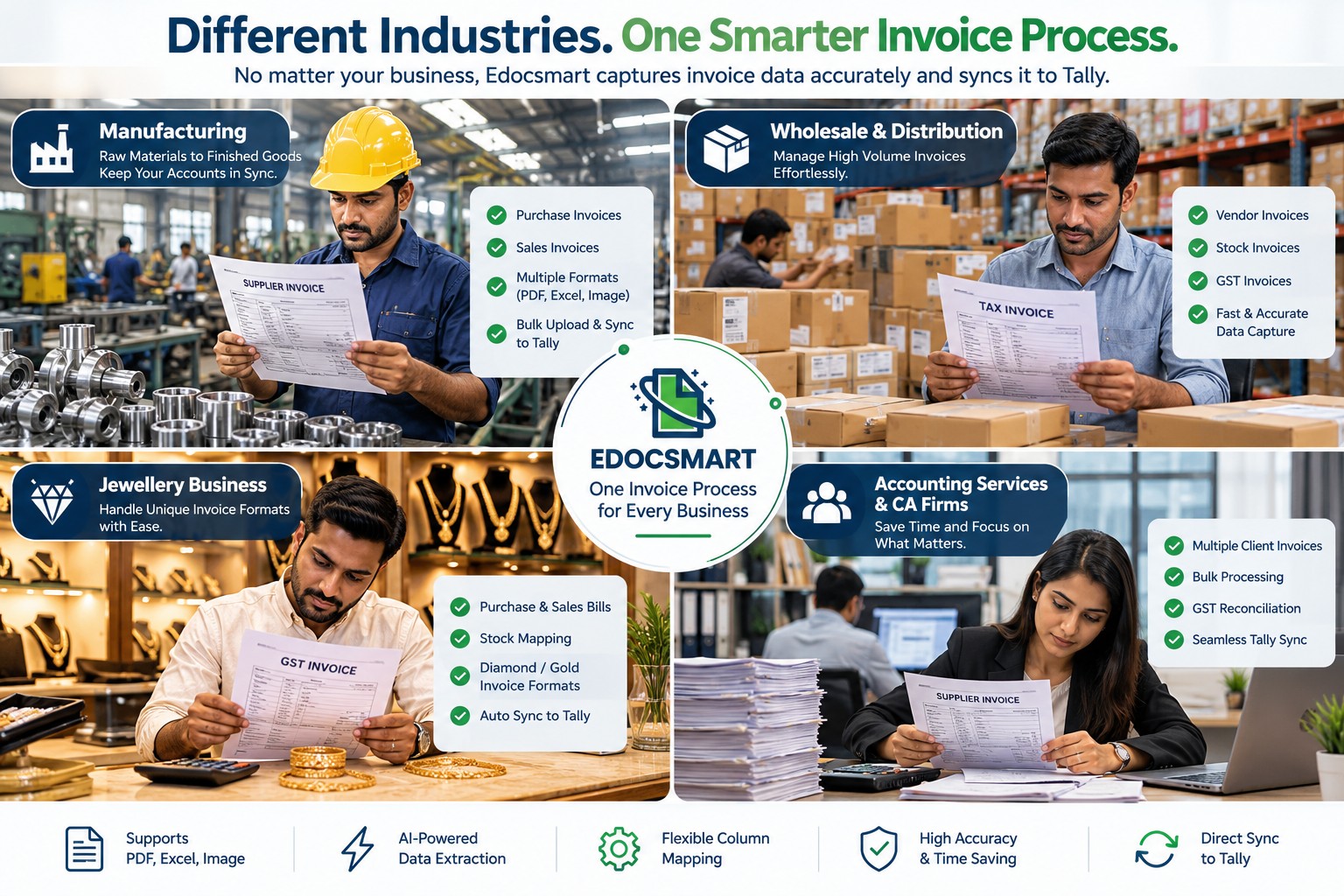
FAQs
1. How do I import a scanned invoice into Tally Prime?
To import a scanned invoice into Tally Prime, upload the document to a compatible invoice automation solution such as Edocsmart. The software extracts invoice details, including supplier information, item descriptions, quantities and GST fields. Review the extracted information, confirm the appropriate Tally mapping and synchronize the verified data through the configured connector.
2. What is scanned invoice to Tally software?
Scanned invoice to Tally software helps convert information from scanned supplier bills into structured accounting data. It can identify invoice numbers, supplier details, item information, GST and totals. After verification and appropriate mapping, the data can be transferred into Tally, reducing the need to manually type every invoice field.
3. How can I convert a scanned purchase bill into a Tally voucher?
Start by uploading the scanned purchase bill into Edocsmart. Review the extracted supplier details, invoice reference, item rows and GST information. Ensure the correct party ledger and stock items are matched, then verify the Tally Connector. Synchronize the invoice and check the resulting voucher in Tally Prime for accuracy.
4. What information can be extracted from a scanned GST invoice?
Depending on document quality and layout, scanned GST invoice processing can extract supplier name, GSTIN, invoice number, date, HSN/SAC, item description, quantity, rate, taxable amount, GST rate and total amount. Extracted values should be reviewed, particularly when an invoice contains multiple tax rates, discounts or additional charges.
5. How are supplier ledgers and stock items matched in Tally?
Supplier ledgers and stock items are matched according to the accounting system's existing masters and configured mappings. For example, a supplier's product description may differ from the internal stock-item name. The accountant should confirm the intended match before synchronization to avoid incorrect supplier or inventory postings.
6. What happens if scanned invoice data is extracted incorrectly?
If a scanned invoice contains an incorrect extracted value, review the original document and correct the relevant field before synchronization. Common examples include inaccurate quantities, invoice references, rates and GST amounts. Verifying the information in Edocsmart's Review Data screen helps prevent these errors from reaching the final Tally voucher.
7. How is scanned invoice to Tally different from PDF to Tally?
Scanned invoice to Tally focuses on extracting accounting information from document images, including scanned paper bills and photographs. PDF to Tally is a broader category that may involve both text-based PDFs and scanned PDF documents. Both workflows require structured data, accounting verification and suitable integration before creating Tally entries.
Conclusion
Scanned supplier invoices are a routine part of business accounting, but manually entering their information into Tally can become repetitive as invoice volumes and inventory complexity increase.
The objective of scanned invoice to Tally automation is to make invoice processing more organized while maintaining accuracy in supplier ledgers, stock items, GST information and purchase vouchers.
With Edocsmart, businesses can extract scanned invoice data, verify important accounting fields and synchronize approved information through the Tally Connector.
For related accounting workflows, explore Invoice to Tally, PDF to Tally and Excel to Tally.