Scanned PDF to Tally
Imagine an accountant sitting with a folder containing 150 supplier invoices collected over the past month. Some bills are printed clearly, others have faded ink, and a few contain handwritten notes or stamps.
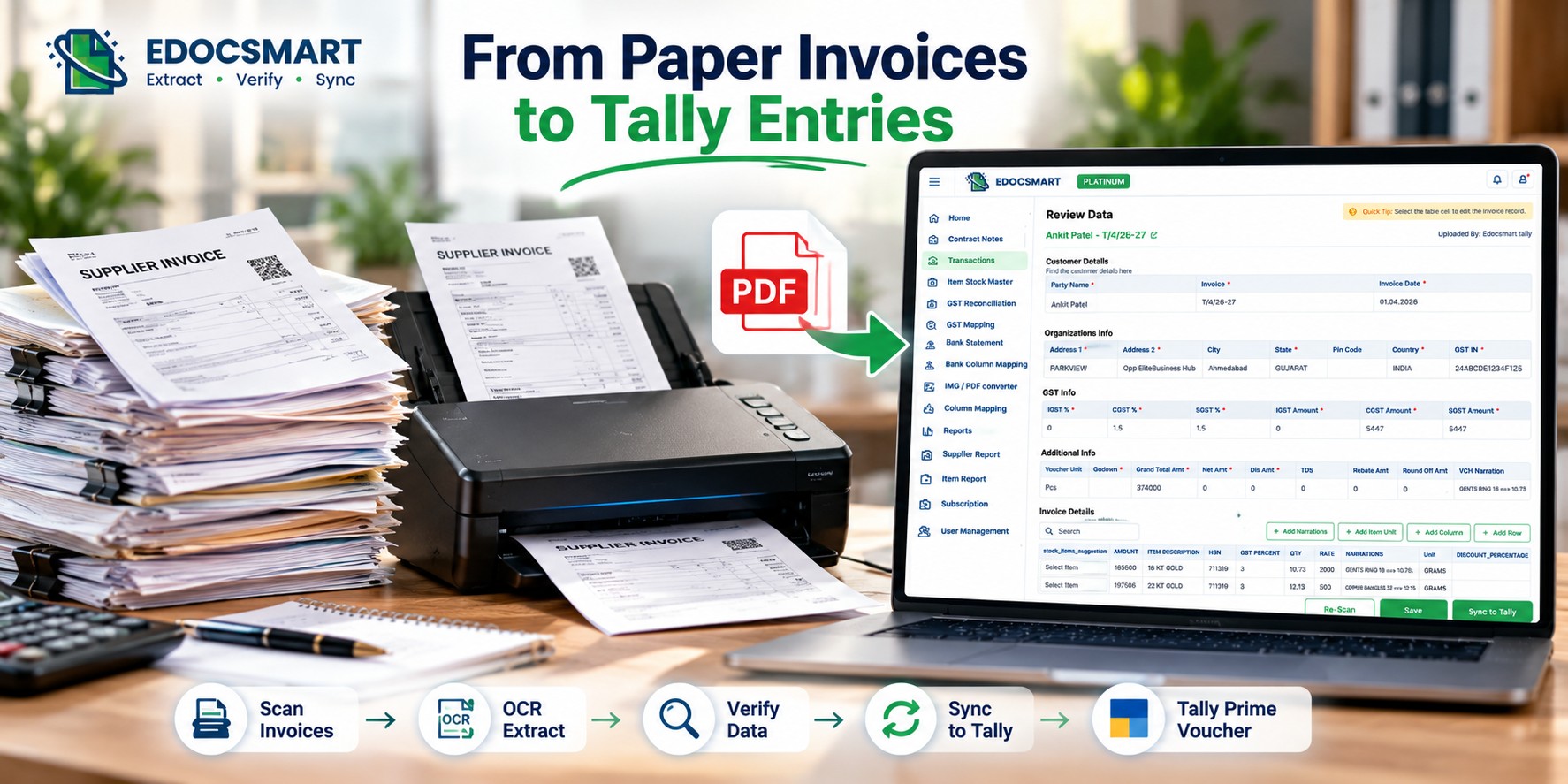
Learn how to convert scanned PDF invoices into structured accounting data using OCR, identify common scanning errors, and prepare verified entries for Tally with Edocsmart.
Why Scanning an Invoice Doesn't Finish the Accounting Work
To organize everything, the accountant scans the invoices and saves them as PDF files.
The paperwork is now digital, but the accounting work is still unfinished.
Each PDF still contains supplier names, invoice numbers, GST details, item descriptions, quantities and amounts that must be entered into Tally.
This is the difference between digitizing a document and digitizing accounting data.
A scanned PDF stores an image of the invoice. It does not automatically create a purchase voucher or identify the correct accounting ledger.
A scanned PDF to Tally solution bridges this gap by reading invoice information, organizing it into accounting fields and preparing verified data for synchronization.
What Actually Happens When a Paper Invoice Becomes a PDF?
When you scan a printed invoice, the scanner captures the document as an image.
The letters and numbers may be visible to a person, but they are not necessarily stored as selectable text.
For example, an invoice might contain:
Supplier: ABC Industrial Traders
Invoice Number: INV/248/26
GSTIN: 24ABCDE1234F1Z5
Item: Industrial Bearings
Quantity: 25
Taxable Value: ₹12,500
GST: 18%
A human can read these details immediately. Accounting software, however, needs the values in separate, correctly identified fields.
This is where Optical Character Recognition (OCR) becomes important.
How OCR Reads a Scanned Invoice
OCR analyzes the image and recognizes printed characters.
A document-extraction system then attempts to identify what each recognized value represents.
For instance, the number 25 could mean quantity, invoice number, discount percentage or something else. Its meaning depends on the surrounding labels and document layout.
Therefore, accurate invoice processing involves more than recognizing characters.
It requires identifying the relationship between the information on the document and the accounting fields where that information belongs.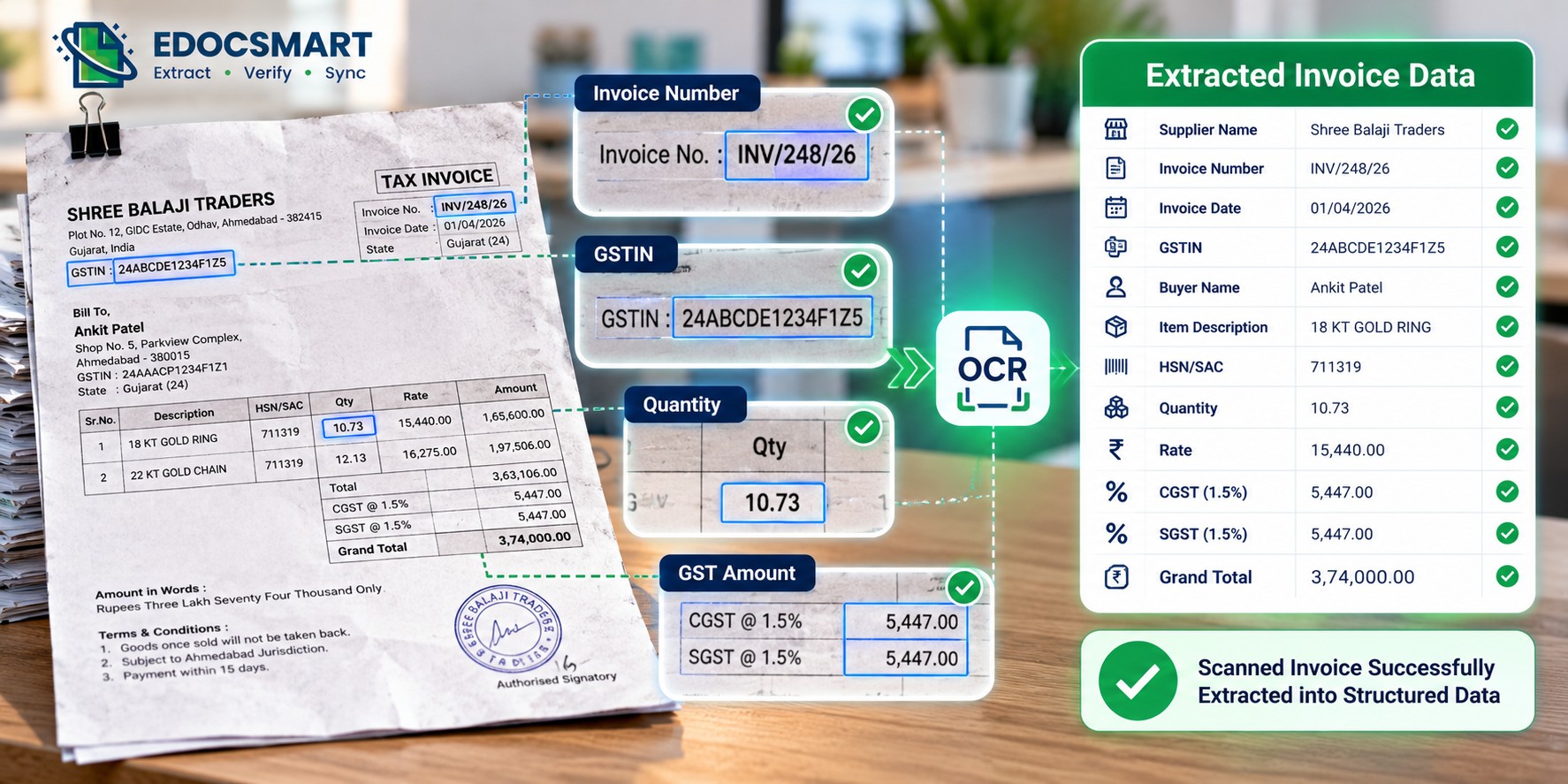
Why Does OCR Sometimes Read Invoice Information Incorrectly?
Scanned invoices are not always perfectly readable.
A document might look acceptable to a person but still contain small visual problems that affect automated extraction.
Consider these examples:
| Original Invoice Value | Possible OCR Reading | Accounting Risk |
|---|---|---|
| INV/1008 | INV/IOO8 | Incorrect invoice reference |
| Quantity 10.73 | Quantity 10.78 | Incorrect item quantity |
| Rate ₹1,250 | Rate ₹1,750 | Incorrect purchase value |
| GSTIN containing 0 | GSTIN containing O | GSTIN mismatch |
| Date 01/04/2026 | Date 07/04/2026 | Wrong voucher date |
These are illustrative examples of recognition errors, not guaranteed outcomes.
Small differences can have significant accounting consequences. A misplaced decimal may affect item values, while an incorrect GSTIN can create problems during tax-related verification.
That is why a scanned invoice should be treated as information that needs validation, rather than as a finished accounting entry.
Five Common Problems Found in Scanned Supplier Invoices
1. Blurred or Faded Printing
Thermal-paper bills, old invoices and low-resolution scans can make individual characters difficult to distinguish.
Where possible, rescan the original document with clearer settings rather than attempting to correct every field afterward.
2. Tilted or Cropped Documents
A document placed at an angle may be harder to interpret, particularly when it contains closely spaced item tables.
Cropped pages can also remove invoice totals, GST details or supplier information.
3. Stamps Over Important Numbers
Supplier stamps and handwritten signatures sometimes overlap invoice dates, tax amounts or item descriptions.
If a stamp covers an important value, the original invoice may need to be checked manually.
4. Multiple GST Rates
Some invoices contain products taxed at different GST rates.
For example, one item may carry 5% GST while another carries 18%.
The extraction and review process must preserve the correct relationship between each item and its applicable tax rate.
5. Complicated Item Tables
Invoices may contain multiple columns for HSN, quantity, units, discounts, rates, taxable values and GST.
When these columns are crowded or poorly aligned, information may be assigned to the wrong field.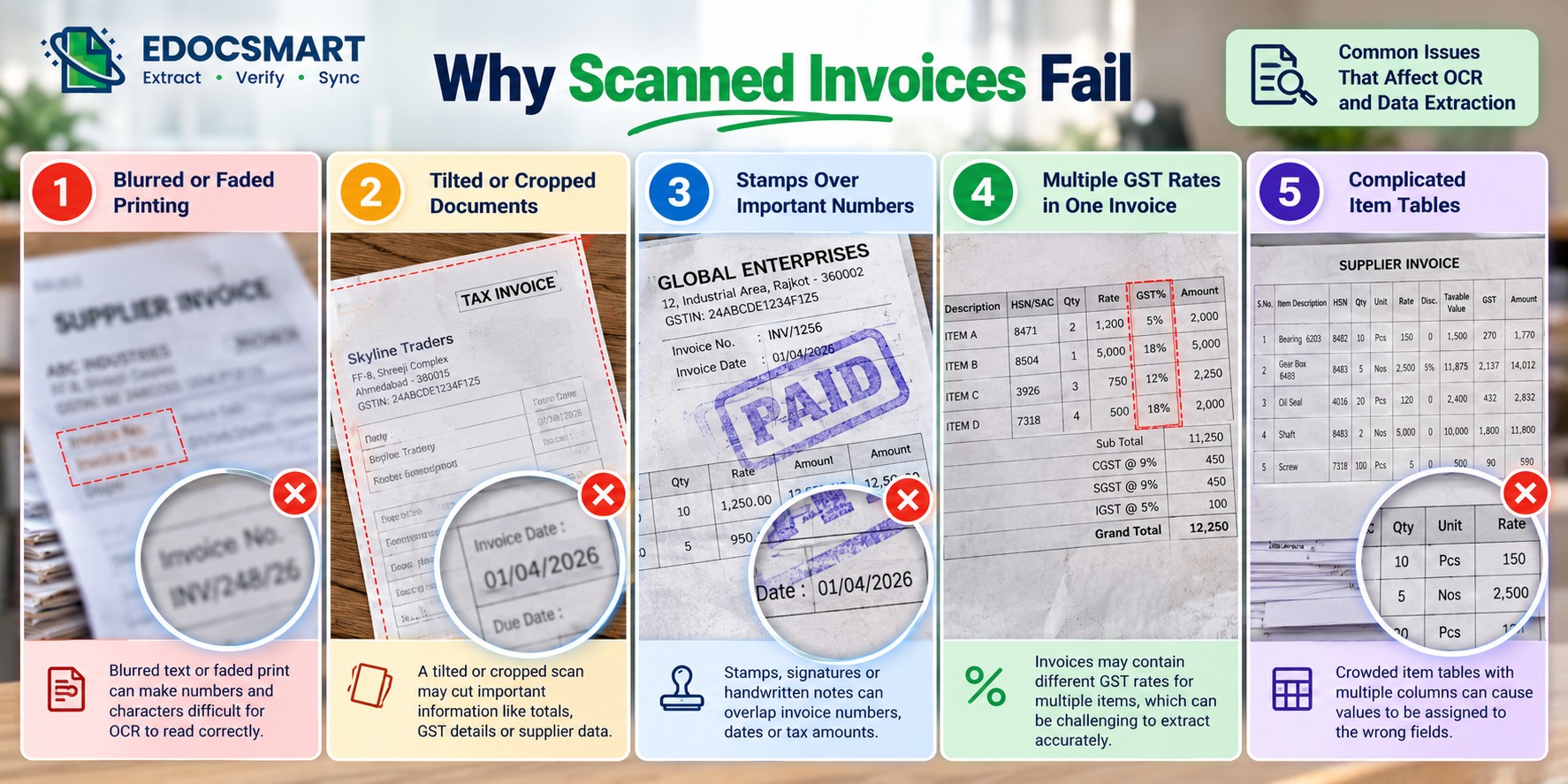
How Edocsmart Helps Process Scanned PDF Invoices
After scanning an invoice, businesses need a way to turn the document into usable accounting information.
Edocsmart supports invoice processing through an online interface where users can upload supported documents, review extracted information and synchronize verified data with Tally using the configured connector.
For purchase invoices, the workflow begins in Transactions → Purchase → Images.
After uploading the document, the extracted information can be reviewed in the Edocsmart invoice details interface.
The review screen organizes information into sections such as Customer Details, Organization Info, GST Info, Additional Info and Invoice Details.
Instead of reading the same scanned invoice repeatedly, accountants can inspect the extracted fields together and correct values that require attention.
Once the accounting information is verified and the necessary configuration is in place, the invoice can be synchronized through the Edocsmart Tally Connector.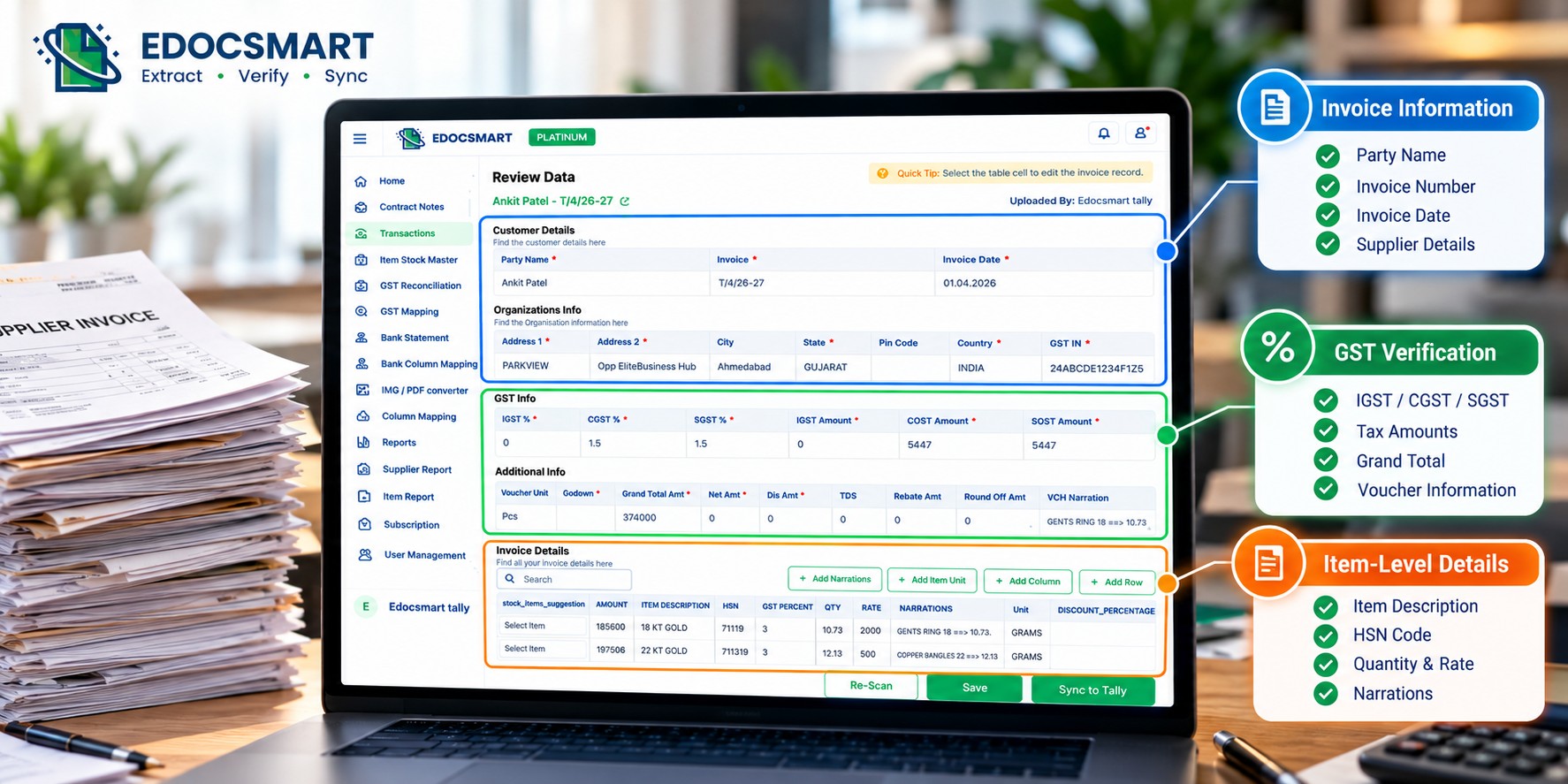
How to Prepare Paper Invoices for Better Scanning Results
Before processing a large number of old supplier invoices, a few preparation steps can reduce avoidable extraction problems.
Use Clear, Straight Scans
Place invoices flat on the scanner and ensure the entire page is visible.
For printed documents, a resolution of around 300 DPI is often a useful starting point.
Keep Invoice Pages Together
If an invoice contains multiple pages, preserve their order and ensure no pages are missing.
Supporting documents should not accidentally be treated as separate invoices.
Avoid Unnecessary Image Compression
Highly compressed scans may make small GSTIN characters, decimals and invoice numbers difficult to recognize.
Separate Unreadable Documents
If an invoice has damaged text or missing information, set it aside for manual checking rather than assuming extraction will recover the missing values.
Check for Duplicate Invoices
Before creating accounting entries, compare supplier names, invoice numbers, dates and amounts to help identify invoices that may already have been processed.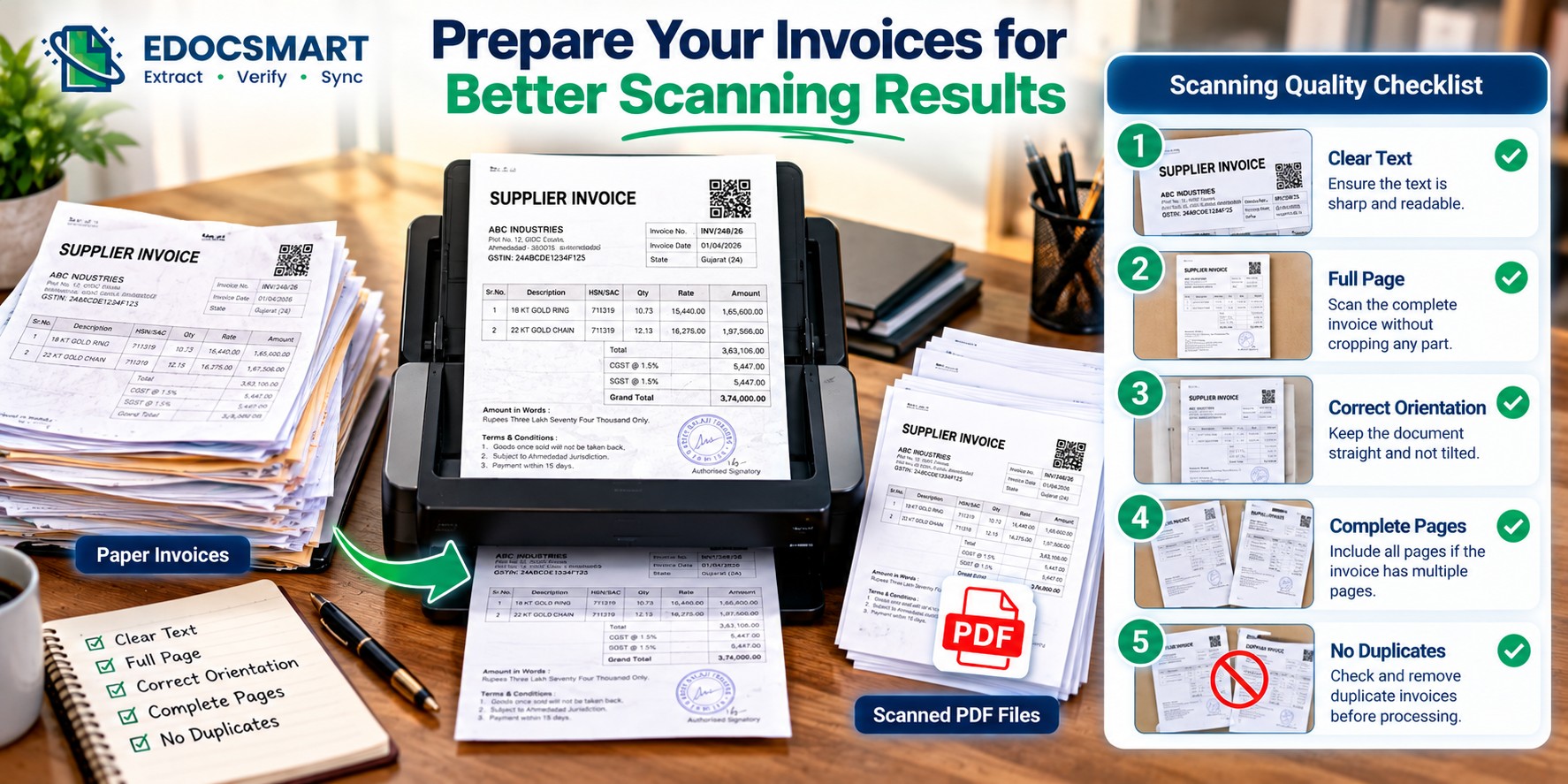
What Should Accountants Verify Before Sending Scanned Data to Tally?
Even when OCR extracts most fields correctly, the accounting information must make sense.
Three areas deserve particular attention.
Invoice identity: Verify the supplier, invoice number, date and GSTIN. These fields help identify the transaction and reduce the risk of recording the wrong document.
Item-level accuracy: Check item descriptions, HSN/SAC codes, quantities, units, rates and discounts. Errors here can affect inventory and voucher amounts.
Tax and total reconciliation: Confirm that the taxable values, GST amounts, discounts and final invoice total agree with the source document, allowing for applicable rounding.
For example, suppose a scanned invoice shows a taxable amount of ₹10,000 with 18% GST.
The expected GST is ₹1,800, making the invoice total ₹11,800, assuming there are no other adjustments.
If the extracted total is ₹11,300, the discrepancy should be investigated before synchronization.
Verification is particularly important when invoices contain multiple GST rates, discounts or additional charges.
Real-World Example: Digitizing One Month of Purchase Bills
Consider a small manufacturing business that receives 200 supplier invoices every month.
Some suppliers email digital PDFs, while others provide printed bills that the accounting team scans at the end of the day.
Previously, the accountant would open each scanned invoice, identify the supplier, manually enter the purchase details and check the tax calculations.
With an OCR-assisted workflow, the business can organize its invoices into digital records and extract relevant accounting fields for review.
The accountant can then focus on exceptions: unclear invoice numbers, unmatched stock items, incorrect quantities or GST differences.
After verification, the approved invoice information can be synchronized with the configured Tally environment.
This does not mean every invoice will process without intervention. The value comes from reducing repetitive transcription while keeping human review available where it matters.
Scanned PDF to Tally vs Manual Data Entry
| Factor | Manual Entry | OCR-Assisted Processing |
|---|---|---|
| Reading invoice text | Accountant reads each field | OCR recognizes document text |
| Identifying invoice information | Manually interpreted | Structured extraction assists |
| Handling unclear values | Manual investigation | Review and correction required |
| GST verification | Manual checking | Extracted values can be reviewed |
| Preparing accounting entries | Manual voucher entry | Verified data prepared for synchronization |
| Final accuracy | Depends on entry and review | Depends on extraction, mapping and review |
The goal is not to remove accounting judgment. It is to reduce unnecessary transcription work.
Frequently Asked Questions
1. Why can't I directly import a scanned PDF into Tally?
A scanned PDF usually contains an image of an invoice rather than structured voucher information. OCR and data extraction are needed to identify the relevant accounting fields before import or synchronization.
2. What is the best scan resolution for invoice OCR?
Around 300 DPI is commonly a practical starting point for clear printed invoices. The best setting depends on document quality, text size and the extraction system.
3. Can OCR confuse invoice numbers and GSTIN characters?
Yes. Similar-looking characters such as 0 and O or 1 and I can be misread, particularly in low-quality scans. These fields should be verified against the original document.
4. Can scanned invoices with multiple GST rates be processed?
Supported invoice-extraction systems may identify item-level tax information, but each item's GST rate and calculated amount should be reviewed before accounting synchronization.
5. Can I process old paper invoices after scanning them?
Yes, provided the documents are readable and supported by the extraction workflow. Old, faded or damaged invoices may require additional verification.
6. How do I avoid duplicate invoice entries in Tally?
Check supplier details, invoice number, date and amount against existing records before synchronization. Do not assume every OCR tool automatically prevents duplicates.
7. Is scanned PDF to Tally the same as PDF to Excel?
No. PDF-to-Excel mainly converts document information into spreadsheet data. Scanned PDF to Tally processing also requires accounting interpretation, verification, mapping and transfer into the Tally environment.
Conclusion
Scanning paper invoices is only the first stage of accounting digitization.
The real challenge is turning those scanned images into reliable supplier, item, GST and transaction information that can be used in Tally.
OCR helps recognize the text, while structured extraction and verification help make the information suitable for accounting.
With Edocsmart, businesses can process supported scanned invoices, review important accounting fields and synchronize verified information with Tally through the configured connector.
Explore the PDF to Tally and Invoice to Tally solutions to learn how invoice digitization can support more efficient accounting.