Simplify Excel Invoice Processing Before Tally Import
Prepare and review invoice details, resolve differences, and transfer approved records to Tally.
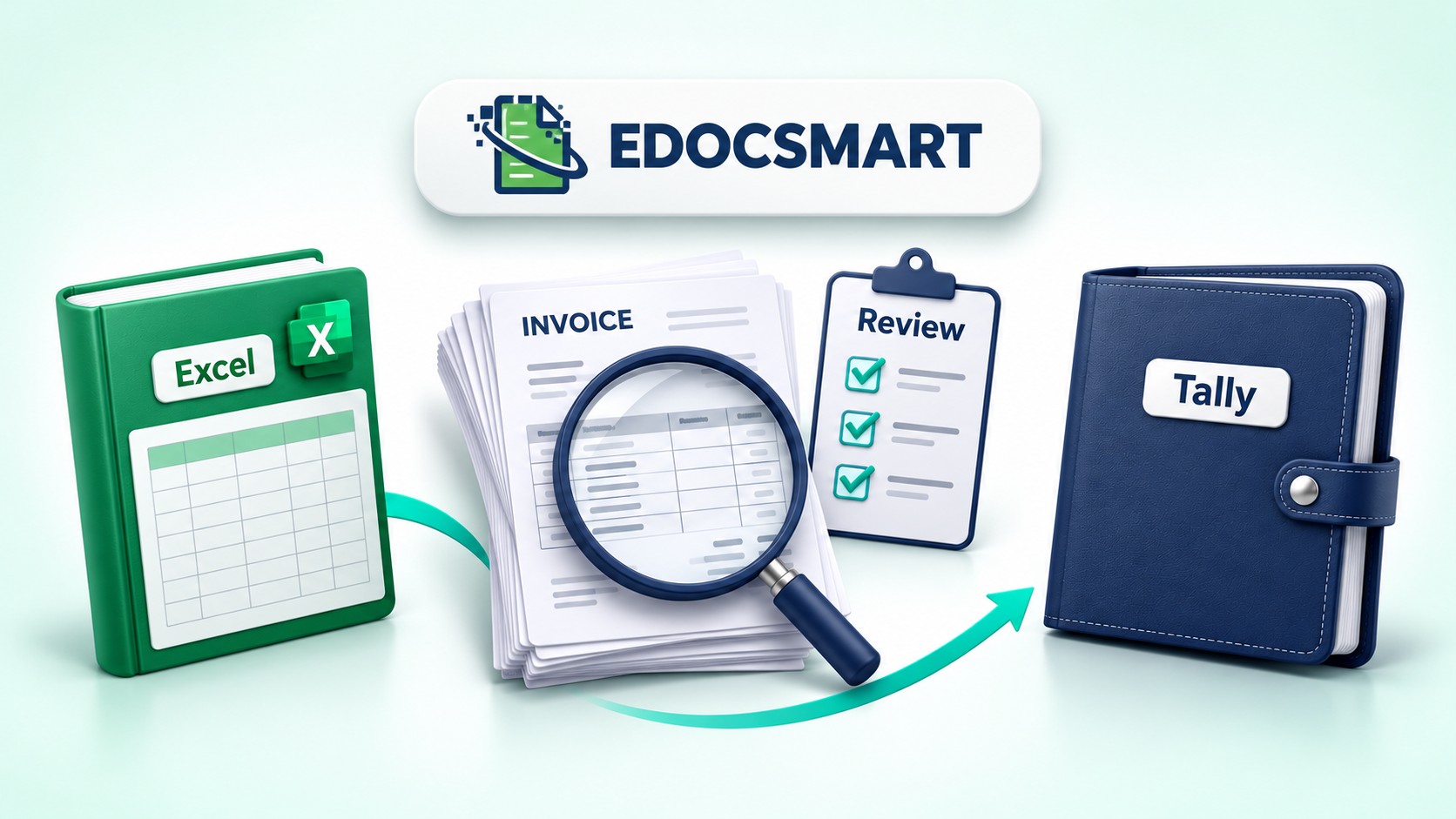
Excel files often contain the information needed to record sales and purchases in Tally. Invoice numbers, party names, item details, quantities, and amounts may already be available, but the records still need preparation and checking before transfer.
When this work is handled across separate files, users can spend considerable time comparing information and correcting entries. Keeping invoice preparation, review, and transfer within one workflow makes the process easier to follow.
Edocsmart helps users upload supported Excel files, review the prepared invoice records, and transfer approved entries to Tally.
Why Invoice Data Needs Preparation
Excel reports can have different headings and arrangements. One report may use “Invoice Number,” while another uses “Bill Reference.” Some files contain one row per invoice, while others include several item rows under the same invoice.
Before processing, understand what each relevant column contains. Check whether an amount represents an individual item, a taxable value, or the complete invoice total.
This initial review helps ensure that the information is used correctly when preparing the records.
Choose the Right Excel Option
Edocsmart provides Default Excel and Customized Excel options for supported workbooks.
| Excel Option | When to Use It |
|---|---|
| Default Excel | Your file follows the Edocsmart sample’s expected headings and structure. Manual column mapping is not required. |
| Customized Excel | Your supported workbook uses a different layout, so its columns need to be matched with the relevant system fields. |
For example, a customized report might use “Vendor” for the party name and “Bill Ref” for the invoice number. Mapping identifies where the required information appears in that file.
Choose the option that matches the workbook before preparing the records.
Upload and Prepare Your Invoice Data
Open Transactions, select the relevant Sales or Purchase workspace, and choose the Excel tab.
Upload the intended workbook and enter the actual Header Row Number when requested. This is the row containing column labels, which may appear below a report title or company information.
Keep an original copy of the workbook for comparison. If you use the Edocsmart sample, replace its example information with your transaction details while retaining the expected structure.
For a customized workbook, check the source-column selections before processing.
Review the Prepared Records Together
After processing, compare representative invoice records with the original workbook.
Review the following details:
- Invoice reference, date, and party name.
- Item descriptions, quantities, units, and rates.
- Item amounts and applicable tax information.
- Relevant ledger allocations and final totals.
Include a multi-item invoice in the review. Confirm that its item rows belong to the correct transaction and that any repeated invoice total has not been counted more than once.
Reviewing these details together gives users a clearer view of the invoice before approving it for transfer.
Resolve Differences Before Sending Data
If a record does not match the workbook, investigate the cause before transferring it to Tally.
An incorrect party name may come from the wrong source-column selection. An amount difference may relate to a missing adjustment, repeated total, or incorrectly selected amount field.
When several records show the same issue, inspect the shared mapping or configuration first. Correct the cause, review the affected records again, and save the approved information through the available workflow.
This helps keep unresolved differences out of the transfer batch.
Transfer Approved Entries to Tally
Once the records have been reviewed, open the intended Tally company and start the Edocsmart Tally Connector.
Keep the connector running while transferring approved records. Begin with a small sample and inspect the resulting vouchers in Tally before continuing with the remaining entries.
Check which records have already reached Tally before retrying a partially completed transfer. Repeatedly submitting the same records without checking can create duplicate entries.
Edocsmart supports invoice-data preparation and transfer, while Tally remains the system where the accounting entries are maintained.
Frequently Asked Questions
1. Can I use my own Excel invoice format?
Yes. For a supported workbook with a different layout, select Customized Excel and map its relevant columns to the appropriate system fields.
2. Is manual mapping required for the Edocsmart sample?
No. Manual column mapping is not required when you select Default Excel and retain the sample’s expected headings and structure.
3. Can one invoice contain multiple item rows?
Yes. Review how the related rows are prepared under the invoice. A repeated invoice reference across item rows does not automatically mean the transaction is duplicated.
4. What should I check before transferring records?
Compare invoice references, dates, parties, item details, applicable tax information, ledger allocations, and final totals with the original workbook.
5. Does uploading an Excel file automatically send its records to Tally?
Uploading and syncing are separate activities. Prepare and review the records, approve the intended entries, and submit them for transfer with the Edocsmart Tally Connector running.
6. Does Edocsmart replace accounting and inventory software?
In this workflow, Edocsmart helps prepare, review, and transfer supported Excel invoice data. Accounting and inventory management remain in Tally.
Conclusion
A clear invoice-data workflow helps users understand what has been uploaded, what needs checking, and which records are ready for transfer.
Edocsmart Excel to Tally Software brings preparation, review, and transfer into one workflow, helping users manage their supported Excel invoice data before sending approved entries to Tally.