Why Is My Excel Data Not Importing into Tally
Learn how to check header rows, mapping, missing ledgers, and connector issues, and verify entries before retrying.

You upload your Excel file, expect the entries to appear in Tally, and open the company to check. But the vouchers are missing. Perhaps only some transactions have arrived, or the records appear with unexpected values.
The spreadsheet looks complete, so where did the process go wrong?
An Excel-to-Tally workflow has several stages: reading the file, identifying the headers, mapping the fields, preparing the transactions, and transferring them to the correct company. A problem at any stage can interrupt the result.
Edocsmart helps make these stages easier to review by letting your team inspect prepared transaction data before synchronization. When an entry does not reach Tally, the useful starting point is to identify where the process stopped.
This guide explains the checks to make when your Excel data is not importing into Tally, with practical fixes for file preparation, mapping, connector issues, and incomplete batches.
First, Identify Where the Import Stopped
“Not importing” can describe different problems. Your next action depends on what you can already see.
| What you notice | Where to start |
|---|---|
| The workbook does not upload | Check the selected file and the upload message. |
| The file uploads, but fields are empty or misplaced | Check the worksheet, header row, and column mapping. |
| Prepared entries look correct, but syncing does not complete | Check the connector, target company, and available error details. |
| Only some transactions appear in Tally | Identify successful records and investigate the remaining entries. |
| Vouchers exist but contain unexpected values | Compare mapping, invoice grouping, and source amounts. |
Record any displayed error before changing the file. An exact message is more useful than repeatedly uploading the same workbook.
Know Which Import Method You Are Using
You may be importing through TallyPrime’s own Excel import facility or using an external platform and connector.
For a native TallyPrime import, check its import results and available exception details. TallyPrime can report problems such as missing masters or invalid values, and its configured exception behaviour affects how an import proceeds. TallyHelp
For an Edocsmart workflow, check the uploaded workbook, prepared records, mapping, and connector before looking for the resulting vouchers.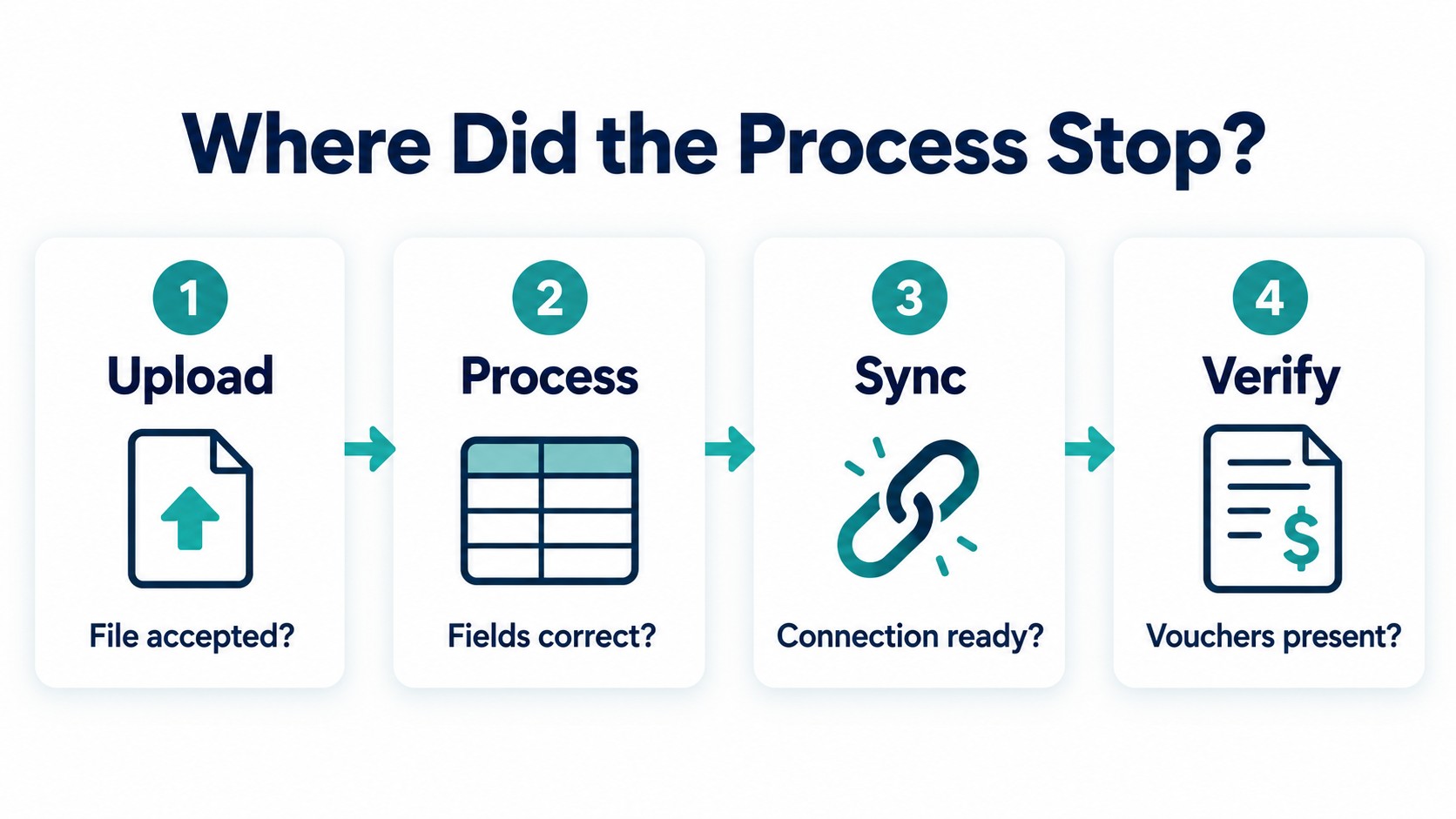
1. The Wrong Header Row Is Selected
An Excel workbook may begin with a company name, report title, reporting period, or several blank rows. The actual column headings may appear further down.
If the wrong row is treated as the header, the system may not identify fields such as invoice number, party name, or amount correctly.
What to Check
Open the workbook and find the row containing the actual column labels.
For example:
| Excel row | Content |
|---|---|
| Row 1 | Purchase report |
| Row 2 | Reporting period |
| Row 3 | Blank |
| Row 4 | Invoice No., Date, Supplier, Item, Amount |
In this example, the header row is 4. Use the row number from your own workbook rather than copying the value shown in a demonstration screenshot.
How to Fix It
Select the correct header row in the upload configuration, then check the prepared records again. If the workbook contains several worksheets, also confirm that the intended sheet is being processed.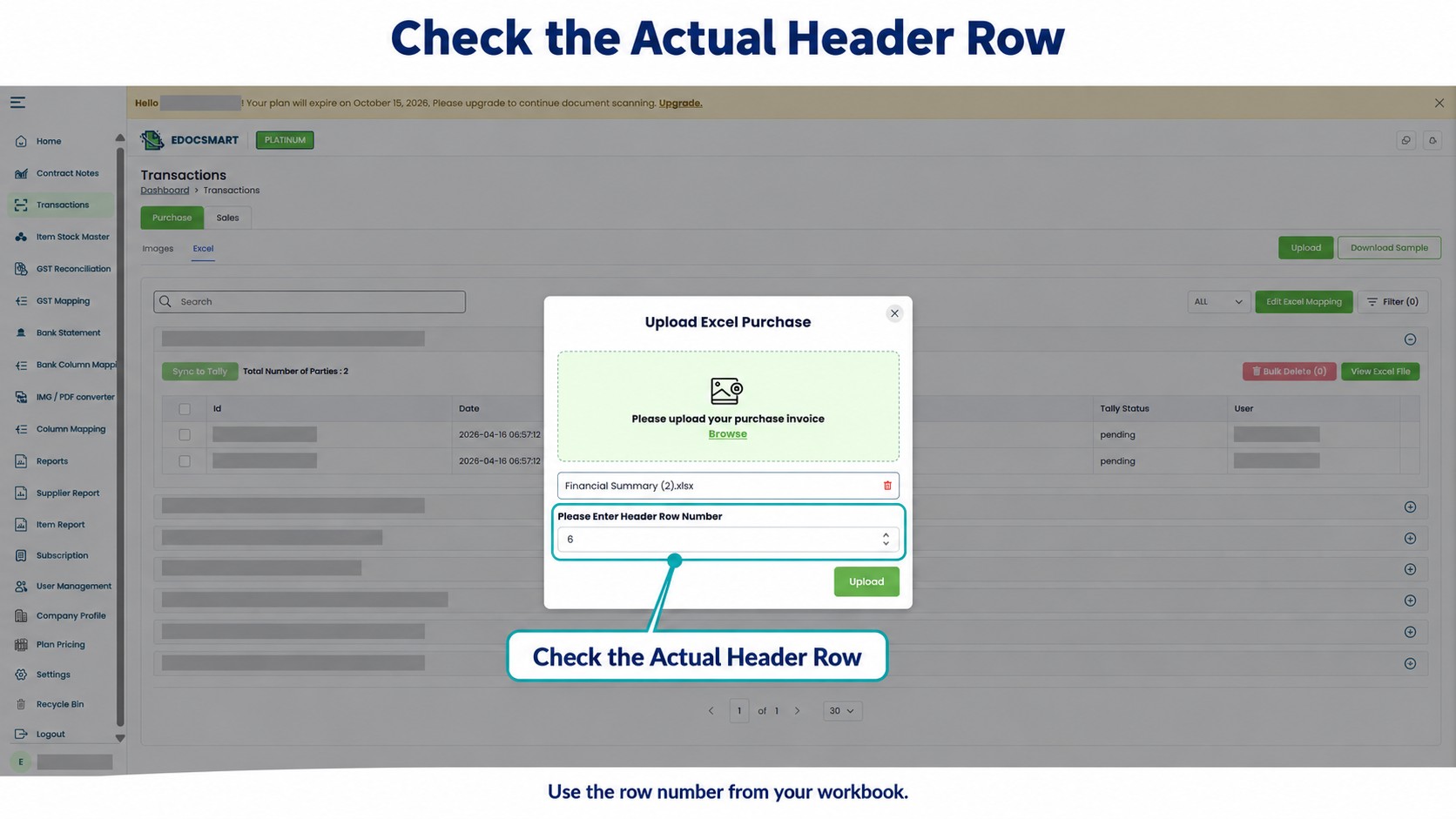
2. Excel Columns Are Mapped to the Wrong Fields
A file can upload successfully while still producing incorrect records.
For example, an invoice-total column might be mapped to an item amount, or a reference-number column might be mapped to the wrong voucher field.
TallyPrime’s mapping templates connect source Excel columns with the corresponding accounting fields. The mapping must reflect the structure of the workbook being imported. TallyHelp
How to Fix It
Compare each important source column with its intended destination:
- Invoice number and date.
- Customer or supplier name.
- Item description.
- Quantity, rate, and unit.
- Tax and discount values.
- Item amount and invoice total.
Pay particular attention to columns with similar names. “Amount,” “Net Amount,” and “Bill Amount” may represent different values in your file.
If someone has renamed, inserted, or rearranged columns since the last successful upload, review the saved mapping before reusing it.
3. Required Ledgers or Stock Items Are Missing
A prepared transaction may refer to a party ledger, stock item, or unit that is unavailable in the target company.
Similar-looking names also need attention. A spreadsheet entry such as “ABC Traders” should be checked against the intended master rather than matched casually to another business with a similar name.
Missing masters and incompatible configurations are among the issues addressed in Tally’s official import troubleshooting guidance. Errors & Resolutions
How to Fix It
Check the exact master named in the error or affected record.
Confirm whether:
- The intended ledger or item already exists.
- The record is mapped to the correct existing master.
- Your configured workflow permits creating missing masters.
- The unit and stock settings suit the transaction.
Avoid creating several near-identical masters just to get past an error. Correct the matching or setup first.
4. Dates or Numeric Values Need Correction
A cell can look correct in Excel while containing text or an unexpected value.
A date such as 04/05/2026 is also ambiguous unless its interpretation is clear: it could mean 4 May or 5 April.
How to Fix It
Inspect the source values and the processed result:
- Confirm that dates are interpreted as intended.
- Check the transaction period and target company.
- Remove accidental spaces or text from numeric fields.
- Check negative values and decimal placement.
- Review calculated amounts before uploading.
Do not rely only on the cell’s appearance. Compare the date or amount displayed in the prepared record with the source transaction.
5. Multiple Item Rows Are Grouped Incorrectly
One invoice may occupy several Excel rows because it contains several products.
If those rows are not identified as belonging to the same transaction, the output may contain split vouchers, missing items, or incorrectly combined records.
TallyPrime provides configuration for identifying transactions through unique values, including combinations of voucher type, date, and number. The grouping requirements must match the import method being used. TallyHelp
How to Fix It
Choose one affected invoice and trace every associated row.
Check whether its invoice reference and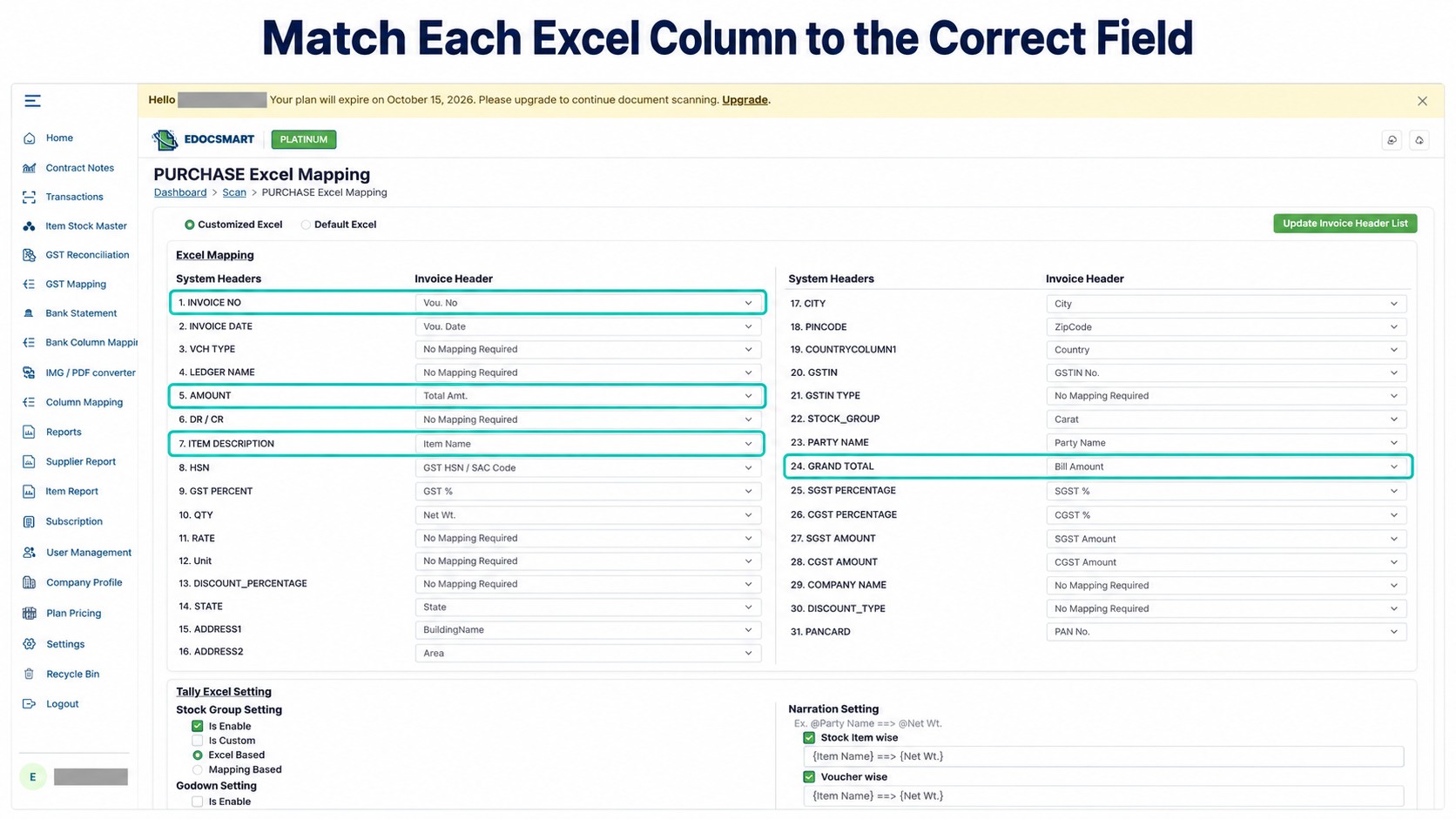 other required grouping values remain consistent. Confirm that another invoice has not accidentally been given the same identifying combination.
Then inspect the prepared transaction: does it contain all the intended items, and only those items?
6. The Tally Connector Is Not Ready
In a connector-based workflow, uploading and reviewing the workbook does not complete the transfer.
The connector must be available for the configured connection to Tally. A disconnected connector or an incorrect target-company setup should be checked when prepared records do not reach their destination.
How to Fix It
Before retrying:
- Open Tally and confirm the intended company.
- Open the Edocsmart Tally Connector.
- Inspect its actual connection status.
- Check any available error or connection message.
- Retry only after addressing the reported issue.
A connected indicator confirms connection readiness; it does not, by itself, prove that a particular voucher was created.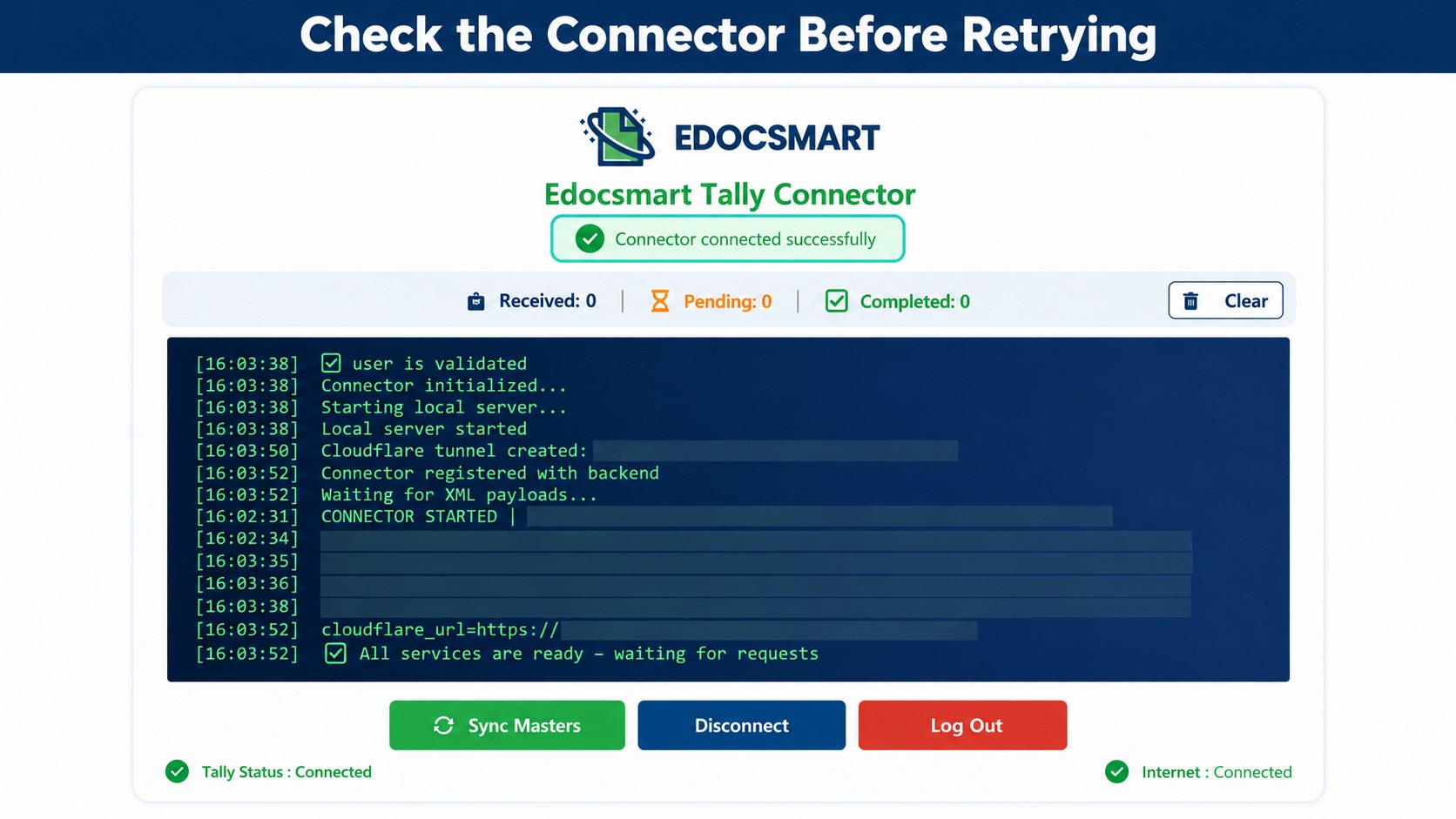
7. The Invoice Total Does Not Match the Prepared Entry
A difference between source and prepared totals is a reason to investigate before syncing again.
Possible checks include missing item rows, incorrect quantities or rates, discounts, additional charges, tax mapping, and rounding.
How to Fix It
Compare one affected invoice in detail:
| Value | Review question |
|---|---|
| Item rows | Are all the original items present? |
| Quantity and rate | Are the values in the correct columns? |
| Discount | Is it represented as an amount or percentage as intended? |
| Tax | Are the relevant fields mapped correctly? |
| Charges and rounding | Are they included in the intended place? |
| Final total | Does it agree with the source transaction? |
Do not adjust the final amount merely to make the entry pass. Find the source of the difference.
8. Only Part of the Batch Was Imported
An incomplete batch needs a different response from a batch that never started.
Some records may already exist in Tally while others remain unresolved. Repeating the whole file without checking can create duplicate-entry risk.
For native imports, TallyPrime’s exception reporting helps identify records requiring attention. For an external workflow, use the available record statuses and check Tally itself. TallyHelp
How to Fix It
Separate the batch into:
- Records confirmed in Tally.
- Records with a reported problem.
- Records whose outcome is still unclear.
Resolve the affected records and confirm the retry behaviour before sending them again. Do not assume the software will automatically recognise every previously imported transaction.
How to Troubleshoot the Edocsmart Excel-to-Tally Workflow
Use a small affected sample to locate the problem:
- Open Transactions. Confirm whether the file belongs under Sales or Purchase, then select the Excel workflow.
- Check the upload settings. Verify the workbook and actual header row.
- Inspect Excel mapping. Compare source headers with the configured fields.
- Review a prepared record. Check its invoice reference, date, party, item rows, and total.
- Correct and save changes. Complete the available review process before retrying.
- Check the connector and company. Confirm the intended destination.
- Sync the appropriate records. Avoid resending entries already confirmed in Tally.
- Verify the result. Compare the resulting vouchers with the source sample.
Edocsmart’s published Excel workflow combines mapping, record preparation, review, and synchronization, giving your team checkpoints before approved data is transferred. EdocSmart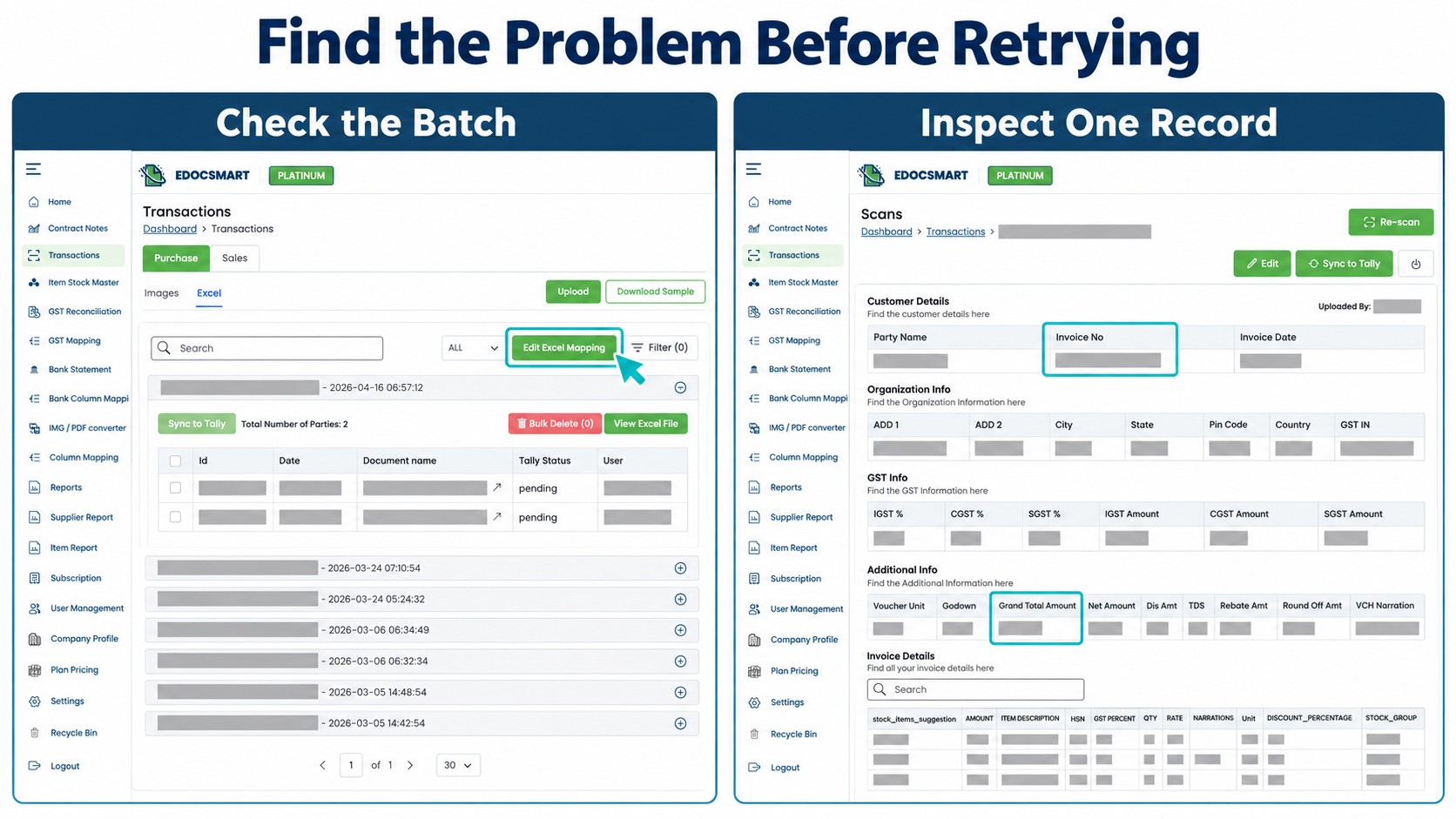
A Useful Test: Compare One Working Record with One Failed Record
When some entries work and others do not, compare a successful transaction with an affected one from the same workflow.
Look for differences in:
- Party and item names.
- Date values.
- Number of item rows.
- Empty mandatory fields.
- Discount or charge treatment.
- Voucher references.
This comparison can narrow the investigation more quickly than changing every setting at once.
Change one relevant setting at a time and retest with a small sample. Keep the original workbook so you can trace what changed.
When Should You Ask for Support?
If the cause remains unclear, prepare a focused support request containing:
- The exact error message.
- The stage where processing stopped.
- The affected invoice reference.
- A redacted sample workbook.
- Relevant mapping screenshots.
- Whether any records reached Tally.
This gives the support team a concrete example to investigate. Remove customer and account details that are unnecessary for diagnosis.
Frequently Asked Questions
1. How to find out why an Excel file is not importing into Tally?
Identify whether the failure occurs during upload, processing, mapping, or transfer. Record the error and inspect one affected transaction before retrying.
2. How to fix incorrect Excel header mapping?
Locate the actual header row, select it in the relevant configuration, and match each source column with its intended field. Check the prepared records afterward.
3. How to resolve a missing-ledger problem during import?
Confirm the intended ledger in the target company. Correct the matching or create the required master through the appropriate configured process.
4. How to retry a partially imported Excel batch?
First confirm which transactions already exist in Tally. Resolve the remaining records and check the workflow’s retry behaviour before sending them again.
5. How to verify Excel entries after syncing to Tally?
Compare invoice references, dates, parties, item details, and totals with the source workbook. Review individual invoices as well as batch totals.
6. Can an Excel file upload successfully but fail later?
Yes. File acceptance is only one stage. Mapping, record preparation, accounting configuration, or connection issues can still prevent the intended result.
7. Does a connected connector mean all vouchers were imported?
No. Connection readiness and transaction completion are different checks. Verify the relevant records in Tally.
8. Should the entire workbook be uploaded again after an error?
Check the earlier result first. Some records may already have been created, so a full retry may be unnecessary.
Conclusion
When Excel data does not import into Tally, start by finding the stage that needs attention. Check the header row and mapping, inspect the prepared transaction, confirm the required masters and connection, and verify what already reached Tally.
Working through one affected record at a time makes the problem easier to isolate and reduces unnecessary retries.
For the complete upload, mapping, review, and synchronization process, explore Excel-to-Tally